Showing posts with label Active Directory Domain Services. Show all posts

Wednesday, November 18, 2015

Find strings from a result of the collection in PowerShell

There are many rich functions in PowerShell. It's easy for administrators to find the information which they need. For an example, I need to find something in the following collection.


How can I search something in it?

We can add () and -match to the PowerShell like this.


Assuming that one of users is a member of many AD groups. I can add () and -match to search it from the memberof collection.


Eventually, I got the result what I need.

This posting is provided “AS IS” with no warranties, and confers no rights!

Saturday, September 19, 2015

Deploy Local Administrator Password Solution (LAPS) for on-premises domain members

Local Administrator Password Solutions (LAPS) is a solution provided by Microsoft to manage the local administrator account on domain members which are included workstations and servers. LAPS extended Active Directory Schema to store each password of domain members into an Active Directory attribute, ms-Mcs-AdmPwd. By default, domain administrators can read this attribute to get the password of local administrator accounts but we can configure delegation to allow other groups or users to get it. Using LAPS to manage the password, it can change the password of local administrator account periodically because LAPS is needed to work with Group Policy.

LAPS tool requirement
  • Active Directory: Windows Server 2003 Service Pack 1 (SP1) or later
  • Managed domain members: Windows Server 2003 SP2 x86 or x64 later
  • Management tools requirement: .NET Framework 4.0, Windows PowerShell 2.0 or later, Group Policy Management Console, Active Directory Domain Services management tools

Lab environment
  • 1 x Domain Controller named DC01 is installed Windows Server 2012 R2
  • 1 x Windows Server 2012 R2 member server named MS01 to install LAPS
  • 2 x domain workstations are installed Windows 7 and 8.1 named W7 and W8.

Prerequisites
Download and save LAPS installation files on C:\Temp of MS01 from the following web site. Local Administrator Password Solution (LAPS)

Make sure the configuration account is a member of Schema Admins of your domain forest.
Install Group Policy Management Console and AD DS and AD LDS Tools on MS01.


Create a new OU named workstations and move W7 and W8 into this OU.
Create 2 domain user accounts R1 and R2 for testing.
Create a local user account named Nimda and add into local administrator group in Windows 7 and Windows 8.1

Lab
1. Log in MS01 as Domain Administrator.
2. Navigate to C:\Temp and then run LAPS.x64 to install LAPS with full installation.


3. Launch PowerShell as administrator.
4. Perform Import-Module AdmPwd.Ps to import the PowerShell module for LAPS.


5. Perform Update-AdmPwdSchema on PowerShell to extend Active Directory Schema.


ms-MCS-AdmExpirationTime and ms-Mcs-AdmPwd attributes have been added into you Active Directory Schema for computers.


6. Perform Find-AdmPwdExtendedRights -Identity Workstations to check current permission to read these attributes.


7. Perform Set-AdmPwdComputerSelfPermission -Identity Workstations to grant permissions for computer accounts which is under this OU to update the managed local administrator password and expiration date.


8. Perform Set-AdmPwdReadPasswordPermission -OrgUnit Workstations -AllowedPrincipals R1 to great domain user account, R1, to read these attribute.


9. Launch GPMC and the create a new GPO under Workstations OU on MS01.


Remark: The GPO for LAPS is required to create and configure by the Management PC because the GPO template is installed on it only.

10. Edit the GPO and then extend "Computer Configuration > Policies > Administrative Templates > LAPS".


11. Double click Password Settings and then select the following settings.

Password SettingsEnabled
Password Complexity: Large letters + small letters + number + specials
Password Length: 16
Password Age (Days): 30


12. Click OK.
13. Double click Name of administrator account to manage and then select the following settings.

Name of administrator account to manage: Enabled
Administrator account name: <local administrator account name of computers>


14. Click OK.
15. Double click Do not allow password expiration time longer than required by policy and Enable local admin password management, and then select Enable.


Test result
At this moment, W7 and W8 have been installed LAPS. I will install LAPS on W7 to verify the result.

Retrieve Password
1. On W7, log in as Domain Administrator.
2. Run LAPS installation tool with typical installation.


We can create a script to silent install LAPS tool by the following command.
msiexec /i LAPS.x64.msi or LAPS.x86 .msi /quiet

3. After installation, perform gpupdate /force to update the Group Policy.
4. Back to MS01, log in as R1.
5. Launch LAPS UI.
6. Under "ComputerName", enter W7 and then click Search.


The policy is applied to W7 and the password of Nimda on W7 is followed the GPO setting to generate it.

7. Under "ComputerName", enter W8 and then click Search.


The password of Nimda on W8 cannot be retrieved because LAPS hasn't been installed on W8.

8. On MS01, log in as R2.
9. Launch LAPS UI.
10. Under "ComputerName", enter W7 and then click Search.


R2 cannot retrieve the password of W7 because we didn't grant permission to R2.

Remark: We can perform Get-AdmPwdPassword -ComputerName <computername> to get the local administrator password by PowerShell.

Reset Password
1. On MS01, log in as R1.
2. Launch LAPS UI.
3. Under "ComputerName", enter W7 and then click Search.
4. Change "New expiration time" to next day and then click Set.


R1 got the message "Failed to request password reset" because we haven't granted permission to R1 to reset local administrator password of W7.

5. On MS01, log in as Domain Administrator.
6. Launch LAPS UI.
7. Under "ComputerName", enter W7 and then click Search.
8. Change "New expiration time" to next day and then click Set.


The local administrator password of W7 will be reset next day.

9. To grant R1 to reset local administrator password, we can perform Set-AdmPwdResetPasswordPermission -OrgUnit Workstations -AllowedPrincipals R1


Remark: We can perform Rest-AdmPwdPassword -ComputerName <computername> -WhenEffective <Date & Time> to reset the local administrator password by PowerShell.


More information:
Microsoft Security Advisory 3062591

Local Administrator Password Management Detailed Technical Specification

This posting is provided “AS IS” with no warranties, and confers no rights!

Sunday, June 14, 2015

Deploy a domain controller on Microsoft Azure Virtual Machines

Deploying a domain controller isn't a new thing in our work environment. Normally, we deploy it in on-premises environment. In this post, I won't list all the steps for deploying Active Directory Domain Services on a Microsoft Azure Virtual Machine but I will mention all things which is needed to mention.

Is it available to deploy a domain controller on Microsoft Azure environment? 
Yes.

Why do you deploy a domain controller on Microsoft Azure?
You might use Microsoft Azure for your branch office deployment. One of my projects was deployed domain controllers in world wide so I think I can apply this scenario to work with Microsoft Azure.

To deploy a domain controller on Microsoft Azure, we need notice the following things:

1. Create a virtual network and then assign IP address and DNS servers for virtual machines on Microsoft Azure
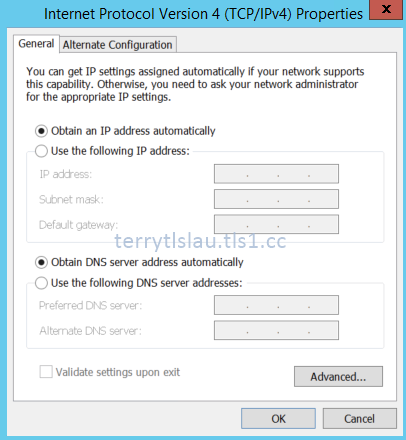
Many of you know that we need to assign a fix IP address and DNS Server for every domain controller. Even though deploy a domain controller on Microsoft Azure, we also need to assign a fix IP address and DNS server to a server. To assign  a fix IP address to a virtual machine on Microsoft Azure, we need to create a virtual network first. To create a virtual network and then assign IP address and DNS Server for Azure Virtual Machines, please read:


Remark: The above screen capture is for demo environment. In production, the DNS server should point to your HQ domain controllers.

2. As mentioned branch office scenario, we may need to configure VPN connection from branch office to Microsoft Azure. To configure on-premises sites network to Microsoft Azure Virtual Network, please read:


After testing the network connection, we can do the next task.

3. Because the IP address and DNS server are assigned to a virtual machine by Microsoft Azure, we don't need to enter any IP address and DNS server inside a virtual machine.


We can perform GIP on PowerShell to check the IP settings of a virtual machine.


After that, you can promote a domain controller.

To promote a domain controller, please read:

Windows 10 is coming and it supports to join Azure Active Directory. Do we still need to join the old Active Directory? Stay tuned.

This posting is provided “AS IS” with no warranties, and confers no rights!

Sunday, May 17, 2015

Top Support Solutions for Windows Server 2012 and Windows Server 2012 R2 by TechNet Blogs post

I'd like to share one of useful TechNet blogs posts, Top Support Solutions for Windows Server 2012 and Windows Server 2012 R2. This post shared a lot of web sites for troubleshooting the following Windows Features, DirectAccess, Active Directory related, unexpected errors and restarts, Remote Desktop Services, Windows updates related, Failover Clustering, DNS and Access to file shares (SMB). 

We may find some hints from the web sites for troubleshooting the above Windows Features. Don't forget to bookmark this web site.

This posting is provided “AS IS” with no warranties, and confers no rights!

Sunday, December 7, 2014

Review a MVA course (Using PowerShell for Active Directory) Module 4

Module 4
It's a difficult module in this series, Using PowerShell for Active Directory. In this module, Jason and Ashley talked about forensic investigations and lockout in Active Directory. They used many PowerShell to do demonstrations.

First of all, Ashley used .Net code, [System.Security.Principal.SecurityIdentifier] to work with PowerShell to get Enterprise Admins, Domain Admins. The scripts are the following:

$SID_GROUP_EA = [System.Security.Principal.SecurityIdentifier]"$((Get-ADDomain -Identity (Get-ADForest).Name).DomainSID)-519"

$SID_GROUP_DA = [System.Security.Principal.SecurityIdentifier]"$((Get-ADDomain).DomainSID)-512"

$SID_GROUP_AD = [System.Security.Principal.SecurityIdentifier]'S-1-5-32-544'

$SID_USER_AD  = [System.Security.Principal.SecurityIdentifier]"$((Get-ADDomain).DomainSID)-500"

Get-ADGroup $SID_GROUP_EA -Properties * -Server (Get-ADForest).Name
Get-ADGroup $SID_GROUP_DA -Properties *
Get-ADGroup $SID_GROUP_AD -Properties *
Get-ADUser  $SID_USER_AD  -Properties *

Then, they talked about "Get-ADReplicationAttributeMetadata" to get metadata like last change from which domain controller, version, attribute name and so on. They explained the usage of some attribute names. "Get-ADReplicationAttributeMetadata" with the parameter, -ShowAllLinkedValues" can get the group history of user accounts which are joined.

Get-ADUser $userobj.DistinguishedName -Properties memberOf |
 Select-Object -ExpandProperty memberOf |
 ForEach-Object {
    Get-ADReplicationAttributeMetadata $_ -Server localhost -ShowAllLinkedValues
      Where-Object {$_.AttributeName -eq 'member' -and 
      $_.AttributeValue -eq $userobj.DistinguishedName} |
      Select-Object FirstOriginatingCreateTime, Object, AttributeValue
    } | Sort-Object FirstOriginatingCreateTime -Descending | Out-GridView

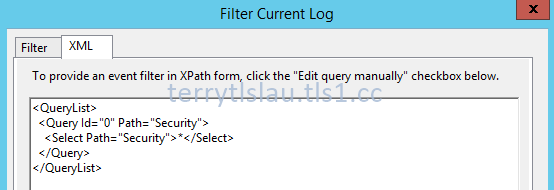
After that, they talked about XML view of Event Logs. We can use "Filter Current Log" option to get the custom XML code of event log and then paste it to PowerShell to write our own scripts to get event from all domain controllers.


In Windows Server 2012 or later, we can perform "Search-AdAccount -LockedOut" to find which accounts were locked.

Finally, they performed a lot of scripts to check permissions of Active Directory.

Remark: All PowerShell scripts were written by Ashley McGlone. You can download the scripts from the following web site.


For more information:


Related posts:


This posting is provided “AS IS” with no warranties, and confers no rights!

Review a MVA course (Using PowerShell for Active Directory) Module 3

As previous post, Review a MVA course (Using PowerShell for Active Directory) Module 1 and 2, I made some notes for Module 1 and 2 of Using PowerShell for Active Directory when I was watching this MVA course. I'm going to watch and make some notes for Module 3.

Module 3
In this module, Jason and Ashley started to talk about query information from Active Directory. Basically, we can use 3 types of filter of Get-ADUser which are filter, Identity and Ldapfilter to query Ad user. The interesting thing is we can combine commands and PowerShell cmdlets to get the output like "Get-ADUser -Identity (whoami /user /fo csv | ConvertFrom-Csv | Select-Object -ExpandProperty SID)" to get the SID information of the current user.

Then, they talked about the scope for Active Directory query. "Get-ADRootDSE", "Get-ADDomain" and "Get-ADForest" are the method to limit the scope because we can use a property of these results to let us query Active Directory easily.

After that, they did demonstrations to Active Directory information by performing "Get-ADRootDSE", "Get-ADDomain" and "Get-ADForest".

Finally, they did a demonstration to find a nested member of a group by performing Get-AD User -Filter "memberof  -RecursiveMatch '$((Get-ADGroup "Domain Admins").DistinguishedName)'" -SearchBase $((Get-ADUser Guest).DistinguishedName).

Remark: All PowerShell scripts were written by Ashley McGlone. You can download the scripts from the following web site.

Microsoft Virtual Academy: Using PowerShell fort Active Directory

For more information:
Using PowerShell for Active Directory

Goatee PFE
This posting is provided “AS IS” with no warranties, and confers no rights!

Thursday, December 4, 2014

Review a MVA course (Using PowerShell for Active Directory) Module 1 and 2

I missed one great MVA course which is Using PowerShell for Active Directory because I was joining TechEd Europe at that time. Recently, I started to watch this MVA course. This course was hosted by Jason Helmick, Concentrated Technology Senior Technologist, and Ashley McGlone, Microsoft Senior Premier Field Engineer. I tried to make some notes for revision.

Module 1
Using Remote Server Administration Tools (RSAT) to manage Active Directory, the main disadvantage is we can't install the latest version RSAT on previous OS version. For an example, we can install RSAT for Windows 8.1 on a Windows 7 workstation. Using PowerShell, we can use "New-PSSession" and "Import-PSSession" to import PowerShell module from any version of Operating Systems to the current computer. Then, we can use the latest cmdlets to manage Active Directory.

The second thing, we can Active Directory Administrative Center to check the PowerShell History of Active Directory. It's easy for us to get some hints to write our own scripts.

The last thing, we can use PowerShell to browse the Active Directory like cd ad: partition.

Reference:
How To Use The 2012 Active Directory PowerShell Cmdlets From Windows 7

Module 2
Jason and Ashley talked about creating, updating and deleting users and groups in Active Directory by PowerShell. 

By default, Get-ADUser dones't get all properties from user accounts. We need to add "-Property *" to get all properties from user accounts. Then, make "New-ADUser" to a variable. It's easy for us to modify properties of user accounts because we don't need to enter the full distinguished name. 

After that, the user account was created by "New-ADUser" but it isn't enabled if you don't assign a password for the user account. To enter a password for the user account, we need to create a variable to store the password from "Read-Host" cmdlet with a parameter, "-AsSecureString" or enter the following cmdlet "New-AdUser <User Name> -Enabled $True -AccountPassword $(ConvertTo-SecureString <password> -AsPlainText -Force)" to create a user account.

Later, they talked to use "Import-CSV" with pipeline and then modify the title name of CSV by performing "Select-Object @{Name=<Property name>;expression={$_.<title name from CSV}}". This is common method in PowerShell to change the output name. To learn more, please watch Getting Started with PowerShell 3.0 Jump Start. Use "Out-GridView" to verify the data before creating user accounts.

To talk about New-ADGroup, Ashley gave a tip to store (Get-ADDomain).distinguishedname to a variable. It's really useful for us to create a new AD group because we don't need to enter full distinguished name. We just enter the variable.

We can add a non-common Active Directory attribute like carLicense for AD user accounts by entering -OtherAttributes @{carLicense='attribute'>  on New-ADUser or performing Set-ADUser -Add @{carLicense='attribute'> to add a new attribute for user accounts.

Then, we can use "Set-ADComputer <Computer Name> -ServicePrincipalNames @{Add='HTTP/FQDN NAME}" to add a new service principal name. In previous version of Active Directory domain, we can use Setspn to to this.

Finally, they talked about remove member of a group and delete AD Users. For cross domains scenario, you may need to use Set-ADObject to delete a group member with cross domains of a universal group. To delete AD User, we can use "Get-ADUsers -Filter Remove-ADUser" to delete Ad users.

Remark: All PowerShell scripts were written by Ashley McGlone. You can download the scripts from the following web site.

Microsoft Virtual Academy: Using PowerShell for Active Directory 

For more information:
Using PowerShell for Active Directory

Goatee PFE

Related posts:
Review a MVA course (Using PowerShell for Active Directory) Module 3

Review a MVA course (Using PowerShell for Active Directory) Module 4

This posting is provided “AS IS” with no warranties, and confers no rights!

Thursday, October 2, 2014

Promote a domain controller on Windows Server Technical Preview (vNext)

Starting from Windows Server 2012, we cannot perform dcpromo to promote a Windows Server to be a domain controller. To promote a Windows Server to be a domain controller, we can use "Server Manager" or "PowerShell".

Prerequisites
Make sure the server has been assigned fix IP address by GUI or PowerShell before promoting to be a domain controller.

Lab environment
1 server named DC10 which is installed Windows Server Technical Preview (vNext) will be promoted to be a first domain controller in Active Directory forest. DC10 is installed in a Hyper-V environment and I took a checkpoint before promoting it.

Lab
Promote DC10 to be a domain controller by GUI.
1. On DC10, log in as local administrator.
2. Launch "Server Manager".
3. On "Server Manager", click "Add roles and features".

4. On "Before You Begin" window, click "Next".
5. On Installation Type" window, select "Role-based or feature-based installation" and then click "Next".
6. On "Server Selection" window, click "Next".
7. On "Server Roles" window, check "Active Directory Domain Services" and then click "Add Features".


8. Click "Next".
9. On "Features" window, click "Next".
10. On "AD DS" window, click "Next".


11. On "Confirmation" window, click "Install".


12. When installation finished, on "Results" window, click "Promote this server to a domain controller".


13. On "Deployment Configuration" window, select "Add a new forest".
14. Next to "Root domain name", enter "<domain name>", in my lab, I entered "tls1.lab".


15. Click "Next".

On "Domain Controller Options" window, we can see that the "Forest functional level" hasn't been updated in this technical preview option.


16. Next to "Directory Services Restore Mode (DSRM) password", enter a password for DSRM.


17. Click "Next".
18. On "DNS Options" window, click "Next".


19. On "Additional Options" window, leave default NetBIOS domain name and then click "Next".


20. On "Paths" window, leave default paths of AD DA database, log files and SYSVOL and then click "Next".


Remark: In enterprise environment, administrators will change log files to another partition for better performance of Active Directory.

21. On "Review Options" window, click "View script".


We can use this PowerShell script to promote a server to be the first domain controller.


Remark: To promote an additional domain controller in virtualization environment, please read Virtualized Domain Controller Deployment and Configuration for more information.

22. Close "Notepad" and then click "Next" on "Review Options" window.
23. On "Prerequisites Check" window, click "Install".


Then, DC10 will restart automatically for promoting to a domain controller.

Promote DC10 to be a domain controller by PowerShell.


First, I applied the checkpoint to roll back DC10 to be a server not a domain controller.

1. On DC10, log in as local administrator.
2. Launch "PowerShell" as administrator.


3. Perform "Install-WindowsFeature AD-Domain-Services -IncludeAllSubFeature -IncludeManagementTools -Verbose" to install the Windows Feature.


4. Perform "Install-ADDSForest -DomainName tls1.lab -DomainNetbiosName TLS1 -ForestMode Win2012R2 -InstallDns -Verbose" to promote the first domain controller.

If we don't perform "Paths" parameter, it saves to database, log files and SYSVOL to default paths.

5. Enter a password for Safe Mode Administrator twice.


Safe Mode Administrator password is same as Directory Services Restore Mode (DSRM) password.

6. Enter "Y".


Then, DC10 will restart automatically for promoting to a domain controller.


This posting is provided “AS IS” with no warranties, and confers no rights!