Showing posts with label Exchange Server 2007. Show all posts

Friday, January 25, 2013

Delete all mails in a mailbox by PowerShell in Exchange

One of my friends asked me. How to delete all emails in a user mailbox in Exchange 2007? 
Then I try to search the solution . I found the solution from an article "Delete emails from mailboxes - Exchange 2007" which was written by Ratish Nair.

After that, I tried to find a solution to delete all emails in a user mailbox in Exchange 2010 and 2013. I found the another solution from an article "Exchange 2010 SP1 or SP2 PowerShell cmdlet for deleting all email in a mailbox" which was written by Terence Luk. I tried to perform it in Exchange 2010 and Exchange 2013 environment.

Remark: To delete all emails in Exchange 2010 RTM , we need to add a user in "Discovery Management", "Exchange Support Diagnostics" and "Exchange Mailbox Import Export" groups and then use "Export-Mailbox -DeleteContent" to delete all emails in a user mailbox.
This posting is provided “AS IS” with no warranties, and confers no rights!

Sunday, August 19, 2012

Fatal error during installation Error code 1603 on Exchange Server 2007

When I'm installing Exchange Server 2007 with service pack 3 on Windows Server 2008 R2 SP1, I got the following error:

Symptom
Error:
Installing product C:\Ex2007\exchangeserver.msi failed. Fatal error during installation. Error code is 1603. Last error reported by the MSI package is "The file 'ul_ATL80.dll.97F81AF1_0E47_DC99_FF1F_C8B3B9A1118E' cannot be installed because the file cannot be found in cabinet file 'ATLplcy.cab'.This could indicate a network error, an error reading from the CD-ROM, or a problem with this package.'.

Fatal error during installation


Cause
I copied the Exchange 2007 SP3 Update Rollup 8 into the Exchange installation update folder.

Resolution
Move out the Exchange 2007 SP3 Update Rollup 8 from the Exchange installation update folder. Run the Exchange 2007 setup again.


This posting is provided “AS IS” with no warranties, and confers no rights!

Sunday, November 27, 2011

Configuring the maximum message size for internal organization

In Exchange 2007 and Exchange 2010, the maximum message size is 10 MB for internal organization. Users allow sending and receiving 10 MB an email. However, some companies would like to send a large email in internal organization. Administrators need to modify the “Transport Settings” to achieve the goal.

I use Exchange Server 2010 to demo this lab.

1. At an Exchange Server, log in as Domain Administrator.
2. Launch "Exchange Management Console".
3. Expand "Microsoft Exchange On-Premises > Organization Configuration > Hub Transport".
4. Select "Global Settings" tab.
5. Right-click "Transport Settings", select "Properties".


By default, all users in the organization follow the "Transport Settings".

6. Next to "Maximum receive size (KB)", change the value to "20480".
7. Next to "Maximum send size (KB)", change the value to "20480".


8. Click "OK".

Remark: You can also perform the following cmdlet to modify the settings.

Set-TransportConfig -MaxReceiveSize 20MB -MaxSendSize 20MB


Remark: You can use ADSI Edit to update or verify the settings.

1) At a Domain Controller, log in as Domain Administrator.
2) Launch "ADSI Edit".
3) Right-click "ADSI Edit", select "Connect to".
4) Next to "Select a well known Naming Context", select "Configuration".
5) Expand "Configuration > CN=Configuration,DC=<Domain Name>,DC=com > CN=Services > CN=Microsoft Exchangte > CN=<Organization Name> >CN=Global Settings > CN=Message Delivery".
6) Right-click "CN=Message Delivery", select "Properties".


"delivContLength" is "Maximum receive size".
"submissionContLength" is "Maximum send size".

All values is in Kilobyte(KB).

Administrators can assign the Maximum send and received message size in users’ mailbox. If administrators assign the maximum message size in mailboxes, the settings override the maximum message size of “Transport Settings”.

9. Still in "Exchange Management Console", expand "Recipient Configuration > Mailbox".
10. Right-click the user mailbox, select "Properties".
11. Select "Mail Flow Settings" tab.


12. Select "Message Size Restrictions", click "Properties".


Administrators can assign the maximum send and receive message size for this user.

Remark: You can perform "Set-Mailbox" cmdlet to configure the Maximum send and receive message size for users.

Set-Mailbox <Alias> -MaxReceiveSize 10MB -MaxSendSize10MB


Remark: You can use ADSI Edit to update or verify the user mailbox.

1) At a Domain Controller, log in as Domain Administrator.
2) Launch "ADSI Edit".
3) Right-click "ADSI Edit", select "Connect to".
4) Next to "Select a well known Naming Context", select "Default Naming context".
5) Expand "Default naming context > DC=<Domain Name>,DC=com > CN=Uesrs".
6) Right-click a user name, select "Properties".
7) Next to "delivContLength" and "submissionContLength", configure the size for the user.


After the settings are updated, users can send and receive the large email in internal organization.

This posting is provided “AS IS” with no warranties, and confers no rights!

Wednesday, November 16, 2011

Sending a large attachment in OWA 2010

When users attach an attachment bigger than 35MB in OWA 2010, the users get the following error:

404 - File or directory not found
The resource you are looking for might have been removed, had its name changed, or is temporarily unavailable.


Remark: Assuming that your organization allows users sending the large attachment bigger than 35 MB.

To solve this problem, I need to modify the "web.config" file.

1. At the Client Access Server, log in as Domain Administrator.
2. Launch "Windows Explorer".
3. Navigate to "C:\Program Files\Microsoft\Exchange Server\V14\ClientAccess\Owa".
4. Open "web.config" by "Notepad".
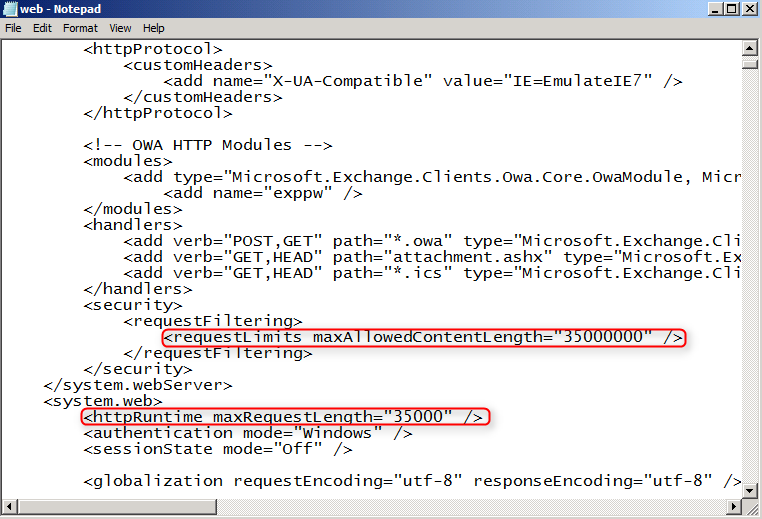
5. Search "requestLimits maxAllowedContentLength" and "httpRuntime maxRequestLength".


By default, the maximum attachement is about 35MB. I need to modify the value which is suitable for my environment.

6. Next to "requestLimits maxAllowedContentLength", change the value from "35000000" to "52428800".

Remark: The value is in byte(B).

7. Next to "httpRuntime maxRequestLength", change the value from "35000" to "51200".

Remark: The value is in Kilobyte(KB).


8. Save and exit the file.

Reference:
http://technet.microsoft.com/en-us/library/aa996835(EXCHG.80).aspx

This posting is provided “AS IS” with no warranties, and confers no rights!

Monday, November 7, 2011

Autodiscover failed (0x800C8203)

When you run "Test E-mail AutoConfiguration", you get the following result.

Autodiscover to https://<FQDN>/Autodiscover/Autodiscover.xml Failed (0x800C8203)


One of the reasons is the Outlook client cannot find the DNS record of Autodiscover service.

To solve this case, you need to create a DNS record for the Autodiscover service in the DNS server.


Another reason is the Client Certificates setting of Autodiscover in IIS doesn't select "Ignore".


After updating the above settings, the Autodiscover of the Outlook client resumes normal.


Reference:
0x800C8203 Autodiscover 
http://clintboessen.blogspot.com/2010/04/0x800c8203-autodiscover.html

This posting is provided “AS IS” with no warranties, and confers no rights!

Wednesday, October 26, 2011

How to suppress the AutoDiscover redirect warning in Outlook 2007/2010/2013

After setting up the SRV record for Autodiscover service, launching Outlook 2010 or Outlook 2013, users may get the following warning.

Allow this website to configure user@domain server settings?

http://<autodiscover url>

Your account was redirected to this website for settings.
You should only allow settings from sources you know and trust.


To solve this problem, an administrator needs to add a registry setting for users.

I will use Group Policy Preferences to deploy the registry setting for users.

1. At DC01, log in as Domain Administrator.
2. Launch "Group Policy Management Console".
3. Right-click the GPO which is assigned to the users using Outlook 2010,  select "Edit".


4. Expand "User Configuration > Preferences > Windows Settings > Registry".
5. Right-click "Registry", select "New > Registry Item".
6. Next to "Action", select "Update".
7. Next to "Hive", select "HKEY_CURRENT_USER".
8. Next to "Key Path", type "Software\Microsoft\Office\14.0\Outlook\Autodiscover\RedirectServers".
9. Next to "Value name", type "<HTTPS server to which Autodiscover can be redirected>".

Remark: The Key path is 14.0 for Outlook 2010 and 15.0 for Outlook 2013.

Example:
imail.contoso.com

10. Next to "Value type", select "Reg_SZ".


11. Click "OK".
12. Close "Group Policy Management Editor" and "Group Policy Management Console".

After assigned the GPO, launching Outlook 2010, users don't get the warning.

Remark: If your environment is more than 1 Autodiscover record, you have to add each one.

Reference:
How to suppress the AutoDiscover redirect warning in Outlook 2010 and Outlook 2013

You cannot suppress the Autodiscover redirect warning in Outlook 2007
http://support.microsoft.com/kb/956528

This posting is provided "AS IS" with no warranties, and confers no rights!

Wednesday, October 5, 2011

Exchange 2007 Unknown error (0x80005000)

When you click "Server Configuration" in the Exchange Management Console from a Hub-Transport server on Exchange 2007, you will get the following errors:

The following error(s) were reported while loading topology information:
Get-ActiveSyncVirtualDirectory
Failed
Error:
An error occurred while trying to access IIS (Internet Information Service) metabase. Make sure the Internet Information Service Manager component is installed and configured properly.

Unknown error (0x80005000)

Get-OabVirtualDirectory
Failed
Error:
An error occurred while trying to access IIS (Internet Information Service) metabase. Make sure the Internet Information Service Manager component is installed and configured properly.

Unknown error (0x80005000)

Get-OWAVirtualDirectory
Failed
Error:
An error occurred while trying to access IIS (Internet Information Service) metabase. Make sure the Internet Information Service Manager component is installed and configured properly.

Unknown error (0x80005000)


Because the Hub-Transport server wasn't installed the IIS management binaries.

To solve this problem, you have to install the following IIS components in the Hub Transport server.

ServerManagerCmd -i Web-Server
ServerManagerCmd -i Web-ISAPI-Ext
ServerManagerCmd -i Web-Metabase
ServerManagerCmd -i Web-Lgcy-Mgmt-Console
ServerManagerCmd -i Web-Basic-Auth
ServerManagerCmd -i Web-Digest-Auth
ServerManagerCmd -i Web-Windows-Auth
ServerManagerCmd -i Web-Dyn-Compression

Reference:

This posting is provided “AS IS” with no warranties, and confers no rights!

Sunday, September 4, 2011

Speed up Exchange Management Shell and Exchange Management Console in lab environment

If there is no internet connection in your lab environment, the "Exchange Management Shell" and "Exchange Management Console" of Exchange 2010 start-up are very slow.

To solve this scenario, we can change the following settings.

For Exchange 2010 (No-Internet access)
1. At the Exchange Server, launch "Internet Explorer".
2. On the menu, click "Tools > Internet Options".
3. Select "Advanced" tab.
4. Un-check "Check for publisher's certificate revocation".


5. Click "OK".
6. Close "Internet Explorer".
7. Right-click "Exchange Management Shell" in the "Start" menu, select "Properties".
8. Next to "Target".


9. Replace "-auto" by the CAS FQDN name.


10. Click "OK".
11. Launch "Exchange Management Console".
12. Right-click "Microsoft Exchange On-Premises (<Server Name>)", select "Properties".
13. Select "Specify a server to connect to ", click "Browse" to select a CAS Server.


14. Click "OK".


For Exchange 2007 (No-Internet access)
1. You just un-check "Check for publisher's certificate revocation" in Internet Explorer.


At Internet connection environment, you can change the following settings to speed up "Exchange Management Shell" and "Exchange Management Console".

For Exchange 2010 (Internet access)
1. Launch "Registry Editor".
2. Navigate to "HKLM\SOFTEWARE\Microsoft\Cryptography\OID\EncodingType 0\CertDllCreateCertificateChainEngine\Config".
3. At right pane, create the following "Reg_DWORD".

ChainUrlRetrievalTimeoutMilliseconds
This registry setting defines the default timeout for a single CRL retrieval. If this value is set to 0 or if this value is undefined, the default value that is used is 15,000 milliseconds.

Decreasing the amount of time to allow CRL retrieval can significantly improve performance when internet access is poor or non-existent. Setting the value to 200 (milliseconds) may be a reasonable timeout.

ChainRevAccumulativeUrlRetrievalTimeoutMilliseconds
This registry setting defines the cumulative timeout for all CRL retrievals. If this value is set to 0 or if this value is undefined, the default value that is used is 20,000 milliseconds.

Decreasing the amount of time to allow all CRL retrievals can significantly improve performance when internet access is poor or non-existent. Setting the value to 500 (milliseconds) may be a reasonable timeout.

4. Modify the value of "ChainUrlRetrievalTimeoutMilliseconds" to 200 decimal.
5. Modify the value of "ChainRevAccumulativeUrlRetrievalTimeoutMilliseconds" to 500 decimal.


6. Close "Registry Editor".
7. Right-click "Exchange Management Shell" in the "Start" menu, select "Properties".
8. Next to "Target".


9. Replace "-auto" by the CAS FQDN name.


10. Click "OK".
11. Launch "Exchange Management Console".
12. Right-click "Microsoft Exchange On-Premises (<Server Name>)", select "Properties".
13. Select "Specify a server to connect to ", click "Browse" to select a CAS Server.


14. Click "OK".


For Exchange 2007 (Internet access)

1. Repeat steps 1 - 6 in Exchange 2007 environment.


Reference:
Speed up EMC and Powershell when working on a LAB

Configuring Exchange Servers without Internet Access
http://blogs.technet.com/b/exchange/archive/2010/05/14/3409948.aspx

This posting is provided “AS IS” with no warranties, and confers no rights!

Thursday, June 23, 2011

Enabling redundant cluster networks for log shipping and seeding of Cluster Continuous Replication in Windows Server 2008 R2

Lab environment
Cluster FQDN: cs01.contoso.com
Computer FQDN: Ex02.contoso.com
Redundant Computer FQDN: Ex02rep.contoso.com
Roles: CCR Active Mailbox Server
Operating System: Windows Server 2008 R2 Enterprise
Network: 172.16.2.2 (Public), 172.16.2.12 (Redundant)

Computer FQDN: Ex03.contoso.com
Redundant Computer FQDNEx03rep.contoso.com
Roles: CCR Passive Mailbox Server
Operating System: Windows Server 2008 R2 Enterprise
Network: 172.16.2.3 (Public), 172.16.2.13 (Redundant)

When I try to enable the redundant cluster network of Cluster Continuous Replication in Windows Server 2008 R2, I found the following error:


The addition host names cannot work. However, the resource groups were added in Failover Cluster Manager.


I read the article from the following link to solve my problem:

When the replication service first starts up <or> the configuration time expires the replication service enumerates all network names on the cluster to determine which are valid endpoints for log shipping.  This is initially based on two cluster private properties stamped on each name, MSExchange_NetName and MSExchange_UseNetworkForLogCopying. Each of these should have a value of 1 on a network name utilized as a continuous replication host name.


On the surface it would appear that there is nothing preventing this name from operating correctly as a continuous replication host name.  After performing some internal tracing it was determined that the replication service is also implementing another check on a network name resource to ensure that it can be satisfactorily utilized for replication – is Kerberos enabled for the network name.  The replication service performs this check by reviewing a private property of a network name resource – requirekerberos and ensuring it has a value of 1.

In Windows 2003 network name resources could be enabled for Kerberos at the administrators discretion.  In Windows 2008 and Windows 2008 R2 all network names must be Kerberos enabled.  In Windows 2008 requireKerberos is a valid private property and can be programatically set.  In Windows 2008 R2 the requireKerberos property has been deprecated and can be no longer be programmatically set.  Without the requireKerberos property in Windows 2008 R2 the enable-continuousreplicationhostname commandlet fails with the previously documented error.

To work around this issue and allow the replication host names created with the enable-continuousreplicationhostname command to function the following steps can be performed:

1. Using the Exchange Management Shell invokes the enable-continuousreplicationhostname cmdlet. Allow the command to create the resource group, network name and IPv4 resource.
2. Verify with Failover Cluster Manager that the resource group, network name and IPv4 resource were created and are online.
3. Manually set requireKerberos utilizing either cluster.exe or Failover Cluster PowerShell extensions (preferred)

Cluster.exe
1. At EX02, log in as Domain Administrator.
2. Launch "Command Prompt", enter the following commands to add "requirekerberos" parameter:

cluster cs01 res "Network Name (Ex02rep)" /prive requirekerberos=1:DWORD
cluster cs01 res "Network Name (Ex03rep)" /prive requirekerberos=1:DWORD


Remark: "requirekerberos" is all lowercase.

3. Enter the following commands to take the continuous replication hostname groups offline:

cluster cs01 group "Ex02rep_group" /offline
cluster cs01 group "Ex03rep_group" /offline


4. Enter the following commands to take the continuous replication hostname groups  online:

cluster cs01 group "Ex02rep_group" /online
cluster cs01 group "Ex03rep_group" /online

5. Enter the following commands to restart the Microsoft Exchange replication service:

net stop msexchangerepl
net start msexchangerepl


Remark: You have to restart the Microsoft Exchange replication service in both servers.

PowerShell
1. At EX02, log in as Domain Administrator.
2. Launch "PowerShell", enter the following cmdlet to import failover cluster powershell extension:

Import-Module FailoverClusters


3. Enter the following cmdlets to add "requirekerberos" parameter:

Get-ClusterResource "Network Name (Ex02rep)" | Set-ClusterParameter -Create requirekerberos 1Get-ClusterResource "Network Name (Ex03rep)" | Set-ClusterParameter -Create requirekerberos 1


Remark: "requirekerberos" is all lowercase.

4. Enter the following cmdlets to take the continuous replication hostname groups  offline:


Stop-ClusterGroup -Cluster cs01 -Name Ex02rep_group
Stop-ClusterGroup -Cluster cs01 -Name Ex03rep_group


5. Enter the following cmdlets to take the continuous replication hostname groups  online:

Start-ClusterGroup -Cluster cs01 -Name Ex02rep_group
Start-ClusterGroup -Cluster cs01 -Name Ex03rep_group


6. Enter the following cmdlet to restart the Microsoft Exchange replication service:

Restart-Service msexchangerepl


Remark: You have to restart the Microsoft Exchange replication service in both servers.

At this time you can utilize either cluster.exe or powershell to verify that the requirekerboros key has been created with a value of 1.

Command
Cluster cs01 res "Network Name (Ex02rep)" /priv


Cmdlet
Get-ClusterResource "Network Name (Ex02rep)" | Get-ClusterParameter


As a result, the redundant host names of CCR were added.


RequireKerberos Reference:
http://technet.microsoft.com/en-us/library/cc772544(WS.10).aspx

This posting is provided “AS IS” with no warranties, and confers no rights!