Showing posts with label Windows Server 8. Show all posts

Thursday, August 28, 2014

Create an event into Event Log by PowerShell

In previous version of Windows, administrators can perform "eventcreate" on "Command Prompt" to create an event into Event Log. Starting from Windows 8 and Windows Server 2012, there are new cmdlets in PowerShell 3.0 for administrators to create an event into Event Log.

To create an event to Event Log, administrators can perform "New-EventLog" and "Write-EventLog".

"New-EventLog" is applied to register a source type of an event.

Administrators can perform the cmdlet like this.

New-EventLog -LogName <Log Type> -Source "<New source name>".


Remark: The source name cannot be duplicated.


Then, administrators can perform "Write-EventLog" to create an event into Event Log.

Administrators can perform the cmdlet like this.

Write-EventLog -LogName <Log Type> -Source <source name> -EntryType <Information, Warning, Error and so on> -EventId <Define by administrators> -Message <The description of this event>


Remark: If the source isn't registered by "New-EventLog", you may get the following error.

Write-EventLog : The source name <Source Name> does not exist on computer.

This posting is provided “AS IS” with no warranties, and confers no rights!

Sunday, March 25, 2012

Domain Controller cloning in Windows Server 8 beta

Virtualized domain controller cloning in Windows Server “8” Beta enables administrators to easily and safely deploy cloned domain controllers by copying an existing virtual domain controller. In a virtual environment, administrators no longer have to repeatedly deploy a sysprepped server image, promote the server to a domain controller and then complete additional configuration requirements for deploying each additional domain controller.

Reference from Microsoft Technet

To perform Domain Controller cloning, there are some platform requirements.
  • PDC emulator FSMO role transferred to a Windows Server 8 beta DC
  • PDC emulator available during cloning operations
  • The HyperV host must be joined the same domain
  • The source Windows Server 8 Beta domain controller cannot have been previously migrated from FRS to DFSR for SYSVOL.
Lab environment
There are 2 domain controllers named DC01, DC02 which are installed Windows Server 8 beta in HyperV host named HV1. The domain name is contoso.com. The forest and domain functional level of contoso.com is Windows Server 2003. I  will deploy DC03 in HyperV host named HV2.

The Goals
Cloning a new domain controller named DC03 from DC02

1. On DC01, log in as Domain Administrator.
2. Launch "Command Prompt".
3. Perform "netdom query fsmo".


Make sure the PDC role on DC01.

4. Launch "Active Directory Users and Computers".
5. Expand "contoso.com > Users".
6. Double-click "Cloneable Domain Controllers".


This is a new group for cloning domain controllers. I will add the source domain controller, DC02, in this group.

7. Select "Members" tab.
8. Add "DC02".


9. Click "OK".
10. Go to DC02, log in as Domain Administrator.
11. Launch "Windows Explorer", navigate to "C:\Windows\System32".
12. Open "SampleDCCloneConfig.xml" by Notepad.
13. Save the file as "DCCloneConfig.xml" in "Windows\NTDS".


14. Edit "DCCloneConfig.xml" in "Windows\NTDS".
15. Modify "ComputerName, SiteName, Address, SubnetMask, DefaultGateway and DNSResolver" in the file.


16. Save and exit the file.

Remark: Cloning does not support using static IPv6 entries in Windows Server 8 beta. You must use IPv6 DHCP or IPv6 Stateless address auto-configuration (SLAAC)

17. Launch "PowerShell".
18. Perform "Get-ADDCCloningExcludedApplicationList | format-list" to detect incompatible programs and services on the source domain controller.


Examine the output for any returned Services or Programs. By default, the only application returned in Windows Server 8 Beta is the "PrintNotify" service. Any installed applications not included as part of the operating system - such as anti-virus software - show here as well as any incompatible Windows services, like the DHCP Server service.

19. Launch "Notepad", edit the XML to include an <Allow></Allow> rule for each service or program returned by the "Get-ADDCCloningExcludedApplicationList" cmdlet.


20. Save the file as "CustomDCCloneAllowList.xml" in "Windows\NTDS".


21. Shut down DC02.

Then we can export the VM DC02.contoso.com or copy the VHD or VHDX to HV2 for Domain Controllers cloning. I will create a new VM named DC03.contoso.com in HV2. Copy the vhdx file to the new vm.

22. On HV2, log in as Domain Administrator.
23. Launch "Hyper-V Manager".
24. Create a new VM named DC03.contoso.com without hard disk.


25. Copy the vhdx file of DC02.contoso.com to the folder of DC03.contoso.com in HV2.


26. Add the copied hard disk in DC03.contoso.com's VM.


27. Power on DC02 in HV1.
28. Power on DC03 in HV2.


The domain controller, DC03, is cloning.

29. On DC03, log in as Domain Administrator.
30. Launch "Active Directory Users and Computers".
31. Expand "contoso.com > Domain Controllers".


32. Launch "Command Prompt".
33. Perform "repadmin /replsum" to verify the replication.


As a result, Domain Controllers cloning is successful.

Reference:
Understand and Troubleshooting AD DS Simplified Administration in Windows Server 8 Beta

Test Lab Guide: Demonstrate Windows Server 8 Beta Virtualized Domain Controller (VDC)
http://www.microsoft.com/download/en/details.aspx?id=29027

This posting is provided “AS IS” with no warranties, and confers no rights!

Wednesday, March 14, 2012

Enabling Active Directory Recycle Bin in Windows Server 8 beta

Active Directory Recycle Bin started in Windows Server 2008 R2. it can help administrator to recover the Active Directory deleted item without down time. As a before, when administrators delete an item on Active Directory, administrators need to restore system state backup and perform "ntdsutil authoritative restore" command to recover the deleted items. It will take a down time for restore. On Windows Server 8 beta, administrators can manage the Active Directory Recycle Bin by GUI interface. On Windows Server 2008 R2, Active Directory Recycle Bin only manages by PowerShell.

If you plan to enable Active Directory Recycle Bin in Windows Server 8 beta, consider the following"
  • By default, Active Directory Recycle Bin in Windows Server 8 beta is disabled". To enable it, you must first raise the forest functional level of your AD DS or AD LDS environment to Windows Server 2008 R2 or higher.This in turn requires that all domain controllers in the forest or all servers that host instances of AD LDS configuration sets be running Windows Server 2008 R2 or higher.
  • The process of enabling Active Directory Recycle Bin is irreversible. After you enable Active Directory Recycle Bin in your environment, you cannot disable it.
  • To manage the Recycle Bin feature through a user interface, you must install the version of Active Directory Administrative Center in Windows Server 8 beta
Reference from Microsoft Technet

The goal
Enable and test the Active Directory Recycle Bin in Windows Server 8 beta

I will enable the Active Directory Recycle Bin in Windows Server 8 beta in my test lab. There is 1 domain controller named dc01.fabrikam.com which is installed Windows Server 8 beta with Windows Server 2003 forest functional level in the test lab.

1. At DC01, log in as Domain Administrator.
2. Launch "Active Directory Administrative Center".


3. Click "fabrikam (local)".


Now, the "Active Directory Recycle Bin" cannot be enabled because the forest functional level is mismatch and there is no "Deleted Objects" folder in the Active Directory.

4. Close "Active Directory Administrative Center".
5. Launch "Active Directory Domains and Trusts".
6. Right -click "fabrikam.com", select "Raise Domain Functional Level".


7. Next to "Select an available domain functional level", select "Windows Server 2008 R2".


8. Click "Raise", then click "OK" twice.
9. Right-click "Active Directory Domains and Trusts", select "Raise Forest Functional Level".


10. Next to "Select an available forest functional level", select "Windows Server 2008 R2".


11. Click "Raise", then click "OK" twice.
12. Close "Active Directory Domains and Trusts".
13. Launch "Active Directory Administrative Center".
14. Click "fabrikam (local)".
15. Click "Enable Recycle Bin".


16. Click "OK" to enable the "Active Directory Recycle Bin".


After you enable Active Directory Recycle Bin in your environment, you cannot disable it.

17. Click "OK".
18 . Press "Refresh" button.


The "Deleted Objects" was created automatically.


This folder is used to storing the deleted objects.

19. Right-click "fabrikam (local)", select "New > Organization Unit".


20. Next to "Name" type "Sales".
21. Uncheck "Protect from accidental deletion".

22. Click "OK".
23. Double-click "Sales".
24. Next to "Tasks", click "New > User".


25. Create a user named, Peter.
26. Next to "Tasks", click "New > Group". 
27. Create a group named, "Manager".


28. Select "fabrikam (local)".
29. Right-click "Sales" OU, select "Delete".

30. Click "Yes".


31. Because there are some objects in Sales OU, check "Use delete subtree server control", then click "Yes".
32. Double-click "Deleted Objects".


33. Right-click "Peter", select "Restore".


"Restore" is used to restoring objects to original location.

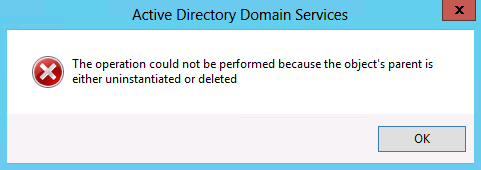
34. You will get the following error.


Because the OU was deleted, Peter cannot be restored to original location. To restore Peter to original location, we need to restore the OU first.

35. Right-click "Peter", select "Restore to".


"Restore to" is used to restoring objects to other location.

36. Select "Users", click "OK".
37. Navigate to "Users" folder.


Peter has been restored in "Users" folder.

38. Navigate to "Deleted Objects", select and right-click "Sales" OU and "Manager" group, click "Restore".
39. Navigate to "Sales" OU.


As a result, all objects were restored.

This posting is provided “AS IS” with no warranties, and confers no rights!

Sunday, March 11, 2012

Creating a Windows To Go USB drive for Windows 8 beta or Windows Server 8 beta

Windows To Go is a new feature on Windows 8. It enables users to boot Windows from an external USB hard disk or flash drive.  Windows To Go support USB 2.0 and 3.0 storage device and require minimum 16GB size (Recommended 32 GB).

Windows To Go operates just like any other installation of Windows with a few exception. These exceptions are:
  • Hibernate and sleep are disabled by default. To help prevent Windows to Go from accidental data corruption during roaming hibernate and sleep are disabled. They can be re-enabled by using Group Policy settings.
  • Internal disks are offline. To ensure data isn't accidentally disclosed, internal hard disks on the host computer are offline by default when booted into a Windows To Go. Similarly if a Windows To Go drive is inserted into a running system the Windows To Go drive will not be listed in Windows Explorer.
  • Trusted Platform Module (TPM) isn't used. When using BitLocker Drive Encryption a pre-operating system boot password will be used for security rather than the TPM since the TPM is tied to a specific computer and Windows To Go drives will move between computers.
  • Windows Recovery Environment isn't available. In the rare case that you need to recover your Windows To Go drive, you should re-image it with a fresh image of Windows.
  • Push Button Reset isn't available. Resetting to the manufacturer's standard for the computer doesn't really apply when running Windows To Go, so the feature was disabled.
Reference from Microsoft:
Windows To GO:scenario overview

Remark: On Windows 8 beta or Windows Server 8 beta, "Internal disk are offline" doesn't work on SATA hard disks.

Prerequisites
  • 1 USB flash drive or hard disk
  • Operating Systems (Windows 8 beta or Windows Server 8 beta)
I will use Windows Server 8 to create a Windows To Go USB drive.

1. On the Windows, log in as Administrator.
2. Mount the "Windows 8 beta" ISO file.
3. Insert the USB drive.
4. Press "Windows Key + X", select "Command Prompt (Admin)".


5. On "Command Prompt", preform "diskpart".


6. Preform "list disk" to list all disk on your system.


7. Perform "select disk #" to select a disk which you want to create Windows To Go.

Remark: # is a number of your disk.


8. Perform "clean" clean the partition.


9. Perform "create partition primary" to create a new partition.


10. Perform "format fs=ntfs quick" to format the partition as NTFS format.


11. For an USB hard disk, you may need to perform "assign letter=w".


12. Perform "active" to make it bootable.


13. Perform "exit" to quit diskpart.
14. Perform "dism /get-wiminfo /wimfile:<DVD-ROM>\sources\install.wim" to get the index of the "install.wim" file.


Remark: The "install.wim" may more than 1 image so I performed the above command to make sure which image I should apply.

15. Perform "dism /apply-image /imagefile:<DVD-ROM\sources\install.wim /index:<index number> /applydir:<USB drive>".
Example: dism /apply-image /imagefile:i:\sources\install.wim /index:1 /applydir:w:\

The image was applied.

16. Perform "bcdboot.exe <USB drive>\Windows /s <USB drive> /f All" to create boot record for the USB drive.
example: "bcdboot.exe w:\Windows /s w: /f All".

The Windows To Go USB drive was created. 

In my test environment, I use Windows To Go USB drive to boot up on 1 PC successfully. However, I cannot use the same Windows To Go USB drive to boot up on the other PC. I try to use an USB hard disk. It can boot up on the other PC.

Windows To Go will freeze the OS instance for 60 seconds if the pen drive is removed. Plugging it back within 60 seconds, Windows will resume where it was, if not inserted within 60 seconds, Windows will shut down.

Reference:
Microsoft Demonstrates Windows To Go (Run Windows 8 From USB On Any PC)

Reference:
How to create a Windows To Go USB drive in Windows 8 [step-by-step]