Showing posts with label Remote Server Management. Show all posts

Friday, July 5, 2013

Using Remote Server Management to manage previous versions of Window Servers in Windows Server 2012

To fully manage remote servers that are running Windows Server 2008 or Windows Server 2008 R2, we need to install the following updates in Windows Server 2008 or Windows Server 2008 R2.
  • Microsoft .Net Framework 4
  • Windows Management Framework 3.0
  • KB2682011
Remark: Server Manager of Windows Server 2012 cannot be used to add roles and features to servers that are running Windows Server 2003, Windows Server 2008 and Windows Server 2008 R2.

Lab environment
1) 1 Windows Server 2008 R2 server named MS2K8R2 joined corp.contoso.com
2) The IP address of MS2K8R2 is 192.168.2.31
3) 1 Windows Server 2012 server named DC01 joined corp.contoso.com

1. On MS2K8R2, log in as Domain Administrator.
2. Install "Microsoft .Net Framework 4".


3. Install "Windows Management Framework 3.0" for Windows Server 2008 R2.


4. Install "KB2682011" for Windows Server 2008 R2.


5. Launch "PowerShell" as administrator.
6. Perform "Set-ExcutionPolicy -ExcutionPolicy RemoteSigned" to update the execution policy to "Remote Signed".
7. Enter "Y".


8. Perform "Configure-SMRemoting.ps1 -force -enable" to enable remote management.


Remark: "Configure-SMRemoting.ps1" updates the WinRM settings and firewall settings of MS2K8R2. The following firewall rules have been enabled.
  • Remote Service Management (NP-In)
  • Remote Service Management (RPC)
  • Remote Service Management (RPC-EPMAP)
  • Remote Event Log Management (NP-In)
  • Remote Event Log Management (RPC)
  • Remote Event Log Management (RPC-EPMAP)
  • Windows Firewall Remote Management (RPC)
  • Windows Firewall Remote Management (RPC-EPMAP)
Remark: In production environment, we can use group policy to deploy the above firewall settings for the servers which you want to manage.

9. Go to DC01, log in as Domain Administrator.
10. Launch "Server Manager".
11. On "Dashboard' window, click "Add other servers to manage".


12. On "Add Servers" window, next to "Name (CN)" , enter "MS2K8R2".
13. Click "Find Now".
14. Select "MS2K8R2" and then click ">" icon.


15. Click "OK".
16. On left pane, click "All Servers".


Now, you can manage MS2K8R2 by Server Manager of DC01.

Test result
1. On DC01, log in as Domain Administrator.
2. Launch "PowerShell" as administrator.
3. Perform "Enter-PSSession -ComputerName MS2K8R2".
4. Perform "Import-Module ServerManager".
5. Perform "Get-Windows Feature *backup*"


As a result, we can use PowerShell to manage MS2K8R2.

Remark: The following functions can be managed in Server Manager for Windows Server 2008 R2.


To add a new feature or role in Windows Server 2008 or Windows Server 2008 R2, we need to use PowerShell.

This posting is provided “AS IS” with no warranties, and confers no rights!

Thursday, July 4, 2013

Windows Server 2012 Remote Server Management on domain environment

To add and manage servers in domain environment, we need to perform the following steps.

Lab environment
1) 2 servers named DC01 and DC02 are in same domain
2) The IP addresses of DC01 and DC02 are 192.168.2.10 and 192.168.2.15

Goal
We need to manage DC02 in the Server Manager of DC01.

1. On DC01, log in as Domain Administrator.
2. Launch "Server Manager".
3. Click "Add other servers to manage".


4. On "Add Servers" window, next to "Name (CN)", enter "DC02".
5. Click "Find Now".


6. Select "DC02" and then click ">" icon.


7. Click "OK".
8. On left pane, click "All Servers".


Now, we can manager DC02 by Server Manager of DC01.

Remark: If you get "Refresh failed" on Server Manager, make sure the firewall rile in servers was enabled "Windows Remote Management (HTTP-In)" for domain profile and the user who manages the server has enough right.


Test result
1. On Server Manager of DC01, right-click "DC02" and then select "Add Roles and Features".
2. On "Before You Begin" window, click "Next" four times.
3. On "Features" window, check "Windows Server Backup".


4. Click "Next".
5. On "Confirmation" window, click "Install".
6. On "Results" window, click "Close".


7. Launch "PowerShell" as administrator.
8. Perform "Enter-PSSession -ComputerName DC02" to enter the remote session of DC02.


9. Perform "Get-WindowsFeature -Name *backup*".


10. Perform "wbadmin" to verify Windows backup feature in DC02.


As a result, we can use Server Manager and PowerShell to manage DC02.

This posting is provided “AS IS” with no warranties, and confers no rights!

Wednesday, July 3, 2013

Windows Server 2012 Remote Server Management on workgroup environment

Windows Server 2012 supported to use a single Server Manager console to manage multiple remote servers, Windows Server 2012, Windows Server 2008 R2, Windows Server 2008 and Windows Server 2003. Microsoft said that 1 console can be managed up to 100 servers that are configured with a typical workload.

Remark: Server Manager of Windows Server 2012 only can receive online or offline status of Windows Server 2003.

Enable and Disable remote management settings on Windows Server 2012
We can enable or disable the remote management settings by Server Manager or Command, "Configure-SMRemoting".

1. On a server, log in as Administrator.
2. Launch "Server Manager".
3. Click "Local Server".
4. Next to "Remote management", click "Enabled".


5. Clear "Enable remote management of this server from other computers".


6. Click "OK".

Now, the "Remote management" is disabled.


7. Launch "Command Prompt" as administrator.
8. Perform "Configure-SMRemoting -Get" to verify the remote management setting of MS01.


9. Perform "Configure-SMRemoting -Enable" to enable it.


You can also perform "Configure-SMRemoting -Disable" in Command Prompt of servers to disable remote management.


Configuring Remote Server Management on workgroup environment
To add and manage servers in workgroup environment, we need to perform the following steps.

Prerequisites
1) 2 servers named MS01 and MS02 are in workgroup environment
2) The IP addresses of MS01 and MS02 are 192.168.2.11 and 192.168.2.12 in my lab environment

Goal
Using Server Manager of MS01 manages MS02.

1. On MS01, log in as Administrator.
2. Launch "PowerShell" as administrator.
3. Perform "Set-Item wsman:\localhost\Client\TrustedHosts MS02 -Concatenate -Force" to add MS02 to a trusted host file in MS01.


4. Go to MS02, log in as Administrator.
5. Launch "Windows Firewall with Advanced Security".
6. Right-click "Inbound Rules", select "New Rule".
7. On "New Inbound Rule Wizard" window, select "Predefined > Windows Remote Management".


8. Click "Next".
9. On "Predefined Rules" window, check "Windows Remote Management (HTTP-In) - Profile Domain, Private".


10. Click "Next".
11. On "Action" window, select "Allow the connection".


12. Click "Finish".

Remark: Make sure MS02 is in Private network.


13. Launch "PowerShell" and perform "New-ItemProperty -Name LocalAccountTokenFilterPolicy - Path HKLM:\SOFTWARE\Microsoft\Windows\CurrentVersion\Policies\System -PropertyType DWord -Value 1" to override the UAC settings for remote management in workgroup environment.


To better protect those users who are members of the local Administrators group, we implement UAC restrictions on the network, This mechanism helps prevent against "loopback" attacks. This mechanism also helps prevent local malicious software from running remotely with administrative rights. 

Reference:

14. Back to MS01, launch "Notepad".
15. Enter "MS02" in "Notepad".
16. Save as "C:\ManageServer.txt".


17. Launch "Server Manager".
18. Click "Add other servers to manage".


19. On "Add Servers" window, click "Import".
20. Next to "File", click "..." to import the server list.


21. Open "C:\ManageServer.txt".


22. Select "MS02" and then click ">" icon.


23. Click "OK".

Remark: If a server, remote or managed, is on a different subnet, you need to use FQDN of the server to connect it.

24. On left pane, click "All Servers".


Now, you can manage MS02 by Server Manager of MS01.

Remark: If you get "Refresh failed" on Server Manager, it may the Administrator's password of both servers isn't synced.


Test result
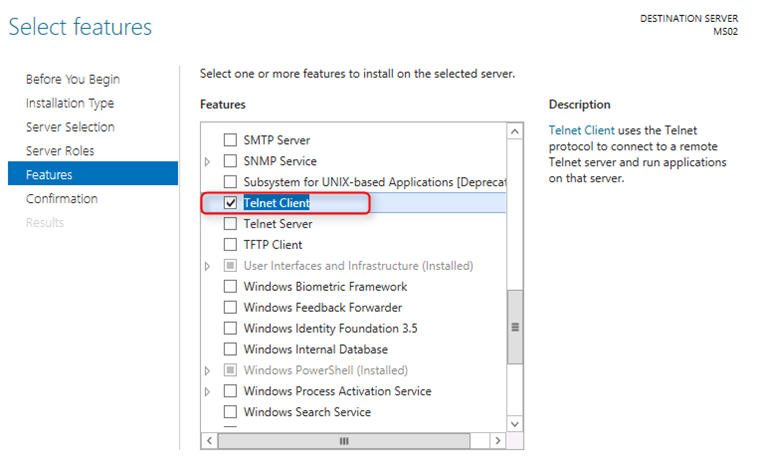
1. On Server Manager of MS01, right-click "MS02" and then select "Add Roles and Features".


2. On "Before You Begin" window, click "Next" four times.
3. On "Features" window, check "Telnet Client".


4. Click "Next".
5. On "Confirmation" window, click "Install".
6. On "Results" window, click "Close".


7. Launch "PowerShell" as administrator.
8. Perform "Enter-PSSession -ComputerName MS02" to enter the remote session of MS02.


9. Perform "Get-WindowsFeature -Name "telnet*".


10. Perform "Remove-WindowsFeature Telnet-Client" to remove telnet client in MS02.


As a result, we can use Server Manager and PowerShell to manage MS02.

This posting is provided “AS IS” with no warranties, and confers no rights!