Showing posts with label Hyper-V Server Technical Preview. Show all posts

Monday, January 5, 2015

Manage non-domain Hyper-V servers (Windows Server 2016 Technical Preview) by Hyper-V Manager

As one of my previous posts, I talked about Hyper-V Manager improvements in Windows Server Technical Preview (vNext). In Windows Server 2016 (Technical Preview), we can use "CredSSP" with NTLM authentication with different credentials to manage non-domain Windows Server 2016 (Technical Preview) with Hyper-V, Hyper-V Server Technical Preview or Windows 10 with Technical Preview. I'm going to try to manage Hyper-V servers in non-domain environment.

This lab is based on Windows Server 2016 (Technical Preview).

Lab environment
  • 1 server is installed Windows Server Technical Preview with Hyper-V management tools which is named vNext
  • 1 server is installed Hyper-V Server Technical Preview which is named HV05
  • Both servers with different local administrator password
Goal
Use the Hyper-V Manager of "vNext" to manage the Hyper-V Server, HV05.


High level steps
  • Enable "Remote Management" on HV05
  • Enable "WSManCredSSP" server role on HV05
  • Update the host file on vNext
  • Configure the local group policy on vNext
Steps
1. On HV05, log in as Administrator.
2. By default, "Remote Management" is disabled on Hyper-V Server Technical Preview.


We can enable "Remote Management" on sconfig of Hyper-V server or perform PowerShell cmdlet, Enable-PSRemoting to enable.


3. Perform "Enable-WSManCredSSP -Role Server -Force" on PowerShell console of HV05.


4. Go to vNext, log in as Administrator.
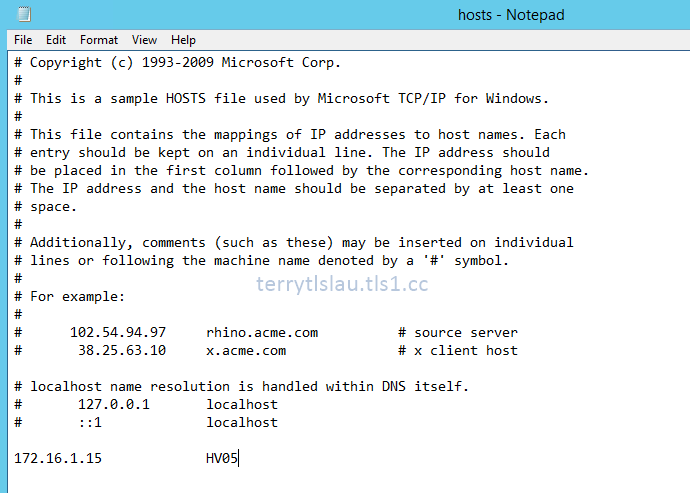
5. Add the host name, HV05, and IP address into Hosts" file as administrator.


6. Save and exit the file.
7. Launch "Local Group Policy Editor" by performing gpedit.msc on Start menu.
8. Navigate to "Computer Configuration > Administrative Templates > System > Credentials Delegation" and then modify "Allow delegating fresh credentials with NTLM-only server authentication".


9. Select "Enable" on on both policies and then click "Show".


10. Under "Value", enter "WSMAN/HV05".


Remark: To manage multi Hyper-V servers, we can insert "WSMAN/*" under "Value".

11. Click "OK" twice and close Local Group Policy Editor.
12. Launch "Hyper-V Manager", try to connect to "HV05" with "Connect as another user" option.


13. Click "Yes" to enable the delegation.


As a result, we can manage the Hyper-V hosts, HV05, with a different credential in non-domain environment.


In Windows Server Technical Preview, we cannot manage the previous versions of Hyper-V servers like Windows Server 2012 and R2 in non-domain environment.


There is a problem in down-level management in the Hyper-V manager of Windows Server Technical Preview.

This posting is provided “AS IS” with no warranties, and confers no rights!

Tuesday, December 16, 2014

Hyper-V Network Adapter Name in Windows Server 2016 (Technical Preview)

Starting from Windows Server 2016 (Technical Preview), Microsoft added Hyper-V Network Adapter Name property on Windows 10 and Windows Server 2016 (Technical Preview).


This property works with "Device naming" option of virtual NICs of virtual machines which are installed generation 2 version.


In Windows Server 2012 and Windows Server 2012 R2, we can create virtual NICs with the name which you assigned to virtual machines by performing PowerShell cmdlet, Add-VMNetworkAdapter -Name. However, virtual machines don't know the name which you assigned. Microsoft added this option, Device naming, in Windows Server Technical Preview or Windows 10 with Hyper-V for virtual machines which are installed generation 2 version.

Enabled "Device naming" option on vNICs of a virtual machine, the vNIC name will be passed to "Hyper-V Network Adapter Name" value into a virtual machine. I'm going to do a demonstration for this.

Lab environment
  • 1 Hyper-V host which is installed Windows Server Technical Preview named HV02
  • 1 generation 2 virtual machine which is installed Windows Server Technical Preview named WSTP without vNIC

Lab
Launch "PowerShell" console, perform "Add-VMNetworkAdapter -VMName WSTP -SwitchName <Virtual Switch Name> -Name <vNIC name>".


A new vNIC has been added into WSTP. Then, we need to enable Device naming option by performing "Set-VMNetworkAdapter -VMName WSTP -Name <vNIC name> -DeviceNaming On".


To check the "Hyper-V Network Adapter Name" value in a virtual machine, we can use Device Manager or PowerShell".


I hot-added a vNIC into the running virtual machine so there is no value at this moment. The virtual machine is needed to shut down and then power on to update the value. 

Remark: We can also restart the virtual machine for updating the Hyper-V Network Adapter Name value. However, I found that some types of value cannot pass to the value box by restarting virtual machine in Windows Server Technical Preview and Windows 10 Technical Preview. The value will be showed Network Adapter in Hyper-V Network Adapter Name value.


These types of value affect the result.

1. The virtual NIC name is more than 6 characters.


2. Or, the virtual NIC name included space in the whole name.


3. Or, the virtual NIC name included characters.


I think the next release will fix this minor bug.

After shut down and power on the virtual machine, the Hyper-V Network Adapter Name value has been updated into a virtual machine.


In my opinion, this is a useful feature for us to identify which NIC is a virtual machine mapped to which virtual NIC name. However, the feature only supports virtual machines which are installed Windows Server Technical Preview and Windows 10 Technical Preview. I hope the feature in the RTM version of Windows Server will support the previous operating systems like Windows Server 2012 and Windows Server 2012 R2.

More references:
Sneak Peek into the Next Release of Windows Server Hyper-V

Hot add/remove of network adapters and enabling device naming in Windows Server Hyper-V

This posting is provided “AS IS” with no warranties, and confers no rights!

Monday, December 15, 2014

What's new CheckPoints options on the Hyper-V of Windows Server Technical Preview (vNext)

Microsoft added some CheckPoints options on the Hyper-V of Windows Server Technical Preview (vNext). Let's have a look on the options of CheckPoints.


Disable checkpoints
In Windows Server Technical Preview (vNext), administrators can un-check "Enable checkpoints" option on virtual machines. After un-checking this option, We cannot take a checkpoint on a virtual machine.


There is no CheckPoints option on the menu.

This virtual machines isn't allow taking a checkpoint.


Production checkpoints
Production checkpoints is a new option on the Hyper-V of Windows Server Technical Preview (vNext).

Production checkpoints is achieved by using backup technology inside the guest to create the checkpoint, instead of using saved state technology. For production checkpoints, the Volume Snapshot Service (VSS) is used inside Windows virtual machines. Linux virtual machines flush their file system buffers to create a file system consistent checkpoint. 

Quote from Production checkpoints of What's New in Hyper-V in Technical Preview

Using Production checkpoints, it doesn't capture the memory state when virtual machines are running. When we restore a checkpoint which is captured by Production checkpoints, it's like restoring the virtual machine from backup.

If Production Checkpoints cannot be taken, it takes a checkpoint as Standard. This is a default option.


More information:
Sneak Peek into the Next Release of Windows Server Hyper-V

This posting is provided “AS IS” with no warranties, and confers no rights!

Sunday, November 30, 2014

Hot add or remove memory for virtual machines on Hyper-V of Windows Server Technical Preview (vNext)

There is one of new features of Hyper-V of Windows Server Technical Preview (vNext). It allows administrator to hot add or remove static memory on virtual machines. Virtual machines aren't needed to shut down to add or remove memory. Hot add or remove memory feature supports generation 1 or 2 virtual machines which are installed Windows 10 (x86 or x64) or Windows Server Technical Preview only. To perform add or remove static memory of virtual machines, administrators can use Hyper-V Manager or PowerShell.

Lab environment
  • 1 Windows Server Technical Preview with Hyper-V role

At this moment, I assigned 1GB memory for a virtual machine which is installed Windows 10 x86.


Then, I used Hyper-V Manager to modify the "Startup RAM" to 2048.


Back to Task Manager of Windows 10.


The memory status of Windows 10 has been updated to 2.0GB.

Then I try to perform PowerShell "Set-VMMemory" to modify the memory to 512MB.

Set-VMMemory -VMName <VMName> -StartupBytes 512MB


Back to Task Manager of Windows 10.


The memory status of Windows 10 has been updated to 512MB.

Remark: If you modify the memory size which is lower than the in use memory, you get the following error message.


However, Set-VMMemory cmdlet will try to modify the static memory of the virtual machine as minimum as possible.


This posting is provided “AS IS” with no warranties, and confers no rights!

Thursday, October 9, 2014

Windows Defender on Hyper-V Server Technical Preview

As previous post, I talked about Windows Defender on Windows Server Technical Preview. I found that Windows Defender is also installed on Hyper-V Server Technical Preview.


We can also only use PowerShell cmdlets to manage the Windows Defender settings on Hyper-V Server Technical Preview because there is no GUI option on Hyper-V Servers. Basically, all execution settings of Windows Defender on Hyper-V Server Technical Preview are same as Windows Defender on Windows Server Technical Preview. We can check the execution settings by PowerShell or Registry Editor to verify it.


By default, Windows Defender doesn't exclude the process and extension which are related to Hyper-V like virtual hard disk files and virtual machine processes. We need to perform "Add-MpPreference" to exclude extensions and process names.

Anyway, I think Windows Defender is a good option for us.

This posting is provided “AS IS” with no warranties, and confers no rights!

Thursday, October 2, 2014

Windows Server 2016 (Technical Preview), Hyper-V Server Technical Preview and System Center 2016 (Technical Preview) are available to download

The next version of Windows Server, Hyper-V Server and System Center are available for public to download it. Now, these products are named Windows Server Technical Preview, Hyper-V Server Technical Preview and System Center Technical Preview.

To download these products, please go to the following web site.

Announcing availability of Windows Server Technical Preview and System Center Technical Preview

This posting is provided “AS IS” with no warranties, and confers no rights!