Showing posts with label Receive Side Scaling (RSS). Show all posts

Tuesday, April 22, 2014

Enabling virtual receive-side scaling (vRSS) in Windows Server 2012 R2 virtual machine

In Windows Server 2012 R2, Microsoft added the receive-side scaling function in a Microsoft Hyper-V Network Adapter of a virtual machine. This function is called virtual receive-side scaling by Microsoft. By default, receive-side scaling in a virtual machine is disabled.  


Before using virtual receive-side scaling, the network throughput of a virtual machine is limited by a single virtual processor because a single virtual processor isn't enough processing power to handle the network throughput larger than 5Gb. Microsoft improved virtual machine queue to work with virtual receive-side scaling in Windows Server 2012 R2. The network traffic of a virtual machine which is enabled vRSS will spread to multiple VMQ. It can improve the network performance of a virtual machine.

To use virtual receive-side scaling, administrators make sure the following items are supported.

  • Operating system of a virtual machine is Windows Server 2012 R2 or Windows 8.1
  • The Hyper-V host is Windows Server 2012 R2
  • Windows Server 2012 R2 integration components is installed in a virtual machine
  • A physical network adapter supports Virtual Machine Queue (VMQ)
To enable virtual receive-side scaling, administrators can enable it by "Device Manager" or "PowerShell" in a virtual machine which is installed Windows Server 2012 R2.

Device Manager 
1. On a virtual machine, log in as administrator.
2. Click "Start", enter "device manager".


3. Expand "Network adapters".
4. Right-click "Microsoft Hyper-V Network Adapter", select "Properties".


5. Select "Advanced" tab.
6. Select "Receive Side Scaling".
7. Next to "Value", select "Enabled".


8. Click "OK".

PowerShell
1. On a virtual machine, log in as administrator.
2. Launch "PowerShell" as administrator.
3. Perform "Set-NetAdapterRss -Name <NIC Name> -Enabled $True" to enable RSS on a network adapter.


Remark: Administrators also can assign how many virtual processors for virtual receive-side scaling (vRSS). For more information, please read Receive Side Scaling (RSS) in Windows Server 2012 and Windows Server 2012 R2.

To disable virtual receive-side scaling, administrators can perform "Set-NetAdapterRss -Name <NIC Name> -Enabled $False".


More information:

This posting is provided “AS IS” with no warranties, and confers no rights!

Sunday, April 13, 2014

Converged networking on Windows Server 2012 and Windows Server 2012 R2 with Hyper-V role

On Windows Server 2008 R2 with Hyper-V role for cluster environment, administrators dedicate each network card to each network function like live migration, storage, management OS, virtual machine and so on. Starting from Windows Server 2012, Microsoft extended the Hyper-V virtual switch features and then added new virtual network adapter concept for a Hyper-V host which can also apply to cluster environment.

What's the benefit to use converged network in a Hyper-V host?

Nowadays, administrators decide to use 2 x 10Gb NICs for a Hyper-V host to replace a lot of 1Gb NICs. Using the old concept, 2 x 10Gb NICs are not enough to cover all kinds of network services which were mentioned. Administrators may need to add additional NICs for each network service. This case increased the additional hardware cost and administrators cannot utilize add the bandwidth of this 2 x 10Gb NICs. Plus, there is no high availability for each network service on this Hyper-V host.

Using converged network concept in Windows Server 2012 or Windows Server 2012 R2, administrators can form a NIC teaming by Windows Server 2012 built-in tool to make 2 x 10Gb NICs to be high availability. After that, administrators can create a Hyper-V switch which is linked to the teamed NICs. Then, administrators can create virtual NICs for each network service on a Hyper-V host. All virtual NICs traffic will route through the Hyper-V switch to a physical network. As a result, all network services are high availability and utilize all NICs.


This image from What's New in Hyper-V Virtual Switch in Windows Server 2012

Staring from Windows Server 2012, Hyper-V virtual switches support  many new features like Quality of Service (QoS), Multiple virtual NICs, Port Access Control List (ACLs) and so on. However, there is no GUI to configure virtual NICs and QoS which is related Hyper-V virtual switches and virtual NICs. Administrators need to perform PowerShell cmdlets to configure it.

To configure converged network in Windows Server 2012 or Windows Server 2012 R2, administrators need to notice the following things.

NICs Teaming
According to "Software-Defined Networking with Windows Server and System Center Jump Start" series, Microsoft suggested which teaming mode should be applied to the Hyper-V host to get the best performance.

For Windows Server 2012
  • Switch Independent mode: Hyper-V Port
  • Switch Dependent mode: Address Hash

This image from Scaling SDN - Network Performance and Reliability improvements with Win Svr 2012 R2

For Windows Server 2012 R2
  • Switch Independent mode: Dynamic
  • Switch Dependent mode: Dynamic

This image from Scaling SDN - Network Performance and Reliability improvements with Win Svr 2012 R2

Remark: Dynamic algorithm only supports on Windows Server 2012 R2.

Remark: Don't form a team for NICs which are dedicated to Remote Direct Memory Access (RDMA) or SR-IOV features because the data is delivered directly to the NIC without passing it through the networking stack (in the host OS in the case of virtualization). Therefore, it is not possible for the team to look at or redirect the data to another path in the team. 

Quote from Windows Server 2012 R2 NIC Teaming (LBFO) Deployment and Management

References:

To configure NIC teaming on Windows Server 2012 or Windows Server 2012 R2, please read Configuring NIC teaming in Windows Server 2012 or later for your information. 

Receive Side Scaling (RSS) and Virtual Machine Queue (VMQ)
Receive Side Scaling (RSS) and Virtual Machine Queue (VMQ) is a similar network function. Both of these features distribute network receive traffic to multiple processor cores. By default, when a NIC or NIC team is linked to a virtual switch, the RSS feature is disabled on the NIC or NIC team. However, administrators should be aware that If there are different NICs which are assigned to RSS and VMQ, administrators need to configure the processors assignment for RSS and VMQ. Don't share the same processor for both features because it affects the performance of CPU and network.

By default, VMQ hasn't enabled on 1Gb NICs. To enable VMQ for 1Gb NICs, launch "Registry Editor" and then navigate to
"HKEY_LOCAL_MACHINES\SYSTEM\CurrentControlSet\Services\VMSMP\Parameters\" to update "BelowTenGigVmqEnables" value to 1.


Remark: Some NIC vendors control "BelowTenGigVmqEnables" value by their own panel.


To configure the processors assignment for RSS and VMQ, administrators can perform "Set-NetAdapterRss" and "Set-NetAdapterVmq" to change the processors assignment.


There are 8 logical cores in the demo computer which I perform PowerShell cmdlets

Perform "Set-NetAdapterRss -Name <NIC Name> -BaseProcessorNumer 0 -MaxProcessorNumber 3" to assign logical CPU from 1 to 4 cores for a NIC which is used to RSS feature.

Perform "Set-NetAdapterVmq -Name < NICName> -BaseProcessorNumber 4 -MaxProcesorNumber 7" to assign logical CPU from 5 to 8 cores for a NIC which is used to VMQ feature.


Both features, RSS and VMQ, don't share the same processors.

Administrators can perform "Get-NetAdapterRss" to check RSS status of NICs.


However, Ethernet is linked to a virtual switch. The RSS feature should be enabled. To check the RSS, I performed "Get-NetAdapter | Ft Name, IfIndex - AutoSize" to check the name and interface index of NICs. After that, I performed "Get-SmbServerNetworkInterface | FT InterfaceIndex, RSSCapable -AutoSize" to check which NICs are RSS capable.


Now, we can confirm that the RSS feature has been enabled on "Ethernet 6" only.

If NICs don't support VMQ feature, there is no result when administrators perform "Get-NetAdapterVmq".


To confirm VMQ feature is enabled, administrators can perform "Get-NetAdapterVmqQueue" to verify it. If there is no result, VMQ feature isn't enabled on this adapter.


References:
Receive Side Scaling (RSS) in Windows Server 2012 and Windows Server 2012 R2

VMQ Deep Dive, 1 of 3

VMQ Deep Dive, 2 of 3

VMQ Deep Dive, 3 of 3

Network Isolation and switches
To isolate different networks, administrators may need to use VLAN for isolation. The vNICs support VLAN function by performing PowerShell cmdlet, Set-VMNetworkAdapterVlan. Administrators need to make sure that physical switches support 802.1q VLAN and then configure physical switch ports to trunk mode to allow all VLAN traffic.

Reference:
VLAN Tricks with NICs - Teaming & Hyper-V in Windows Server 2012

QoS
Guidelines for using Minimum Bandwidth

  • Keep the sum of the weights near or under 100. The larger the value for weight, the higher rounding error or quantization error there is when Qos Packet Scheduler partitions the bandwidth among workloads. The best example to illustrate this guidance is if there are 20 VMs that you want to share the network bandwidth, rather than assigning a weight of 10 to each of them (in which case the sum would be 200), assign each VM a weight 1.
  • Assign a relatively large weight to critical workloads even if they don't require that percentage of bandwidth. The best example to illustrate this guidance is to think of Management and Cluster heartbeat traffic on a computer that is running the Hyper-V server role. They rarely require more than 1 or 2 percent of bandwidth over a 10GbE NIC. But they're critical. So instead of assigning to each of them a weight of 1 or 2, you should assign each a weight of 5 or more.
  • Gap the weight assignment to differentiate the level of service to be provided. In other words, when assigning weight values to VMs, do not use consecutive numbers, such as 1,2 and 3. For example, if you have VMs named Gold, Silver, and Bronze on the same Hyper-V Virtual Switch, assign them a respective weight of 5 for Gold, 3 for ilver, and 1 for Bronze - rather than a weight of 3, 2 and 1, respectively.
  • Ensure that traffic is not specifically filtered out is also accounted for with a weight assignment. For example, review the configuration 2 NICs without NIC Teaming, where Storage, Live Migration, and Cluster are filtered out with a workload-specific filter. In addition, the rest of the network traffic is grouped with a wild card filter as one single flow that has a weight assignment.

For some cases, Using weight for minimum bandwidth is better than absolute number.

Case 1 - Live Migration
For example, consider a VM that is configured to have a Minimum Bandwidth of 500 MBPS. In the Live Migration case, if a destination computer running Hyper-V doesn't have 500 MBPS spare bandwidth to satisfy this VM, Live Migration failes because the service is disrupted. If Minimum Bandwidth is specified by weight, this problem does not occur because weight specifies a percentage of bandwidth rather than a specific number of BPS that re required for the traffic. Live-migrating a VM with a Minimum Bandwidth weight of 3, for example, only increase the sum of the weights by 3 on the destination computer that is running Hyper-V. In this configuration, the Live Migration service does not fail.

Case 2 - NIC Teaming
When you configure Minimum Bandwidth in absolute numbers, there is another level of complexity when the deployment involves NIC Teaming. For example, if a Hyper-V switch is bound to a two 1Gb NIC team, and then NIC team appears to provide 2 Gbps available bandwidth. However, you cannot allocate more than 1 Gbps bandwidth to VMs. If VMs were configured with more bandwidth, they wouldn't be able to satisfy the requirements of those VMs in the event of a NIC failure.


This image from QoS Minimum Bandwidth Best Practices

In contrast, If Minimum Bandwidth were specified by weight in the above configuration, there would be no issue because all traffic would be hashed to the remaining NIC, and bandwidth for each VM would be partitioned proportionally according t its weight. This is another reason that for most deployments you should use the weight mode when configuring Minimum Bandwidth.

Quote from Qos Minimum Bandwidth Best Practices

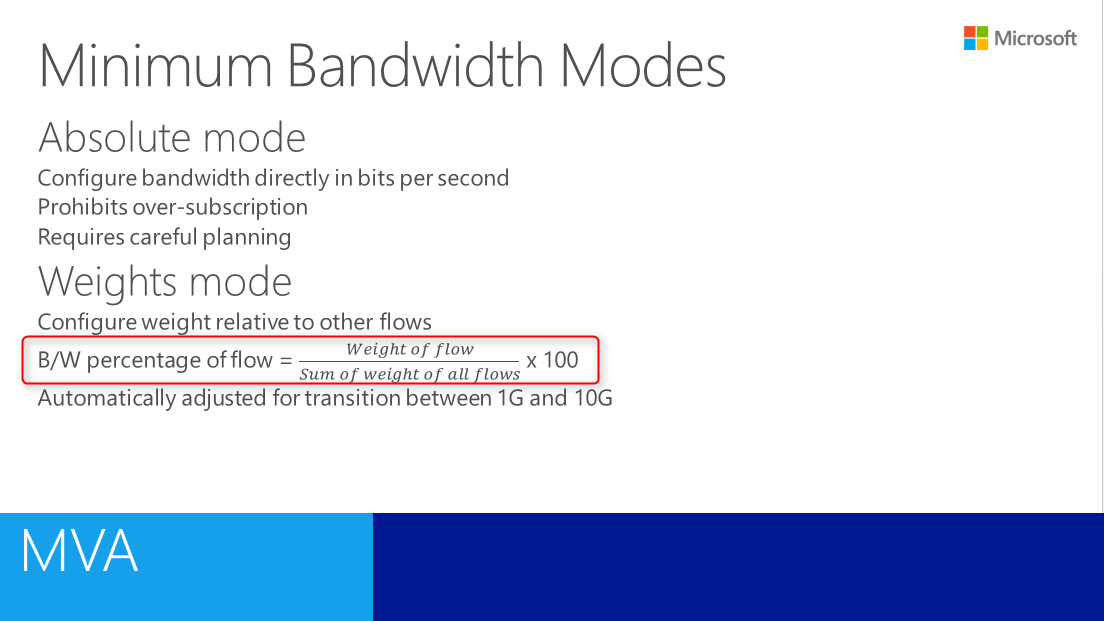
What is the formula to calculate the weight of Minimum bandwidth?

According to "Introduction to Hyper-V Jump Start" series, the formula is the following.


This image from Hyper-V Networking

Remark: Once a Hyper-V virtual switch is created in a mode (weight, absolute bandwidth) it can't be changed.

Virtual machines can't migrate between systems where one is weights-based and the other is absolute.

Reference:
Converged Networking for Windows Server 2012 R2 Hyper-V

Lab environment

  • 1 physical server named HV03 with 4 x Intel 1Gb NICs
  • All NICs connected to a single physical switch
  • HV03 is installed Windows Server 2012 R2 Datacenter
  • HV03 is installed Hyper-V role
Lab
All configuration will be performed by local administrator of HV03.

1. On HV03, log in as local administrator.
2. Launch "PowerShell" as administrator.
3. Perform "New-NetLbfotTeam "NICTeam01" -TeamMembers "Ethernet", "Ethernet 2", "Ethernet 3", "Ethernet 4" -TeamingMode SwitchIndependent -TeamNicName "NICTeam01" -LoadBalancingAlgorithm Dynamic -Confirm:$False" to create a NIC teaming named "NICTeam01".


4. Perform "New-VMSwitch -Name HVSwitch01 -AllowManagementOS $false -NetAdapterName NICTeam01 -MinimumBandwidthMode weight" to create a new Hyper-V virtual switch and linked to a NIC teaming. The QoS mode of this switch is weight and the VM switch doesn't share the NIC with management operating system.


5. Perform "Set-VMSwitch -Name HVSwitch01 -DefaultFlowMinimumBandwidthWeight 40" to assign default minimum bandwidth for the virtual switch more than configure QoS of bandwidth to an individual virtual machine.


6. Perform 
Add-VMNetworkAdapter -ManagementOS -Name "Management" -SwitchName "HVSwitch01"
Add-VMNetworkAdapter -ManagementOS -Name "Cluster" -SwitchName "HVSwitch01"
Add-VMNetworkAdapter -ManagementOS -Name "LM" -SwitchName "HVSwitch01" to create virtual NICs for management OS, Cluster and Live Migration.


7. Perform 
Set-VMNetworkAdapterVlan -ManagementOS -VMNetworkAdapterName "Management" -Access -VlanId 10"
Set-VMNetworkAdapterVlan -ManagementOS -VMNetworkAdapterName "Cluster" -Access -VlanId 11"
Set-VMNetworkAdapterVlan -ManagementOS -VMNetworkAdapterName "LM" -Access -VlanId 12" to configure the port mode and VLAN for the virtual NICs.


8. Perform 
Set-VMNetworkAdapter -ManagementOS -Name "Management" -MinimumBandwidthWeight 10
Set-VMNetworkAdapter -ManagementOS -Name "Cluster" -MinimumBandwidthWeight 10
Set-VMNetworkAdapter -ManagementOS -Name "LM" -MinimumBandwidthWeight 40 to configure minimum bandwidth weight for the virtual NICs.


After that, administrators can perform "New-NetIPAddress" to assign IP addresses for the virtual NICs.

As a result, virtual machines share 1.6Gb of 4Gb, Live migration traffic shares 1.6Gb of 4Gb, Management OS and Cluster share share 400Mb for each virtual NIC.

Remark: Perform "Get-VMNetworkAdapter -ManagementOS | FT Name, BandwidthPercentage -AutoSize" to verify the bandwidth percentage.


Based on your production environment, administrators may create virtual NICs for Storage, SMB and Hyper-V replicate and configure minimum bandwidth for these virtual NICs.

Remark: The minimum bandwidth weight is not limited to 100. However, it's suggested keeping the sum of weight near or under 100 by Microsoft.

More information


This posting is provided “AS IS” with no warranties, and confers no rights!

Saturday, April 5, 2014

Receive Side Scaling (RSS) in Windows Server 2012 and Windows Server 2012 R2

Receive Side Scaling (RSS) is a technology on a network adapter to distribute network receive traffic to multiple processor cores. By default, only the first single core of CPU handles the network traffic. The single core will be the bottleneck because only 1 single core to handle all network traffic in a server.

What's new in Windows Server 2012 or Windows Server 2012 R2 of Receive Side Scaling (RSS)?
  • RSS enables Windows Server 2012 to scale optimally on large servers that have more than 64 processors
  • RSS allows multi-NUMA node servers, such as web servers, file servers, and servers running other workloads, to scale efficiently
  • For DirectAccess, RSS allows improved scalability by actively load balancing forwarded traffic
  • RSS enables financial applications, such as ticker plants and algorithmic trading systems using UDP as their transport, to scale with increasing load
  • RSS provides applications with an input/output control to align themselves with the stack
  • RSS is compatible with the Windows load balancing and failover solution
  • RSS provides administrators with the ability to deploy, manage, and diagnose RSS functioning through standard management interfaces and diagnostics tools
  • RSS optimally scales all workloads by aligning the networking stack with the kernel scheduler. RSS uses the processor list provided by the kernel scheduler while making processor selection decisions
Quote from Receive Side Scaling (RSS)

To use Receive Side Scaling (RSS), network adapters and Operating Systems need to support  it. Windows Server 2012 and Windows Server 2012 R2 support Receive Side Scaling (RSS) and enabled by default.


We can launch the NIC properties of "Device Manager" to make sure "Receive Side Scaling" is supported by this NIC.


or perform "Get-NetAdapterAdvancedProperty -Name <NIC Name>" to check the "Receive Side Scaling"  setting of a NIC.


Now, we know how to check the RSS settings of NICs and Operating Systems. We can perform some cmdlets to change the settings of RSS.

Remark: There is no GUI to configure the RSS settings.

The default profile of RSS is "NUMAStatic". Administrators can perform Set-NetAdapterRss -Profile to change to other profile.


As before version, administrators can configure the registry to assign the processor for RSS. Staring from Windows Server 2012, administrators can perform Set-NetAdapterRss to configure the settings.

Perform "Set-NetAdapterRss -Name <NIC Name> -BaseProcessorNumber 1 -MaxProcessor 2" to update the RSS settings to use the second core processor and then maximum processors to assign is 2.


Remark: The first processor core starts from 0.

Now, I assigned 2 processors for this NIC for RSS. After changing the processor number of RSS, administrators should need to update the "Number of Receive Queues" of RSS to fully utilize the CPU.

Remark: Make sure the NIC supports to update the "Number of Receive Queues".

Why do we need to update the processor number of RSS?

If Dynamic Virtual Machine Queue (DVMQ) is also enabled on the server, By default, Dynamic Virtual Machine Queue (DVMQ) share same processors with RSS. It affects the performance of CPU and network. Administrators need to assign difference processors for RSS and DVMQ.

To update the processors assignment of DVMQ, administrators can perform "Set-NetAdapaterVmq"

RSS can be enabled on a network adapter that is teamed with another network interface card using NIC Teaming. In this scenario, only the underlying physical network adapter can be configured to use RSS. A user cannot set RSS cmdlets on the teamed network adapter.

Quote from Choosing a Network Adapter

More information


This posting is provided “AS IS” with no warranties, and confers no rights!