Showing posts with label Windows Server 2016. Show all posts

Thursday, July 12, 2018

Installation Windows Admin Center (WAC) on Server Core

Windows Admin Center (WAC) is supported to install into Windows Server 2016 Server Core environment. To install into server core environment, we do the following steps.

1. Log in as administrator.
2. Perform PowerShell into the Command Prompt.
3. Perform Start-BitsTransfer -Source http://aka.ms/WACDownload -Destination C:\WAC.msi to download Windows Admin Center (WAC) to C Drive.


4. Perform exit to back to Command Prompt.
5. Perform msiexec /i C:\WAC.msi /qn /L*v log.txt SME_PORT=443 SSL_CERTIFICATE-OPTION=generate to install Windows Admin Center (WAC) with assigning port 443 for HTTPS connection of the server and generate self-sign certificate for WAC.


6. Perform notepad log.txt to check the log file to make sure installation completed successfully.


This posting is provided “AS IS” with no warranties, and confers no rights!

Wednesday, July 11, 2018

Install Windows Admin Center (WAC) on Windows Server 2016 GUI

Windows Admin Center (WAC) is a new product released by Microsoft for servers and client management. WAC is a browser-based app. It supports to manage Windows Server 2012 or later and Windows 10 PC in the current GA version.

Prerequisites
1. WMF 5.1 
To manage Windows Server 2016 prior, the server OS is required to install WMF Version 5.1 or higher. For installing WMF 5.1, please visit the following web site. 


2. Enable PowerShell remote on managed servers 
WAC uses PowerShell connection to manage remote servers. Make sure PowerShell Remote connection is enabled. If not, perform Enable-PSremoting –Force on servers

3. Certificate
The connection of Windows Admin Center (WAC) is HTTPS. Administrators are required to prepare a valid web server certificate for WAC 

Install Windows Admin Center
Installing WAC is really simple. Administrators download the MSI file from "Hello, Windows Admin Center!" Web site.

1. Log in as administrator. 
2. Double-click the installation MSI file. 
3. On License Agreement window, check I accept the terms in the License Agreement, and then click Next.


4. On Microsoft Update setting window, select Use Microsoft Update when I check for updates (recommended), and then click Next. 


5. On Trusted hosts settings window, leave default option, and then click Next. 


6. On web access settings window, use 443 port for access and select Generate a self-signed SSL certificate. This certificate will expire in 60 days option for my lab environment. 


Remark: In production environment, Use an SSL certificate installed on this computer should be selected. The certificate thumbprint is required to enter for installation.

7. Click Install to install Windows Admin Center (WAC). 
8. When installation completed, click Finish. 


This posting is provided “AS IS” with no warranties, and confers no rights!

Friday, May 18, 2018

New-NetNat Invalid property "InternalIPInterfqaceAddressPrefix"

In Windows Server 2016 and Windows 10, it is easy for us to create NAT network for virtual machines without additional virtual machine to be a router. However, when you create a NAT network in Hyper-V environment. You may have the below problem.


To solve this problem, we can do the following steps.
1. Launch PowerShell as administrator.
2. Perform Suspend-Service winmgmt to pause the Windows Management Instrumentation service.


3. Perform Rename-Item -Path C:\Windows\System32\wbem\repository\ -NewName repository_OLD to rename repository folder.


4. Perform Resume-Service winmgmt to resume the Windows Management Instrumentation service.


Now, you can perform New-NAT to create the NAT network for virtual machine.

Remark: After resume winmgmt service, you may also need to restart Hyper-V Virtual Machine Managment service.

For creating NAT network on Hyper-V, please check the following link for your reference.
Set up a NAT network


This posting is provided “AS IS” with no warranties, and confers no rights!

Tuesday, April 11, 2017

Certlm.msc on Windows Server 2012 / Windows 8 or later

Started from Windows Server 2012 / Windows 8 or later, there is a new msc, Certlm.msc, were added to the Windows. Certlm.msc can directly open a computer certificate store. As previous, we needed to use Microsoft Management Console to add the computer certificate store to the console. So, It's easy for administrator to check the computer certificate via GUI.


This posting is provided “AS IS” with no warranties, and confers no rights!

Wednesday, April 27, 2016

Get the Windows Server 2016 and System Center 2016 from TechNet Evaluation Center

Today, Microsoft released technical preview 5 of Windows Server and System Center 2016. Now, you can download these products from TechNet Evaluation Center.

For more information about Windows Server 2016 Technical Preview 5. Please read What's new in Windows Server 2016 Technical Preview 5.

This posting is provided “AS IS” with no warranties, and confers no rights!

Friday, February 26, 2016

Enable disk performance monitor on task manage for Windows Server 2012 and later

On Windows 8 and later, you can find the disk performance item on task manager.


However, the disk monitor is disabled on server operating systems like Windows Server 2012 and later. To enable disk performance monitor on task manager, we can launch "Command Prompt" as administrator. Then, perform diskperf -y to enable it.


As a result, disk performance monitor item has been enabled on task manager.


To disable it, we can perform diskpery -n on "Command Prompt" as administrator.


This posting is provided “AS IS” with no warranties, and confers no rights!

Sunday, February 21, 2016

Change network connection profile by PowerShell on Windows 8 or later

Started from Windows 8, there are 2 PowerShell cmdlets for administrators to get and set network connection profiles which are Get-NetConnectionProfile and Set-NetConnectionProfile.

Get-NetConnectionProfile can check the current network connection profile for all network NICs.

The current network profile of this NIC is "Private"

To change the network connection profile to public, we can perform Set-NetConnectionProfile -InterfaceAlias <NIC Name> -NetworkCategory Public.

The network connection profile has been changed to "Public"

Make sure the PowerShell console is "run as administrator". if not, you get the following error message.

Set-NetConnectionProfile : Unable to set the NetworkCategory ...

From Windows 10 PowerShell console

The another reason to show this error message is that you performed Set-NetConnectionProfile to "DomainAuthenticated".

From Windows 8.1 PowerShell console

"DomainAuthenticated" network connection profile should be automatically assigned when a computer was joined domain. It cannot be changed by Set-NetConnectionProfile cmdlet because it is controlled by "Network List Manager" of Group Policy. However, we can change the other NICs of domain computers.


This posting is provided “AS IS” with no warranties, and confers no rights!

Monday, November 23, 2015

Enable nested virtualiztaion on Windows Server 2016 TP4 or Windows 10

In Windows 10 build version 10586 and Windows Server 2016 Technical Preview 4, Microsoft added nested virtualization on Hyper-V. We can enable Hyper-V feature on a virtual machine which is installed Windows Server 2016 TP4 or Windows 10 build 10586. The build versions prior to Windows Server 2016 TP4 or Windows 10 build 10586. It doesn't work. At this moment, there are some limitations on a virtual machine which will be enabled Hyper-V feature.
  • Dynamic memory must be off
  • Runtime memory resize doesn't support (Windows Server 2016 Hyper-V new feature)
  • Checkpoint doesn't support
  • Live migration doesn't support
  • Save or Restore of a virtual machine doesn't support
There are some requirements to use nested virtualization.
  • Once nested virtualization is enabled in a VM, MAC spoofing must be enabled for networking to work in its guests
  • Hosts with Device Guard enabled cannot expose virtualization extensions to guests. You must first disable VBS in order to preview nested virtualization
  • Hosts with Virtualization Based Security (VBS) enabled cannot expose virtualization extensions to guests. You must first disable VBS in order to preview nested virtualization
  • This feature is currently Intel-only. Intel VT-x is required
  • Beware: nested virtualization requires a good amount of memory. I managed to run a VM in a VM with 4 GB of host RAM, but things were tight

To enable nested virtualization on a VM, we can perform Set-VMProcessor -VMName <VMName> -ExposeVirtualizationExtensions $True


or We can use a script which is provided by Microsoft to enable it.

The script will configure a virtual machine to fulfill the requirements like disabling Mac address spoofing, changing the memory size and so on.

Then, we can enable the Hyper-V feature on a VM.


Please try to use it and give some feedback to Microsoft.

More information:

This posting is provided “AS IS” with no warranties, and confers no rights!

Thursday, October 22, 2015

Windows Server 2016: Virtualization Deep Dive on Microsoft Virtual Academy (MVA) course

There is a new course on Microsoft Virtual Academy (MVA) to talk about Virtualization on Windows Server 2016. Windows Server 2016: Virtualization Deep Dive is hold by Matt McSpirit, Technical Evangelist, and Ben Armstrong, Principal Program Manager Lead, Hyper-V. If you are a big fan of Hyper-V, you must know Ben Armstrong. They talked about Hyper-V on Nano Server, Containers and other new features on Windows Server 2016 Virtualization. Don't miss this MVA course to learn what's new in Windows Server 2016 Virtualization.

This posting is provided “AS IS” with no warranties, and confers no rights!

Wednesday, September 23, 2015

A new Microsoft Virtual Academy (MVA) for Nano Server

There is a new Microsoft Virtual Academy (MVA) course, A Deep Dive into Nano Server to talk about how to install, manage and troubleshooting Nano Server. This course is held by Matt McSpirit, Technical Evangelist, and Andrew Mason, Principal PM Manager, Windows Server Platform and tools. Don't miss this course.

This posting is provided “AS IS” with no warranties, and confers no rights!

Thursday, September 10, 2015

Learning Windows Container on Windows Server 2016 Technical Preview 3 - Part 1

Microsoft announced to work closely with Docket to support container technology on next version of Windows Server, Windows Server 2016, last year. In Windows Server 2016 Technical Preview 3, it started to support one of container technology, Windows Container, in this version. That's why I started to write this post for reference.

As I understand, Windows Container are the lightweight and enhanced virtualization technology. It uses a differencing disk concept to create an isolated environment for each container.

Microsoft provided some documents and steps to set up Windows Server Containers in different environments like Microsoft Azure, existing physical hosts or virtual machines and a virtual machine on a Hyper-V host. 

To understand Container easily, I will configure Windows Container host on an existing virtual machine of Windows Server 2016 Technical Preview 3 full installation environment. 

Remark: It isn't an official supported environment.

Requirement

  • Windows Server 2016 Technical Preview 3 full installation
  • Make sure the virtual machine connects to Internet

Before configuring Windows Container, there are no Hyper-V folder and Images folder under C:\ProgramData\Microsoft\Windows path.


1. Launch PowerShell as administrator.
2. Perform wget -uri https://aka.ms/setupcontainers -OutFile C:\ContainerSetup.ps1 to get the PowerShell script to set up an existing virtual machine or physical host to Windows Server Container host.

Remark: This PowerShell script is only for configuring an existing virtual machine or physical host. To configure a new virtual machine to be a Windows Server Container hoston a Hyper-V host, we need to use another script, New-ContainerHost.ps1.

3. Perform C:\ContainerSetup.ps1 to configure Windows Server Container host on the virtual machine.


The Container Base Image is downloading to C:\Windows\System32 folder and it will be extracted to C:\ProgramData\Microsoft\Windows\Images folder.


Eventually, the virtual machine has been configured to be a Windows Server Container host.

After configuration, there are 2 new folders under C:\ProgramData\Microsoft\Windows named Hyper-V and Images.


The Base OS image is under Images and the container will be linked to this and then create a new different disk. I will create a new container later. If you click inside the Images folder, you can find the registry files for Container and the Based OS image.


Navigate to Hyper-V folder, you can find some folders which are related to Containers.


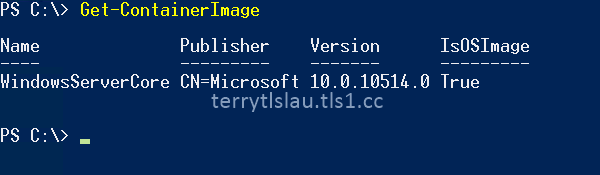
4. A Windows Container is based on the Base OS image, perform Get-ContainerImage to get the name of the Base OS image.


5. Perform $Con = New-Container -Name Container01 -ContainerImageName WindowsServerCore -SwitchName "Virtual Switch" to create a new container named "Container01".


Navigate to C:\ProgramData\Microsoft\Windows\Hyper-V\Containers folder. There are some virtual machine files for the container, Container01.


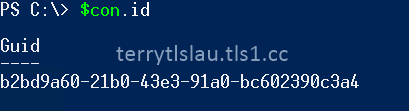
We can perform $con.id on PowerShell console to verify the ID of this container.


6. Perform Start-Container -Name Container01 to start the Windows Container and then perform Get-Container to verify it.


7. To manage and install program on this container, we can perform Enter-PSSession -ContainerId $con.id -RunAsAdministrator.


Now, you can perform PowerShell cmdlet to manage this container or install program on this container.

In this part, we understand the basic concept and operation of Windows Container.
This posting is provided “AS IS” with no warranties, and confers no rights!

Sunday, August 30, 2015

Setup Nano Server of Windows Server 2016 TP3 version on Hyper-V virtual machines

In one of  Microsoft Ignite 2015 sessions, Jeffrey Snover introduced a new Window Server installation option, Nano Server, on the Windows Server 2016 Technical Preview 2. In Windows Server 2016 Technical Preview 3, Microsoft attached 2 PowerShell scripts on the installation media to let administrators to create a new VHD of NanoServer easily. At this moment, Nano Server supports the following features:
  • Hyper-V Compute
  • Windows Containers
  • Storage Server (SOFS)
  • Failover Clustering


For more information what Nano Server supports, please read Getting Started with Nano Server.

In this post, I will try to create a Nano Server VHD by the scripts which are provided by Microsoft. Then, boot the Nano Server VHD and VHDX on a Hyper-V Server.
Lab environment
  • 1 x Windows Server 2012 R2 Hyper-V Server

1. Log in a Hyper-V server as administrator.
2. Launch PowerShell as administrator.
3. Navigate to installation DVD path \NanoServer.


4. Perform . .\new-nanoserverimage.ps1 to load the PowerShell function.


5. Perform New-NanoServerImage -MediaPath <Source path of installation DVD of folder> -BasePath <Temporary folder path for conversion> -TargetPath <Target folder path> -<Feature Name> -EnableIPDisplayOnBoot to create a Nano Server vhd.


This script prompted you to enter the local administrator password for the Nano Server.


Eventually, the Nano Server was created on the destination folder.


Then, you can create a Generation 1 virtual machine and then attach the virtual hard disk.

Remark: The current script, New-NanoServerImage, created the VHD with MBR boot partition so we need to use generation 1 virtual machine to mount it. To use generation 2 virtual machine for Nano Server, we can update this script manually to change to vhdx with GPT boot partition. Based on my testing, I updated the following line numbers of this script.

Line 611, 701, 707, 925


As a result, we can set up Nano Server on virtual machines. To manage Nano Servers, we can perform PowerShell cmdlet, Enter-PSSession, to connect and manage the Nano Servers.


This posting is provided “AS IS” with no warranties, and confers no rights!