Showing posts with label Remote Desktop Gateway. Show all posts

Monday, January 27, 2014

Migrate a Windows Server 2008 or R2 Remote Desktop Gateway server to a Windows Server 2012 or R2 server in workgroup enviornment - Part 3

In part 1 and part 2, we migrated the associated users, groups and policies from the Remote Desktop Gateway server, RDG08, to RDG12. In this part, we are going to migrate the certificate of Remote Desktop Gateway server to RDG12.

Goal
  • Migrate local users accounts of groups which are associated with Remote Desktop Gateway server in the existing Remote Desktop Gateway server to Windows Server 2012 R2 environment
  • Migrate the Remote Desktop connection authorization policies and Remote Desktop resource authorization policies from the existing Remote Desktop Gateway server to Windows Server 2012 R2
  • Export and import the certificate of Remote Desktop Gateway server from the existing one to Windows Server 2012 R2
Lab environment
  • 1 Windows Server 2008 R2 with Remote Desktop Gateway named RDG08 in workgroup environment
  • 1 Windows Server 2012 R2 named RDG12 in workgroup environment
  • IP addresses of RDG08 and RDG12 are 10.100.100.2 and 10.100.100.1
Lab
This part is intended to export the certificate from RDG08 and then import it to RDG12.

Export the certificate of Remote Desktop Gateway from RDG08
1. On RDG08, log in as Local Administrator.
2. Launch "Microsoft Management Console".
3. On the menu, click "File > Add/Remove Snap-in".


4. On "Add or Remove Snap-ins" window, double-click "Certificates".


5. On "Certificates snap-in" window, select "Computer account".


6. Click "Next".
7. On "Select Computer" window, click "Finish".


8. On "Add or Remove Snap-ins" window, click "OK".


9. Expand "Certificates (Local Computer) > Personal > Certificates".
10. On right pane, right-click the certificate, select "All Tasks > Export".


11. On "Welcome to the Certificate Export Wizard" window, click "Next".
12. On "Export Private Key" window, select "Yes, export the private key".


13. Click "Next".
14. On "Export File Format" window, under "Personal Information Exchange - PKCS #12 (.PFX)", check "Include all certificates in the certification path of possible" and "Export all extended properties".


15. Click "Next".
16. On "Password" window, provide a password for this certificate.


17. Click "Next".
18. On "File to Export" window, next to "File name", enter "C:\Mig\RDG.pfx".


19. Click "Next".
20. On "Completing the Certificate Export Wizard" window, click "Finish".


21. On "Certificate Export Wizard" window, click "OK".

Import the certificate of Remote Desktop Gateway from RDG12
1. On RDG12, log in as Local Administrator.
2. Launch "Remote Desktop Gateway Manager".
3. Right-click "RDG12 (Local)", select "Properties".


4. On "RDG12 Properties", select "SSL Certificate".


5. Select "Import a certificate into the RD Gateway RDG12 Certificates (Local Computer)/Personal store" and then click "Browse and Import Certificate".


6. On "Open" window, navigate to "\\10.100.100.2\Mig", and then select "RDG".


7. Click "Open".
8. On "Enter Private Key Password" window, enter the password of this certificate.


9. Click "OK".
10. On "Certificate Import" window, click "OK".


11. On "RDG12 Properties", click "OK".


As a result, users can use a new password to connect the Remote Desktop Gateway server, RDG12.

Please go to the following web sites to read the previous of this series.


This posting is provided “AS IS” with no warranties, and confers no rights!

Sunday, January 26, 2014

Migrate a Windows Server 2008 or R2 Remote Desktop Gateway server to a Windows Server 2012 or R2 server in workgroup enviornment - Part 2

In part 1, we migrated the local user accounts and groups from the Remote Desktop Gateway server, RDG08, to RDG12. In this part, we are going to migrate the Remote Desktop Gateway server settings like "Connection Authorization Policies" and "Resource Authorization Policies" from RDG08 to RDG12.

Goal
  • Migrate local user accounts or groups which are associated with Remote Desktop Gateway server in the existing Remote Desktop Gateway server to Windows Server 2012 R2 environment
  • Migrate the Remote Desktop connection authorization policies and Remote Desktop resource authorization policies from the existing Remote Desktop Gateway server to Windows Server 2012 R2
  • Export and import the certificate of Remote Desktop Gateway server from the existing one to Windows Server 2012 R2
Lab environment
  • 1 Windows Server 2008 R2 with Remote Desktop Gateway named RDG08 in workgroup environment
  • 1 Windows Server 2012 R2 named RDG12 in workgroup environment
  • IP addresses of RDG08 and RDG12 are 10.100.100.2 and 10.100.100.1
Lab
This part is intended to migrate "Connection Authorization Policies", "Resource Authorization Policies" from RDG08 to RDG12.

Installing Remote Desktop Gateway in Windows Server 2012 R2
To install Remote Desktop Gateway feature in Windows Server 2012 R2, please follow the steps of "Renaming primary DNS suffix of the server" and "Installing the Remote Desktop Gateway features" on  "Deploy Remote Desktop Gateway in Windows Server 2012 or Windows Server 2012 R2 workgroup environment".

Export and import the Connection Authorization Policies and Resource Authorization Policies
In RDG08, there are 1 "Connection Authorization Policies" and 1 "Resource Authorization Policies" with some settings.


1. On RDG08, log in as Local Administrator.
2. Launch "Remote Desktop Gateway Manager".
3. Right-click "RDG08 (Local)", select "Export policy and configuration settings".


4. On "Export Policy and Server Configuration Settings" window, next to "Location", enter "C:\Mig".


5. Click "OK".
6. On "RD Gateway" windows, click "OK".


The policy settings file has been exported to the Share folder.

7. Go to RDG12, log in as Local Administrator.
8. Launch "Windows Explorer" and navigate to "\\10.100.100.2\Mig".
9. Right-click "tsgateway.xml", select "Open with > Notepad".


The Server name and User group name don't match the new server name, RDG12, so we have to change it from RDG08 to RDG12 before importing the settings.

10. On the menu, click "Edit > Replace".


11. On "Replace" window, next to "Find what", enter "RDG08".
12. Next to "Replace with", enter "RDG12".


13. Click "Replace All".
14. Close the "Replace" window.


Now, the Server name and User group name have been updated.

15. Save and exit "tsgateway.xml".
16. Launch "Remote Desktop Gateway Manager".


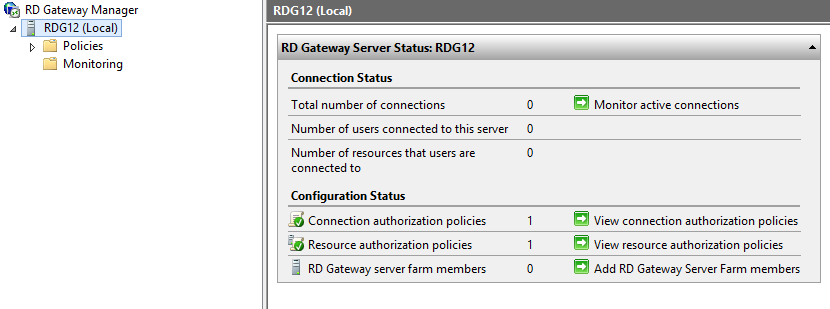
There is no "Connection Authorization Policies" and "Resource Authorization Policies" in RDG12.

17. Right-click "RDG12 (Local)", select "Import policy and configuration settings".


18. On "Import Policy and Server Configuration Settings" window, under "Specify the file that you want to import", enter "\\10.100.100.2\Mig\tsgateway.xml".


19. Click "OK".
20. On "RD Gateway" window, click "Yes" to import the settings to RDG12.


21. On "RD Gateway" window, click "OK".


The "Connection Authorization Policies" and "Resource Authorization Policies" settings have been imported in RDG12.


Please go to following web sites to read the other parts of this series.
Migrate a Windows Server 2008 or R2 Remote Desktop Gateway server to a Windows Server 2012 or R2 server in workgroup environment - Part 1

Migrate a Windows Server 2008 or R2 Remote Desktop Gateway server to a Windows Server 2012 or R2 server in workgroup environment - Part 3

This posting is provided “AS IS” with no warranties, and confers no rights!

Saturday, January 25, 2014

Migrate a Windows Server 2008 or R2 Remote Desktop Gateway server to a Windows Server 2012 or R2 server in workgroup enviornment - Part 1

Recently, I'd like to migrate the Remote Desktop Gateway Server from Windows Server 2008 R2 to Windows Server 2012 R2 in my lab enviornment. I intend to write down all the steps.

If you deployed the Remote Desktop Gateway server in a workgroup environment,  you could be interested in this post.

If you want to deploy a new Remote Desktop Gateway server in a workgroup environment, you can read the following posts for your information.


Goal
  • Migrate local user accounts or groups which are associated with Remote Desktop Gateway server in the existing Remote Desktop Gateway server to Windows Server 2012 R2 environment
  • Migrate the Remote Desktop connection authorization policies and Remote Desktop resource authorization policies from the existing Remote Desktop Gateway server to Windows Server 2012 R2
  • Export and import the certificate of Remote Desktop Gateway server from the existing one to Windows Server 2012 R2
Lab environment
  • 1 Windows Server 2008 R2 with Remote Desktop Gateway named RDG08 in workgroup environment
  • 1 Windows Server 2012 R2 named RDG12 in workgroup environment
  • IP addresses of RDG08 and RDG 12 are 10.100.100.2 and 10.100.100.1
Prerequisites
  • Create a share folder named Mig with full access for RDG12 in RDG08 of C Drive

  • In RDG08, I created a user account named, RemoteUser, and a group named, RDG Users,  for accessing in Remote Desktop Gateway.


Lab
This part is intended to migrate the local user accounts and groups from RDG08 to RDG12.

Installing Windows Server Migration Tool
1. On RDG12, log in as Local Administrator.
2. Launch "Server Manager".
3. Click "Add roles and features".


4. On "Before You Begin" window, click "Next".
5. On "Installation Type" window, select "Role-based or feature-based installation" option.


6. Click "Next".
7. On "Server Selection" window, click "Next" twice.


8. On "Features" window, check "Windows Server Migration Tools" option.


9. Click "Next".
10. On "Confirmation" window, click "Install".


11. On "Results" window, click "Close".

We can also use cmdlet to install "Windows Server Migration Tools" by entering "Install-WindowsFeature Migration".


Migrate local user accounts and groups from RDG08 to RDG12
1. Still in RDG12, launch "Windows Server Migration Tools".


2. On "Windows Server Migration Tools" Command Prompt, navigate to "C:\Windows\System32\ServerMigrationTools".


3. Perform ".\SmigDeploy.exe /package /architecture amd64 /os WS08R2 /path \\10.100.100.2\Mig" to create a deployment folder package for Windows Server 2008 R2 to export settings.


Windows Server Migration Tools supports x86 and 64 architecture and the following OS: Windows Server 2003, Windows Server 2008, Windows Server 2008 R2 and Windows Server 2012.


4. Go to RDG08, log in as Local Administrator.
5. Launch "Command Prompt" as administrator and then navigate to "C:\Mig\SMT_ws08R2_amd64" folder which is the deployment package of Windows Server Migration Tools.


6. Perform "SmigDeploy.exe".


Then the PowerShell window started automatically.


7. Perform "Export-SmigServerSetting -User All -Group -Path C:\Mig\UserData" to export and local users and groups data to a file.
8. Provide a password for the file.


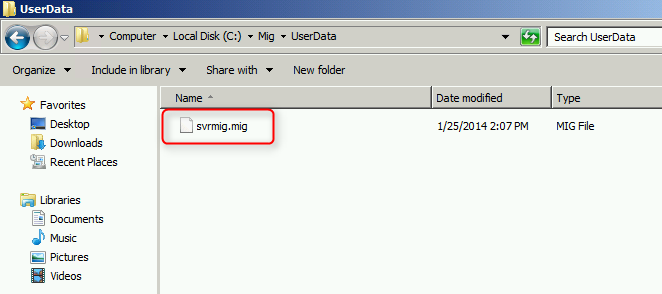
The data file, svrmig.mig, has been created in C:\Mig\UserData.


9. Go to RDG12, select the "PowerShell" of "Windows Server Migration Tools".
10. Perform "Import-SmigServerSetting -User Enabled -Group -Path \\10.100.100.2\Mig\UserData" to import the data from the file, svrmig.mig.
11. Enter the same password which you entered before.


The error is related to an account, IIS AppPooL\DefaultAppPool to add into IIS_Users, because RDG12 hasn't been installed the IIS feature.


We can ignore this error.

12. Launch "Computer Management" and then navigate to "Local Users and Groups > Users".


The RemoteUser has been migrated but the account is disabled. It's normal after migration.

13. Double-click "RemoteUser".


The account is required to change the password when next logon because the password cannot be migrated. There is no password for this account at this moment. Administrators may need to assign a new password for all migrated user accounts. 

14. Un-check "User must change password at next logon", click "OK".
15. Select "Groups".


16. Double-click "RDG Users".


The group members information also migrated.

As a result, we have migrated the user account and group from RDG08 to RDG12.

We can uninstall the "Windows Server Migration Features" in RDG12.


References:


This posting is provided “AS IS” with no warranties, and confers no rights!