Showing posts with label Windows Server 2012 R2. Show all posts

Tuesday, April 11, 2017

Certlm.msc on Windows Server 2012 / Windows 8 or later

Started from Windows Server 2012 / Windows 8 or later, there is a new msc, Certlm.msc, were added to the Windows. Certlm.msc can directly open a computer certificate store. As previous, we needed to use Microsoft Management Console to add the computer certificate store to the console. So, It's easy for administrator to check the computer certificate via GUI.


This posting is provided “AS IS” with no warranties, and confers no rights!

Thursday, November 10, 2016

Fixing NIC teaming which was created by onboard NICs after replace a motherboard

Symptom
After replacing a motherboard with same model,  when you check the current NIC teaming configuration on Server Manager. The NIC teaming is "Fault" status.


When you click properties, you got the "stopping working" windows.


Cause
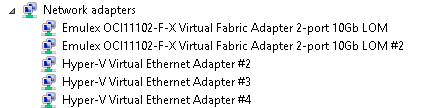
The virtual NICs of blade server were changed. The NIC teaming doesn't know you changed the hardware.

Before

After


Resolution
1. Launch PowerShell to remove the current NIC teaming.


2. Update the VMSwitch to point to this new NIC teaming by performing Set-VMSwitch.

This posting is provided “AS IS” with no warranties, and confers no rights!

Friday, February 26, 2016

Enable disk performance monitor on task manage for Windows Server 2012 and later

On Windows 8 and later, you can find the disk performance item on task manager.


However, the disk monitor is disabled on server operating systems like Windows Server 2012 and later. To enable disk performance monitor on task manager, we can launch "Command Prompt" as administrator. Then, perform diskperf -y to enable it.


As a result, disk performance monitor item has been enabled on task manager.


To disable it, we can perform diskpery -n on "Command Prompt" as administrator.


This posting is provided “AS IS” with no warranties, and confers no rights!

Thursday, February 25, 2016

Using robocopy for file servers migration

"Robocopy" is a robust and powerful command on Windows to copy files and directories. Why do we use "robocopy" for file server migration?

There are some reasons.
1. It can maintain NTFS permission of files and directories during copy to new file server within the same domain.
2. It provided verification function to check the difference of source and destination
3. "Robocopy" supports multi-threaded copies. It improves the efficiency.
4. The backup mode of "robocopy" can copy files or directories to destination which you aren't granted permission to access it.

In my case, I performed "robocopy" with the following parameters to copy files and directories from source to destination.

Assuming that I logged in to a new file server, Windows Server 2012 R2, and then mapped network to the old file server.

For the first time, I performed Robocopy <source directory or drive> <Destination directory or drive> /ZB /e /sec /copyall /TEE /MT:128 /r:0 /log:C:\copylog.txt

/ZB: use restart mode first. If the file or directory isn't granted permission for us to copy, use backup mode to copy it.
/e: copy subdirectories, including Empty ones.
/sec: copy files and directories with Security
/copyall: copy files and directories info like auditing info
/TEE: this is an optional parameter which is displayed the coping status on "Command Prompt"
/MT:128 use 128 threaded to copy files and directories. However, it use many CPU resource.
/r:0 I don't want to retry at this time.
/log: save a log file to location

The second time, I prefer to copy the delta of files and directories. I added 4 parameters to copy from source to destination again.

Robocopy <source directory or drive> <Destination directory or drive> /ZB /e /sec /copyall /TEE /MT:128 /r:1 /XD /XF /XO /purge /log:C:\copylog.txt

/XD: eXclude Directories matching given names/paths but it can still add new or extra directories
/XF: eXclude Files matching given names/paths/wildcards but it still can add new or extra files
/XO: exclude older files or directories
/purge: delete dest files/dirs that no longer exist in source. 

After that, we can migrate share permission of share folder. To migrate share permission, please read Migrating File Servers in the same domain. Then, we can stop sharing from the old server and change the network drive mapping to the new file server.

This posting is provided “AS IS” with no warranties, and confers no rights!

Sunday, February 21, 2016

Change network connection profile by PowerShell on Windows 8 or later

Started from Windows 8, there are 2 PowerShell cmdlets for administrators to get and set network connection profiles which are Get-NetConnectionProfile and Set-NetConnectionProfile.

Get-NetConnectionProfile can check the current network connection profile for all network NICs.

The current network profile of this NIC is "Private"

To change the network connection profile to public, we can perform Set-NetConnectionProfile -InterfaceAlias <NIC Name> -NetworkCategory Public.

The network connection profile has been changed to "Public"

Make sure the PowerShell console is "run as administrator". if not, you get the following error message.

Set-NetConnectionProfile : Unable to set the NetworkCategory ...

From Windows 10 PowerShell console

The another reason to show this error message is that you performed Set-NetConnectionProfile to "DomainAuthenticated".

From Windows 8.1 PowerShell console

"DomainAuthenticated" network connection profile should be automatically assigned when a computer was joined domain. It cannot be changed by Set-NetConnectionProfile cmdlet because it is controlled by "Network List Manager" of Group Policy. However, we can change the other NICs of domain computers.


This posting is provided “AS IS” with no warranties, and confers no rights!

Wednesday, January 27, 2016

Recommended hotfixes for Windows Server 2012 R2 Hyper-V from Microsoft KBs

Microsoft listed the recommended hotfixes for Windows Server 2012 R2 Hyper-V environment on some KBs. These hotfixes are related to Hyper-V, Failover Clustering and Hyper-V Network Virtualization on Windows Server 2012 R2. These hotfixes aren't downloaded from Windows Update of Windows Server 2012 R2. Administrators have to request and download it manually. However, some hotfixes may not be suitable for your Hyper-V hosts because some features that you don't implement. Please go to the following web sites to check what you need and then apply it to your Hyper-V hosts. And, these hotfixes are updated irregularly.

Recommended hotfixes, updates, and known solutions for Windows Server 2012 R2 Hyper-V environments

Recommended hotfixed and updates for Windows Server 2012 R2-based failover clusters

Recommended hotfixes, updates, and known solutions for Windows Server 2012 R2 Hyper-V Network Virtualization (HNV) environments

This posting is provided “AS IS” with no warranties, and confers no rights!

Monday, December 7, 2015

Migrate Windows Server 2012 R2 Hyper-V cluster to another domain

Recently, I did a migration task to migrate a Windows Server 2012 R2 Hyper-V cluster with Cluster Shared Volume to another domain. To migrate Hyper-V Cluster with Virtual Machines, it took some down time for the virtual machines during the migration. By the way, I would like to make high level steps what I did in this migration for reference.

Current Hyper-V cluster environment
  • 2 nodes Windows Server 2012 R2 Hyper-V Cluster with Cluster Shared Volumes from A domain
  • Some virtual machines are under this Hyper-V Cluster
Goal
  • Migrate these 2 nodes Hyper-V Cluster to B domain
  • Keep the same computer names of the Hyper-V Hosts

High level steps
  • Take screen captures of the folder structures under CSVs
  • Create a temp local administrator accounts on Hyper-V hosts (optional)
  • Perform live migration to move all VMs to the second Hyper-V host in the current Hyper-V cluster
  • Move all CSVs to the second Hyper-V host in the current Hyper-V cluster
  • Move the cluster core resources to other Hyper-V hosts which are in the same clusters
At the current state, all cluster related resources were moved to the second host
  • Evict a node which is no cluster resource from the existing Hyper-V Cluster
  • Clear the cluster configuration on the evicted node by performing Clear-ClusterNode -Name <evicted node name> -Force
  • Remove the Failover Cluster role on the evicted node and then restart the computer
  • Update the IP addresses of all NICs on the evicted node and then join B domain
  • Install Failover Cluster Role and then create a new cluster
  • Shut down all VMs on the Hyper-V Cluster of A domain
  • Remove all VMs from Failover Cluster Manager
  • Take all CSVs offline
  • Remove all CSVs from Hyper-V Cluster of A domain
  • Destroy the Hyper-V Cluster of A domain
  • Clear the cluster configuration on the last node of Hyper-V cluster by performing Clear-ClusterNode -Name <evicted node name> -Force
After removing the Hyper-V Cluster of A domain, the VM configurations still keep in the last Hyper-V host with "Off-Critical" state.

  • Remove the Failover Cluster role on the last node and then restart the computer
  • Bring quorum disk online and then format it as NTFS format on the Hyper-V host of B domain
  • Add the quorum disk and the change the quorum setting to Node and Disk witness on the Hyper-V Cluster of B domain
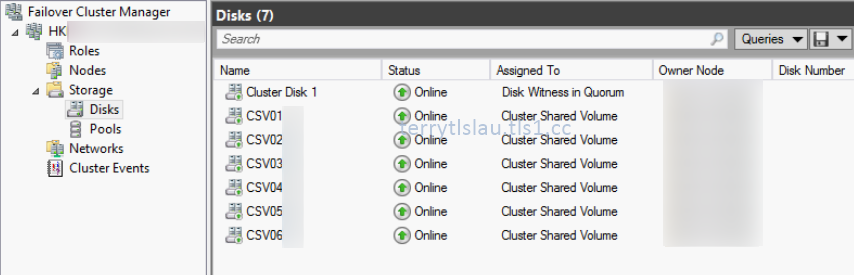
  • Add other disks on the Hyper-V Cluster of B domain

At the lower pane, you can find the name of the cluster disks.

  • Convert the disks in the same sequence of previous Hyper-V Cluster to CSV.
  • Update the IP addresses of all NICs on the last node and then join B domain
  • Install Failover Cluster Role and then on the second nodes to the new Hyper-V Cluster
  • Click "Configure Role" to convert all VMs to high availability in the new Hyper-V Cluster

  • Perform cluster validation test before bring all VMs online
  • Update the delegation Kerberos settings on Active Directory of B domain for live migration
  • Perform some Failover test on the Hyper-V Cluster of B domain
Additional information:
You might find the warning message on the new cluster because the local cluster account, CLIUSR, wasn't deleted during remove the server role. To solve this issue, you can delete the CLIUSR user account manually. Then, restart the Hyper-V host.

Other reference for Hyper-V cluster migration:
This posting is provided “AS IS” with no warranties, and confers no rights!

Friday, November 27, 2015

One of error message when insert AVMA keys

Symptom
Error: 0xc004F069 On a computer running Microsoft Windows non-core edition, run 'slui.exe 0x2a 0xC004F069' to display the error text.


Cause
The AVMA key isn't for this version of Windows. For example, I inserted a Datacenter Edition key to a virtual machine which is installed Windows Server 2012 R2 Standard.

Resolution
Insert an AVMA Key for a virtual machine. The AVMA Keys can be found on Automatic Virtual Machine Activation.

This posting is provided “AS IS” with no warranties, and confers no rights!
Wednesday, November 25, 2015

Install or uninstall multiple Windows Updates by WUSA and PowerShell

WUSA is a command for Windows to install or uninstall Windows update. In this post, I'd like to use WUSA to work with PowerShell to install or uninstall Windows Update on a computer.

Install
To silently install a Windows update and postpone restart a computer, we can perform (Get-ChildItem <Windows Update Package path>).FullName | %{Start-Process wusa "$_ /quiet /norestart" -wait} on PowerShell console


Uninstall
To silently uninstall a Windows update and postpone restart a computer, we can perform wusa /uninstall /kb:<the number of the KB> /quiet /norestart


Remark: Some Windows Updates are required to restart a computer to take action.

To combine with PowerShell to uninstall some Windows Updates, we can perform (Get-Hotfix).hotfixid.substring(2) | Select -last 3 | %{Start-Process wusa "/uninstall /kb:$_ /quiet /norestart" -wait} on PowerShell console to uninstall last 3 Windows Updates. 


There is an example. Based on the search criteria, we can change it like this Get-Content <File Name> | %{Start-Process wusa "/uninstall /kb:$_ /quiet /norestart" -wait}


This posting is provided “AS IS” with no warranties, and confers no rights!

Monday, October 26, 2015

Check an unique ID of LUN by PowerShell

Each LUN has a Unique ID so we can perform Get-Disk | Select UniqueId on PowerShell to check this ID.


Based on the Unique ID, we can perform Get-Disk | Where UniqueId -eq <UniqueId> | Get-Partition | Select AccessPaths to check this LUN mapped to which CSV.


This posting is provided “AS IS” with no warranties, and confers no rights!

Sunday, October 25, 2015

Check allocation unit size of formatted NTFS volume

To easily check the current allocation unit size of formatted NTFS volume, we can perform fsutil command to do it.

1. Launch Command Prompt at administrator.
2. Perform fsutil fsinfo ntfsinfo <Drive letter or CSV path> to check the "Bytes Per Cluster".

This volume was formatted as 4K

This volume was formatted as 64K

Or, we can perform Get-CimInstance Win32_Volume | FT Name,BlockSize -AutoSize to check it.


This posting is provided “AS IS” with no warranties, and confers no rights!

Tuesday, October 13, 2015

Convert an existing virtual machine to a high availability virtual machine on Failover Cluster Manager

After configuring a Hyper-V cluster on Windows Server 2012 or Windows Server 2012 R2, we should use Failover Cluster Manager to create a high availability virtual machine. If we use Hyper-V Manager of one of cluster nodes, a virtual machine doesn't appear on Failover Cluster Manager because the virtual machine isn't high availability. 


Before converting an existing machine, make sure it stored on a shared path of the cluster.

1. To convert an existing virtual machine to a high availability virtual machine, Right-click Roles > Configure Role on Failover Cluster Manager.


2. On "Select Role" window, select Virtual Machine and then click Next.


3. In "Select Virtual Machine" window, check the virtual machine name and then click Next.


4. On "Confirmation" window, click Next.


5. On "Summary" window, click Finish.


As a result, the virtual machine has been converted to a high availability virtual machine within the cluster.


We can perform Get-VM <VMName> | Add-ClusterVirtualMachineRole to complete the above task in a same cluster node.


This posting is provided “AS IS” with no warranties, and confers no rights!