Showing posts with label Microsoft Azure. Show all posts

Tuesday, April 12, 2016

Hybrid IT Management course from Microsoft Virtual Academy (MVA)

There is a series on Microsoft Virtual Academy (MVA) to talk about Hybrid IT Management. There are 2 parts with 20 sessions in it. These are the following will be covered in Part 1 and Part 2.

Part 1
1. Introducing Hybrid IT Management
2. Getting Started
3. Deployment Options
4. Solutions
5. Logs and Near Real-Time Performance Data Collection
6. Search and Customizations
7. Security Analytics
8. Recommended Resources and Next Steps

Part 2
1. Introducing Hybrid IT Management
2. Introducing Azure Backup
3. IaaS Backup
4. Hybrid Cloud Backup with Microsoft Azure Backup Server
5. Integrating System Center Data Protection Manager and Azure Backup
6. System Center Data Protection Manager Overview
7. Introduction to Azure Site Recovery
8. VMware and Physical to Azure
9. Hyper-V to Azure
10. Site-to-Site DR with Azure Site Recovery and Hyper-V Replica
11. Site-to-Site DR with Azure Site Recovery and SAN Replication
12. Site-to-Site DR for VMware with Azure Site Recovery
13. Workload Support and Capacity Planning
14. Summary and Resources

Please go to the following web sites to watch these series.


This posting is provided “AS IS” with no warranties, and confers no rights!

Tuesday, July 7, 2015

Reserve public IP address for Microsoft Azure cloud service

By default, Microsoft Azure doesn't reserve any public IP address for your cloud service. The public IP address which is linked to your cloud service or virtual machine will be changed when the resources are shut down or deallocated.


Microsoft Azure provided reserve the IP address for your cloud service. By default, all Azure subscriptions are authorized to use 20 reserved IPs but we can submit a request to maximize to 100 IPs.

In this part, I'm going to reserve a public IP address for Azure cloud service.

Prerequisites
  • Azure PowerShell module on your computer
We can perform Get-AzureReservedIP to check reserved public IP addressed on your Azure subscription.


At this moment, I haven't reserved any public IP address. Then, I perform New-AzureReservedIP -ReservedIPName RWUSPIP01 -Location "West US" to reserve a public IP address from Microsoft Azure.


Remark: We cannot specific a Public IP address for reservation.


Now, we can associate the reserved public IP address to a cloud service by performing Set-AzureReservedIPAssociation -ReservedIPName RWUSPIP01 -ServiceName <Cloud Service Name>.


Microsoft Azure takes some times to update the public IP address for your cloud service.

Remark: Make sure the Azure Cloud Service is running. If not, you get the following error message.

The vip for deployment <deployemnt Name> in service <Cloud service name> specified for reserved ip <Reserved IP Name> is not set. Ensure that the deployment is Running.


Perform Get-AzureReservedIP to verify it.


We cannot assign 2 reserved IP address to the same cloud service.


To remove the reserved IP association from the cloud service, we can perform Remove-AzureReservedIPAssociation -ReservedIPName <Reserved IP Name> -ServiceName <Cloud Service Name>.


To release the reserved public IP address, we can perform Remove-AzureReservedIP -ReservedIPName <Reserved IP Name>.


To associate the reserved IP address to a new cloud service, we can perform the following cmdlets.

New-AzureReservedIP -ReservedIPName <Reserved IP Name> -Location <Location>

New-AzureVMConfig -Name <VM Name> -ImageName (Get-AzureVMImage | Where {$_.label -match 'Windows Server 2012 R2 datacenter' -and $_.PublishedDate -eq '5/22/2015 3:00:00 PM'}).ImageName -InstanceSize Small | Add-AzureProvisioningConfig -Windows -AdminUsername <Admin user name> -Password <password> | New-AzureVM -ServiceName <Cloud Service Name> -ReservedIPName <Reserved IP Name> -Location <Location>


For More information, please read Reserved IP Overview

This posting is provided “AS IS” with no warranties, and confers no rights!

Sunday, June 14, 2015

Deploy a domain controller on Microsoft Azure Virtual Machines

Deploying a domain controller isn't a new thing in our work environment. Normally, we deploy it in on-premises environment. In this post, I won't list all the steps for deploying Active Directory Domain Services on a Microsoft Azure Virtual Machine but I will mention all things which is needed to mention.

Is it available to deploy a domain controller on Microsoft Azure environment? 
Yes.

Why do you deploy a domain controller on Microsoft Azure?
You might use Microsoft Azure for your branch office deployment. One of my projects was deployed domain controllers in world wide so I think I can apply this scenario to work with Microsoft Azure.

To deploy a domain controller on Microsoft Azure, we need notice the following things:

1. Create a virtual network and then assign IP address and DNS servers for virtual machines on Microsoft Azure
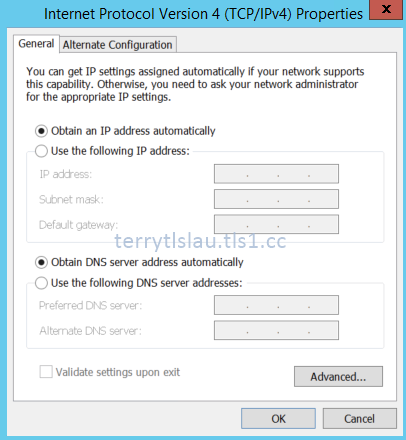
Many of you know that we need to assign a fix IP address and DNS Server for every domain controller. Even though deploy a domain controller on Microsoft Azure, we also need to assign a fix IP address and DNS server to a server. To assign  a fix IP address to a virtual machine on Microsoft Azure, we need to create a virtual network first. To create a virtual network and then assign IP address and DNS Server for Azure Virtual Machines, please read:


Remark: The above screen capture is for demo environment. In production, the DNS server should point to your HQ domain controllers.

2. As mentioned branch office scenario, we may need to configure VPN connection from branch office to Microsoft Azure. To configure on-premises sites network to Microsoft Azure Virtual Network, please read:


After testing the network connection, we can do the next task.

3. Because the IP address and DNS server are assigned to a virtual machine by Microsoft Azure, we don't need to enter any IP address and DNS server inside a virtual machine.


We can perform GIP on PowerShell to check the IP settings of a virtual machine.


After that, you can promote a domain controller.

To promote a domain controller, please read:

Windows 10 is coming and it supports to join Azure Active Directory. Do we still need to join the old Active Directory? Stay tuned.

This posting is provided “AS IS” with no warranties, and confers no rights!

Tuesday, June 2, 2015

Understanding Azure Premium Storage - Part 1

Azure Premium Storage is generally available in April of 2015. Some of you may try that in public preview period. In this part, I'm going to do some introductions for Azure Premium Storage and create a Premium Storage account on Microsoft Azure Portal.

Azure Premium Storage Disks can deliver high-performance, low-latency disk support for I/O intensive workloads running on Azure virtual machines. It can provide maximum 64,000 IOPS per VM but you need to understand the disk bandwidth for VM size. I'm going to talk about Max Disk bandwidth later. Azure Premium Storage Disks are pools of Solid State Disks. At this moment, there are some important thins you need to know.
  • Premium Storage Disks are under Premium Storage Accounts only
  • Premium Storage is currently available in the Microsoft Azure Preview Portal (new portal), Azure PowerShell 0.8.10 or later, Storage REST APi 2014-02-14 or later and Service Management REST API
  • Premium Storage is currently available in the following regions: Southeast Asia, East US 2, West US, West Europe and Japan West (Based on 2, June, 2015)
  • Premium Storage supports only Azure page blogs, which are used to hold persistent disk for Azure Virtual Machines (VMs)
  • A Premium Storage account is locally redundant (LRS) and keeps three copies of the data with in a single region.
  • If you want to use a Premium Storage account for your VM disks, you need to use the DS-series of VMs. You can use both Standard and Premium storage disks with DS-series of VMs but you cannot use Premium Storage disks with non-DS-serise of VMs.
  • A premium storage account cannot be mapped to a custom domain name.
  • Storage analytics is not currently supported for Premium Storage. To analyse the performance metrics of VMs using disks on Premium Storage accounts, use the operating system based tools, such as Windows Performance Monitor for Windows VMs and IOSTAT for Linux VMs.


First of all, we need to create a new Premium Storage account in the region which you wanted for using Premium Storage Disks.

1. On Microsoft Azure Portal, click "New > Data + Storage > Storage".


2. Next to "Storage account", under "Storage", enter the name for Premium Storage account.


3. Click "Pricing Tier" and then click "View all > Premium Locally Redundant". After that, click "Select".


4. If we needed, we could create a new resource group to assign for dedicated high-performance virtual machines. In my lab, I click "Create" to create a new Premium Storage Account.


It takes few minutes to create the new Premium Storage Account.

In this part, I created the Premium Storage Account. Next Part, I'll create a new Premium Storage Account by PowerShell and create a virtual machine to use Premium Storage disks.

This posting is provided “AS IS” with no warranties, and confers no rights!

Wednesday, April 29, 2015

Microsoft Azure virtual machines and cloud services cores limitation

By default, the Microsoft Azure cores limitation is 20 per subscription.


For example, I'd like to start 3 x 8 cores virtual machines. It failed to start the third virtual machine and displayed the following error message on Microsoft Azure.

The subscription policy limit for resources type 'cores count' was exceeded. The limit for resource type 'cores count' is 20 per subscription, the current count is 16, and the requested increment is 8.


To solve this case, we can request Microsoft Azure to increase cores limitation.

1. Click your subscription and then select "Contact Microsoft Support".


2. On "Contact Microsoft Support" window, next to "Support Type", select "Billing".


3. Click "Create Ticket".
4. On "Microsoft Support" page, next to "Problem type", select "Quota or Core Increase Requests".
5. Next to "Category", select "Cores: Virtual Machines and Cloud Services".


6. Click "Continue".
7. On "Your contact information" page, click "Continue".
8. On "Create an incident - describe the issue" page, enter your reason and how many cores you need and then click "Submit".


Microsoft will process your request to increase cores limitation of your Microsoft Azure subscription.

Reference

This posting is provided “AS IS” with no warranties, and confers no rights!

Monday, April 27, 2015

Create multiple virtual network interfaces (vNICs) on Microsoft Azure virtual machine

At TechEd Europe 2014, Microsoft announced support for multiple Network Interface (NICs) in Azure virtual machines. Microsoft listed a table related the numbers of NICs are supported by different sizes of virtual machines.

VM Size NICs supported

According to "Create a VM with Multuple NICs" article, the primary usage of multiple NICs on Azure virtual machines is intended for Network Virtual Appliances (NVA) VMs. I think we can also apply it to cluster VMs like Exchange Server and SQL Server.


There are some requirements and constraints of multiple NICs on Azure virtual machines.
  • Multi-NIC VMs must be in created in Azure virtual networks. Non-VNet VMs are not supported.
  • Currently, the multi-NIC feature is intended for NVA (Network Virtual Appliances) VMs only. Attempting to use it with the standard Gallery images may produce unexpected results.
  • The current release does NOT support adding or removing NICs after a VM is created. Multi-NIC can only be applied when a VM is created.
  • Multi-NIC VMs and single-NIC VMs are not supported in the same deployment. If you attempt to add a multi-NIC VM to a deployment that contains a single-NIC VM, or vice-versa, you will receive the following error: "Virtual machines with secondary network interfaces and virtual machines with no secondary network interfaces are not supported in the same deployment, also a virtual machine having no secondary network interfaces cannot be updated to have secondary network interfaces and vice-versa".
  • Multi-NIC VMs cannot forward traffic acting as Layer 3 (IP) gateways or routers. The packets MUST be destined to or sourced from one of the VNet IP addresses on the VM.
  • Internet-facing VIP is only supported on the "default" NIC. There is only one VIP to the IP of the default NIC.
  • At this time, PIP is not supported for multi-NIC VMs.
  • You can't apply network security groups (NSGs) or Forced Tunneling to the non-default NICs at this time.
  • The order of the NICs from inside the VM will be random, and could also change across Azure infrastructure updates. However, the IP addresses, and the corresponding Ethernet MAC addresses will remain the same. For example, assume Eth1 has IP address 10.1.0.100 and MAC address 00-0D-3A-B0-39-0D; after an Azure infrastructure update and reboot, it could be changed to Eth2, but the IP and MAC pairing will remain the same. When a restart is customer-initiated, the NIC order will remain the same.
  • Multiple NICs on the same virtual network subnet is supported.
  • The VM size determines the number of NICs that can be created for a VM. The above table listed the numbers of NICs corresponding to the size of the VMs.

I'm going to create a new virtual machine with 3 NICs under Azure virtual network named wuslabvnet2. I created the following address spaces and subnets in wuslabvnet2.


To configure multi-NICs for a virtual machine, we need to perform Azure PowerShell cmdlets to create and assign the settings to the virtual machine.

Prerequisites

  • The configuration computer is installed Microsoft Azure PowerShell module (latest version)
  • Create an Azure virtual network named wuslabvnet2 and then create the above address spaces and subnets
  • Make sure that the Azure subscription has been connected to Azure Storage Account
Goals
  • Create and test a multi NICs virtual machine in Microsoft Azure
Lab
1. Launch "Microsoft Azure PowerShell".
2. Perform "$vm = New-AzureVMConfig -Name <VM Name> -ImageName <Azure VM Image Name> -InstanceSize Extralarge | Add-AzureProvisioningConfig -Windows -AdminUsername <Administrator name> -Password <Administrator's password>" to save Azure VM configuration to a variable.


3. Perform Add-AzureNetworkInterfaceConfig -Name "Ethernet1" -SubnetName "Subnet-192-1" -StaticVNetIPAddress "192.168.1.10" -VM $vm to add a NIC with static IP to the virtual machine configuration variable.


4. Perform Add-AzureNetworkInterfaceConfig -Name "Ethernet2" -SubnetName "Subnet-172-2" -VM $vm to add the second NIC with dynamic IP to the virtual machine configuration variable.


5. Perform Set-AzureSubnet -SubnetNames "Subnet-10-1" -VM $vm to define the default subnet for the default NIC.


6. Perform Set-AzureStaticVNetIP -IPAddress "10.0.1.10" -VM $vm to assign static IP for the default NIC.


7. We can perform New-AzureVM -ServiceName MNICVM001 -VNetName wuslabvnet2 -VMs $vm -Location "West US" to create a virtual machine with 3 NICs.


The multi-NICs virtual machine was created.

Test result
The Azure management portal only displays the default NIC of the virtual machine.


To check other IP addresses from non default NICs of the virtual machine, we can perform Get-AzureVM -ServiceName MNICVM001 -Name MNICVM001 | Get-AzureNetworkInterfaceConfig | Select -ExpandProperty IpConfigurations to get the information.


Remark: Make sure the virtual machine is running before perform the above cmdlet.

Multi-NIC VMs and single-NIC VMs are not supported in the same deployment. You will get the error message when you create a virtual machine into the same cloud service.


References:
Create a VM with Multiple NICs

Multiple VM NICs and Network Virtual Appliances in Azure

This posting is provided “AS IS” with no warranties, and confers no rights!

Monday, April 20, 2015

Use certificate for authentication on Microsoft Azure PowerShell environment

By default, we need to provide the credential by performing "Add-AzureAccount" before we perform other cmdlets to configure the current Azure subscription by PowerShell. Even though you configured the default Azure subscription, we still need to perform "Add-AzureAccount" before performing Azure cmdlets. If not, you find the following error message.

Your Azure credentials have not been set up or have expired, please run Add-AzureAccount to set up your Azure credentials.


Microsoft Azure provided another method for authentication on Azure PowerShell module. We can use a certificate for authentication. To obtain a certificate, we can perform "Get-AzurePublishSettingsFile". I'm going to obtain a certificate from my Azure subscription.

Prerequisites
  • Install and import Azure PowerShell module

Lab
1. Log in your Microsoft Azure subscription with the default browser.


There is no certificate under "Management Certificates".

2. Launch PowerShell with Azure module.
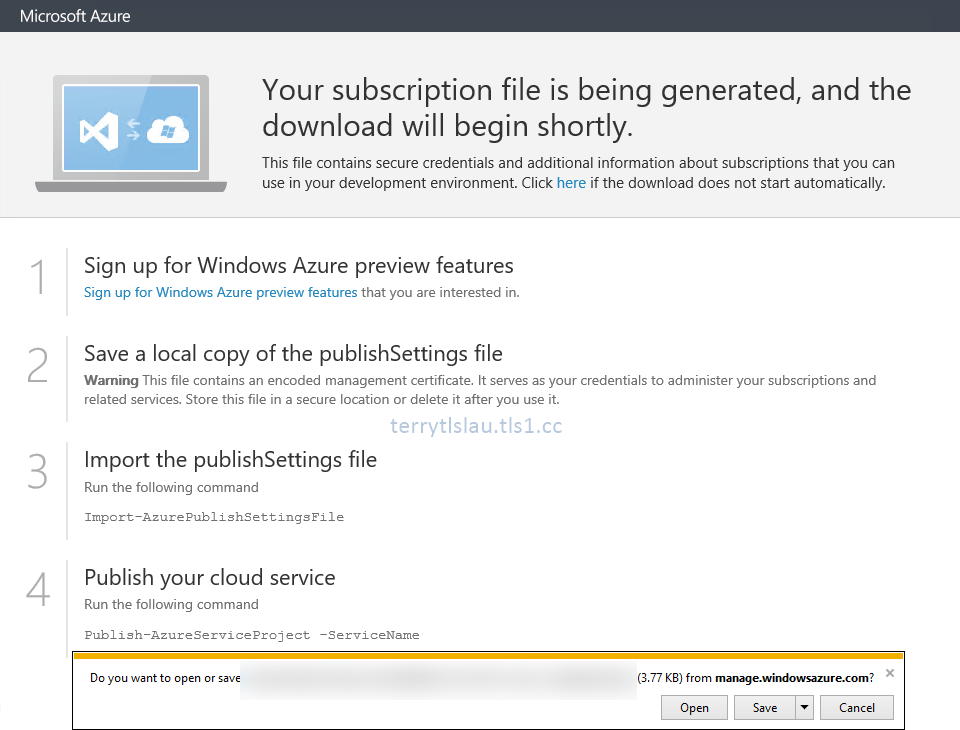
3. Perform "Get-AzurePublishSettingsFile".


Then, your browser will redirect to the web page to download a certificate.


4. Click "Save" to save the credential file into the computer.


You can copy the file to a computer which you want to use to manage Azure.

5. Back to Azure Portal, there is a certificate under "Management Certificates".


6. Back to PowerShell console, perform "Import-AzurePublishSettingsFile -PublishSettingsFile <credential file location>" to import the certificate to the user certificate store in this computer.


You can find the certificate under the user certificate store.


Remark: For security reason, please delete the credential file after you imported the certificate to the computer.

Test result
1. Perform "Get-AzureAccount".


I connected to my Azure subscription by this certificate.

2. Perform "Get-AzureVNetConfig".


Eventually, we don't need to perform "Add-AzureAccount" to provide credential before we perform other cmdlets to configure the current Azure subscription.

Reference:
How to install and configure Azure PowerShell

Get-AzurePublishSettingsFile

Import-AzurePublishSettingsFile

This posting is provided “AS IS” with no warranties, and confers no rights!

Thursday, April 16, 2015

3 new Microsoft Virtual Academy (MVA) courses related to Microsoft Azure and Windows Azure Pack


Windows Azure Pack: Express Installation Walkthrough is hosted by Yung Chou, Microsoft Senior Technical Evangelist, and Shriram Natatajan, Microsoft Program Manager. They're going to talk about a overview of the Windows Azure Pack and how to set up for evaluation and testing environment.

All About Microsoft Azure Operational Insights is hosted by Laura Cruz, Microsoft Program Manager, and Matt McSpirit, Microsoft Senior Technical Product Manager. They're going to talk about how to deploy Microsoft Azure Operational Insights and use it to analyse your data of your environment.

Windows Azure Pack: Partner Solutions is hosted by many Microsoft Partners. They're going to talk about how their products to integrate with Windows Azure Pack and then provide additional services on your private cloud.

If you're interested in one of these, please go the Microsoft Virtual Academy (MVA) to watch it. 

This posting is provided “AS IS” with no warranties, and confers no rights!

Wednesday, April 15, 2015

Setup VNet-To-VNet VPN on Microsoft Azure - Part 2

In part 1, we set up VNet to VNet connection from West US to East US. In this part, I'm going to create 1 more VNet in North Europe and then set up the VPN from North Europe to West US. To set up multi-VNet connections, we cannot complete this action on Microsoft Azure Portal. We have to download and modify the current VNet configuration file and then upload the updated configuration file to Microsoft Azure.

Prerequisites
Goals
  • Create a new VNet named nelabvnet in North Europe region
  • Create a new local network with the same name nelabvnet
  • Create a dynamic routing gateway on nelabvnet
  • wuslabvnet connected to 2 VNets (euslabvnet and nelabvnet)
Lab
First, we need to download the current VNet configuration file and then add the new virtual and local network into configuration file.

1. Launch "Azure PowerShell" as administrator on a workstation.
2. Connect to your Azure subscription by performing "Add-AzureAccount".
3. Perform "Get-AzureVNetConfig -ExportToFile C:\VNetConfig.xml" to export the VNet configuration to C:\VNetConfig.xml.


4. Open "VNetConfig.xml" in "Windows PowerShell ISE" as administrator and then focus on Local Network Sites first.


There are 2 local network sites under our vnet configuration. We need to add a new local network for North Europe region.

5. Copy from <LocalNetworkSite> to </LocalNetworkSite> and then paste it under </LocalNetworkSite> of wuslabvnet.
6. Change the name, AddressPrefix and VPNGatewayAddress to nelabvnet, 10.3.0.0/16 and 172.16.0.3.


The latest local network configuration will be the following.


Then, we need to add a new virtual network and update "Connect to local network" in this virtual network configuration file.


7. Copy from <VirtualNetworkSite> to </VirtualNetworkSite> and then paste it under </LocalNetworkSite> of wuslabvnet.
8. Change the name, Location, AddressPerfix and LocalNetworkSiteRef to the following.

name = nelabvnet
location = North Europe
AddressPrefix = 10.3.0.0/16
AddressPrefix = 10.3.0.0/19
AddressPrefix = 10.3.32.0/29
LocalNetworkSiteRef = wuslabvnet


9. Then, we need to add 1 more LocalNetworkSiteRef named nelabvnet under wuslabvnet.


Eventually, we have the following virtual network configuration.


10. Save the VNet configuration.
11. Back to Azure PowerShell console, perform "Set-AzureVNetConfig -ConfigurationPath C:\VNetConfig.xml" to update VNet configuration on Microsoft Azure.


Click to wuslabvnet virtual network, the portal will display the 2 virtual network connection.

  
However, we haven't created a gateway on nelabvnet and set up shared key for both VNets.

Click "Configure".


The Local Network option of wuslabvnet was configured to multiple. We cannot configure this on Microsoft Azure Portal.

12. Back to Azure PowerShell console, perform "New-AzureVNetGateway -VNet nelabvnet -GatewayType DynamicRouting -Verbose" to create a new dynamic gateway with dynamic routing for nelabvnet.


 Remark: It takes 15 - 30 minutes to create a gateway.

13. Perform "$GIP = (Get-AzureVNetGateway -VNetName nelabvnet).VIPAddress" to get the gateway IP address of nelabvnet and then save it to $GIP variable.


14. Perform "$xml = [xml](Get-Content C:\VNetConfig.xml)" to get the xml content and save it to $xml variable.


15. Perform "($xml.NetworkConfiguration.VirtualNetworkConfiguration.LocalNetworkSites.LocalNetworkSite | where name -eq nelabvnet).VPNGatewayAddress" to get the gateway IP address of nelabvnet in the vnet configuration file.


We entered a temp gateway IP address for nelabvnet local network in the configuration file. Now, we need to update the configuration file and then upload to Microsoft Azure to update the virtual network settings.

16. Perform "($xml.NetworkConfiguration.VirtualNetworkConfiguration.LocalNetworkSites.LocalNetworkSite | where name -eq nelabvnet).VPNGatewayAddress = $GIP" to update the IP address.


17. Perform "$xml.save("C:\VNetConfig.xml") to save the updated content into the virtual network configuration file.


18. Perform "Set-AzureVNetConfig -ConfigurationPath C:\VNetConfig.xml" to update virtual network configuration on Microsoft Azure.
19. Perform "$Gwkey = (Get-AzureVNetGateway -VNetName wuslabvnet -LocalNetworkSiteName euslabvnet).value" to get the current shared key between wuslabvnet and euslabvnet. Then, save it to $Gwkey variable.


Remark: Get-AzureVNetGateway can get the shared key and show it as clear text.


20. Perform "Set-AzureVNetGatewayKey -VNetName nelabvnet -LocalNetworkSiteName wuslabvnet -SharedKey $Gwkey" to setup VPN tunnel on nelabvnet.
21. Perform "Set-AzureVNetGatewayKey -VNetName wuslabvnet -LocalNetworkSiteName nelabvnet -SharedKey $Gwkey" to setup VPN tunnel on wuslabvnet.


Eventually, wuslabvnet connected to euslabvnet and nelabvnet.


Please note that virtual machines under wuslabvnet can communicate with euslabvnet and nelabvnet. However, virtual machines under euslabvnet and nelabvnet cannot communicate with each other because we didn't add "Local Network Site Ref" into VNet configuration file and configured shared key. To communicate between euslabvnet and nelabvnet, we updated the VNet configuration file and then upload to Microsoft Azure. After that, configure shared key on both sites. Eventually, virtual machines under euslabvnet and nelabvnet can communicate with each other.

Additional:
By default, the Azure Gateway SKU is Default.


It supports S2S VPN throughput to 80Mbps and 10 S2S VPN tunnels. It costs $0.036 US dollar per hour.

Except Default gateway SKU. Microsoft Azure provided High Performance one. It supports S2S VPN throughput to 200Mbps and 30 S2S VPN tunnels. It costs $0.49 US dollar per hour. To update the gateway SKU, we can perform "Resize-AzureVnetGateway -VNetName <virtual network name> -GatewaySKU HighPerformance".


Eventually, the virtual network was changed to High Performance.

Reference:

Other parts in this series

This posting is provided “AS IS” with no warranties, and confers no rights!