Showing posts with label Microsoft Azure Subscription. Show all posts

Wednesday, April 29, 2015

Microsoft Azure virtual machines and cloud services cores limitation

By default, the Microsoft Azure cores limitation is 20 per subscription.


For example, I'd like to start 3 x 8 cores virtual machines. It failed to start the third virtual machine and displayed the following error message on Microsoft Azure.

The subscription policy limit for resources type 'cores count' was exceeded. The limit for resource type 'cores count' is 20 per subscription, the current count is 16, and the requested increment is 8.


To solve this case, we can request Microsoft Azure to increase cores limitation.

1. Click your subscription and then select "Contact Microsoft Support".


2. On "Contact Microsoft Support" window, next to "Support Type", select "Billing".


3. Click "Create Ticket".
4. On "Microsoft Support" page, next to "Problem type", select "Quota or Core Increase Requests".
5. Next to "Category", select "Cores: Virtual Machines and Cloud Services".


6. Click "Continue".
7. On "Your contact information" page, click "Continue".
8. On "Create an incident - describe the issue" page, enter your reason and how many cores you need and then click "Submit".


Microsoft will process your request to increase cores limitation of your Microsoft Azure subscription.

Reference

This posting is provided “AS IS” with no warranties, and confers no rights!

Monday, April 20, 2015

Use certificate for authentication on Microsoft Azure PowerShell environment

By default, we need to provide the credential by performing "Add-AzureAccount" before we perform other cmdlets to configure the current Azure subscription by PowerShell. Even though you configured the default Azure subscription, we still need to perform "Add-AzureAccount" before performing Azure cmdlets. If not, you find the following error message.

Your Azure credentials have not been set up or have expired, please run Add-AzureAccount to set up your Azure credentials.


Microsoft Azure provided another method for authentication on Azure PowerShell module. We can use a certificate for authentication. To obtain a certificate, we can perform "Get-AzurePublishSettingsFile". I'm going to obtain a certificate from my Azure subscription.

Prerequisites
  • Install and import Azure PowerShell module

Lab
1. Log in your Microsoft Azure subscription with the default browser.


There is no certificate under "Management Certificates".

2. Launch PowerShell with Azure module.
3. Perform "Get-AzurePublishSettingsFile".


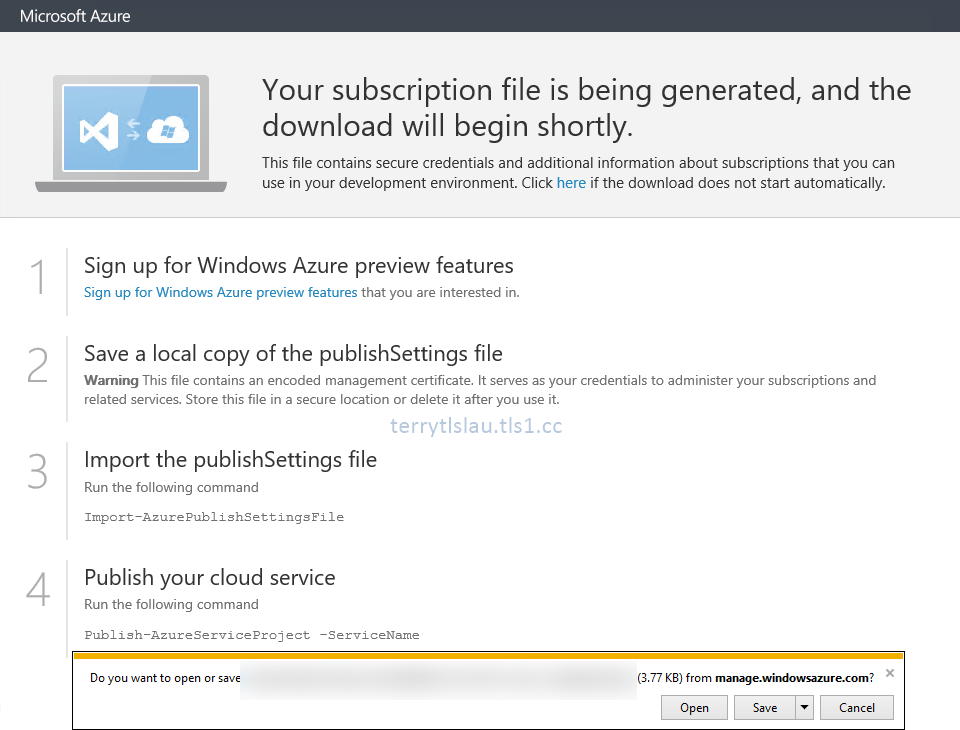
Then, your browser will redirect to the web page to download a certificate.


4. Click "Save" to save the credential file into the computer.


You can copy the file to a computer which you want to use to manage Azure.

5. Back to Azure Portal, there is a certificate under "Management Certificates".


6. Back to PowerShell console, perform "Import-AzurePublishSettingsFile -PublishSettingsFile <credential file location>" to import the certificate to the user certificate store in this computer.


You can find the certificate under the user certificate store.


Remark: For security reason, please delete the credential file after you imported the certificate to the computer.

Test result
1. Perform "Get-AzureAccount".


I connected to my Azure subscription by this certificate.

2. Perform "Get-AzureVNetConfig".


Eventually, we don't need to perform "Add-AzureAccount" to provide credential before we perform other cmdlets to configure the current Azure subscription.

Reference:
How to install and configure Azure PowerShell

Get-AzurePublishSettingsFile

Import-AzurePublishSettingsFile

This posting is provided “AS IS” with no warranties, and confers no rights!

Tuesday, April 7, 2015

The cached Microsoft Azure account, subscriptions and environments file location

There are 2 files, AzureProfile.json and TokenCache.dat, under %AppData%\Windows Azure PowerShell". These files are cached the credential of your Microsoft Azure accounts, subscriptions and environments for Azure PowerShell.


If 1 of these files is deleted, the cached credential of your Microsoft Azure accounts, subscriptions and environments information on PowerShell is erased.

This posting is provided “AS IS” with no warranties, and confers no rights!

Failed to get Microsoft Azure resources by PowerShell

If you added more than 1 Microsoft Azure account for testing by perform "Add-AzureAccount" into PowerShell, you would have the following issue when you get Azure resources.

When I try to get Microsoft Azure Virtual Network Gateway by performing "Get-AzureVNetGateway", I found an error.


However, I created this gateway on Microsoft Azure portal. Then, I performed "Get-AzureSubscription" to check my Azure subscription.


I found that it pointed to the other Azure subscription account and configured to "IsDefault". To update the Azure subscription, we can perform  "Select-AzureSubscription -SubscriptionId <SubscriptionId> -Current -Account <Azure Account>" to select and use this Azure subscription.


Remark: We can perform  "Select-AzureSubscription -SubscriptionId <SubscriptionId> -Default -Account <Azure Account>" to update the default Azure subscription.


As a result, I can get the virtual network gateway information from this Azure subscription.

This posting is provided “AS IS” with no warranties, and confers no rights!