Showing posts with label Windows Server Update Service. Show all posts

Thursday, July 3, 2014

Scan and apply Windows Updates to a Hyper-V host by a Update Server in System Center Virtual Machine Manager 2012 R2

In previous posts, Windows Server Updates Services server, SUS01, was added to a virtual machine manager console and create Updates Baselines in VMM. Now, I'd like to scan and apply Windows Updates to a host which is managed by VMM01.

Goal
  • Applying Windows Updates to a Hyper-V host
  • Create and delete exemption of Windows Updates

Lab environment

Lab
Checking compliance of a host
1. On VMM01, log in as VMMAdmin.
2. Launch "Virtual Machine Manager Console".
3. Select "Use current Microsoft Windows session identity" option, click "Connect".


4. On "Virtual Manage Manager", select "Fabric".
5. Select "Servers".
6. On the "Home" menu, click "Compliance".


7. Expand "hv02.test.tls1.lab".


There are 2 updates baselines which were assigned to hv02 last time.

8. On the "Home" menu, click "Scan".
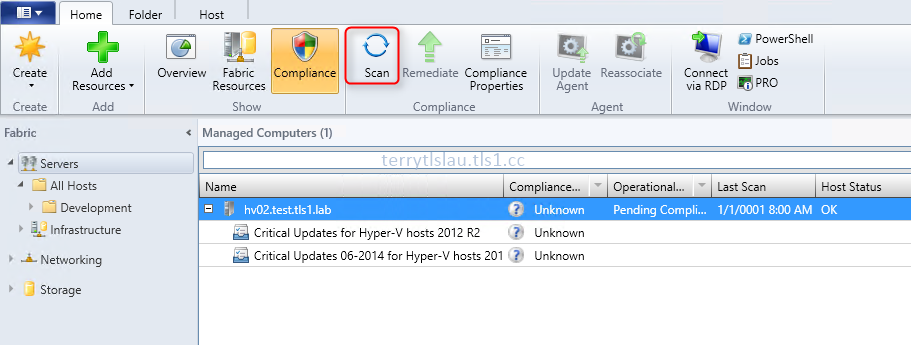

As this moment, all "Compliance Status" of HV02 are "Non Compliant".


9.  On the "Home" menu, click "Compliance Properties".


"Compliance Properties" window displayed which Windows Updates are Non Compliant.


We will create an exemption later.

10. Click "OK".

Applying Windows Updates to a host
After scanning, we can apply the Windows Updates to a host.

1. Still in VMM console, on the "Home" menu, click "Remediate".


Remark: Administrators can select one of Updates Baselines and then click "Remediate".

On "Update Remediation" window, all Windows Updates have been checked.


2. Un-check all Windows Updates.


3. In my lab environment, I check "KB2969339".
4. Check "Do not restart servers after remediation".


5. Click "Remediate".


The Windows Update is applying to HV02.


After applying the Windows Update, Virtual Management Server scans HV02 again. However, the "Compliance Status" is still "Non Compliant" because we don't apply all Windows Updates to HV02.


Remark: For applying Windows Update to Hyper-V cluster, administrators can select "Live migration" or "Save state" option for virtual machines.


By default, VMM places each host in maintenance mode before it remediates updates in the host. if you want to bypass maintenance mode, check "Allow remediation of clusters with nodes already in maintenance mode".


Create and Remove Update Exemptions for Windows Updates
1. Still in VMM console, select "Critical Updates 06-2014 for Hyper-V hosts 2012 R2".
2. Click "Compliance Properties".


3. On "Compliance Properties" window , check all "Non Compliant" update under "Critical Updates 06-2014 for Hyper-V hosts 2012 R2".
4. Click "Create".


5. On "Create Exemption" window, administrators can enter some notes before clicking "Create".


The "State" of Windows Updates is changed to "Exempt".


6. Click "OK".

As a result, the "Compliance Status" of "Critical Updates 06-2014 for Hyper-V hosts 2012 R2" is "Compliant".


To delete exemption of Windows Updates, check the Windows Update in "Compliance Properties" window and then click "Delete".


Remark: By default, there is no option to configure "Synchronize Update Server" schedule. Administrators may need to press it manually or create a schedule job to perform "Start-SCUpdateServerSynchronization" cmdlet.

More information

This posting is provided “AS IS” with no warranties, and confers no rights!

Tuesday, July 1, 2014

Creating update baselines in System Center Virtual Machine Manager 2012 R2

Last post, I added "Windows Server Update Service" server to "System Center Virtual Machine Manager 2012 R2". In this port, I'd like to create update baselines and apply it to Windows Servers.

Goal
  • Create "Update Baselines" by VMM console and PowerShell
Lab environment
The lab environment is based on "Installing System Center Virtual Machine Manager 2012 R2 in Windows Server 2012 R2" and "Adding Windows Server Update Service for System Virtual Machine Manager 2012 R2 environment".

Prerequisites
  • Add "Windows Server 2012" into the products of Update Server, SUS01


Lab
Create "Update Baselines"
1. On VMM01, log in as VMMAdmin.
2. Launch "Virtual Machine Manager Console".
3. Select "Use current Microsoft Windows session identity" option, click "Connect".


4. On "Virtual Machine Manager" select "Library".
5. Select "Update Baselines".


By default, there are 2 sample Baselines which are related to "Critical Updates" and "Security Updates" in VMM console. All "Critical Updates" are added into "Sample Baseline for Critical Updates" and all "Security Updates" are added into "Sample Baseline for Security Updates".


6. Right-click "Update Baselines", select "Create Baseline".


7. On "General" window, next to "Name", enter "Critical Updates for Hyper-V hosts 2012 R2".


8. Click "Next".
9. On "Updates" window, click "Add".


10. On "Add Updates to Baseline" window, enter "Critical Updates".


The window displayed all updates with "Critical Updates" key word. However, the result also included all critical updates for Windows Server 2012 and Windows Server 2012 R2. Luckily, the result of Windows Updates is automatically sorted according to Windows Version.

11. Select all Windows Server 2012 R2 "Critical Updates", click "Add".


12. On "Updates" window, click "Next".


13. On "Assignment Scope", we can select host groups to assign updates. In my lab, I check "hv02".


14. Click "Next".
15. On "Summary" window, click "View Script".


Administrators can save and modify this script to create another baseline.

16. Copy and save the script to C:\CUpdate06.ps1
17. Click "Finish".


A new baseline, Critical Updates for Hyper-V hosts 2012 R2, was created.

Based on the filter of "Update Baseline Wizard", it's easy for us to filter the date, version and etc of Windows Updates so we need to use PowerShell to create a new baseline.

17. Launch "Windows PowerShell ISE" as administrator.
18. The script is based on the following requirements to modify it.

~ The Windows Updates are released in June of 2014
~ The Windows Updates are for Windows Server 2012 R2
~ The classification of Windows Updates is Critical
~ The baseline name is "Critical Updates 06-2014 for Hyper-V hosts 2012 R2"
~ Applied to HV02

$baseline = New-SCBaseline -Name "Critical Updates 06-2014 for Hyper-V hosts 2012 R2" -Description ""

$CUUpdate06 = Get-SCUpdate | Where Creationdate -gt 6/1/2014 | Where UpdateClassification -eq 'Critical Updates' | Where Products -eq 'Windows Server 2012 R2'

$scope = Get-SCVMMManagedComputer -ComputerName "hv02.test.tls1.lab"

Set-SCBaseline -Baseline $baseline -AddAssignmentScope $scope -RunAsynchronously -AddUpdates $CUUpdate06 -StartNow


18. Press "F5" to perform this script.
19. On "Windows PowerShell ISE", press "OK" to save and run it.


As a result, the new baseline, Critical Updates 06-2014 for Hyper-V hosts 2012 R2, was created.


This posting is provided “AS IS” with no warranties, and confers no rights!

Sunday, June 29, 2014

Adding Windows Server Update Service for System Center Virtual Machine Manager 2012 R2 environment

In System Center Virtual Machine Manager 2012 or later, it is available to add "Windows Server Update Service" to System Center Virtual Machine Manager. Administrator can determine install "Windows Server Update Service" to the same server which is installed System Center Virtual Machine Manager management server or a separate server. Microsoft suggested installing "Windows Server Update Service" to a separate server if there are a lot of computers which are manager by VMM management server. Adding "Windows Server Update Service" to a VMM management server, administrators can use it to apply the Windows Updates for Hyper-V Hosts, Library servers, PXE servers, the Windows Server Update Services servers and VMM management servers. The Windows Updates can be centralized to manage and apply to all servers which are providing the virtualization services.

Goals
  • Install a Windows Server 2012 R2 named SUS01 to provide "Windows Server Update Service"
  • Add SUS01 into a fabric in VMM
Lab environment
The lab environment is based on "Installing System Center Virtual Machine Manager 2012 R2 in Windows Server 2012 R2". Mainly, I will use "VMM01" and "SUS01" to complete this lab.

Prerequisites
Lab
Installing "Windows Server Update Service"
First of all, I will install "Windows Server Update Service" on SUS01.

1. On SUS01, log in as VMMAdmin.
2. Launch "Server Manager".
3. Click "Add roles and features".


4. On "Before You Begin" window, click "Next".
5. On "Installation Type" window, select "Role-based or feature-based installation".


6. Click "Next".
7. On "Server Selection" window, click "Next" twice.
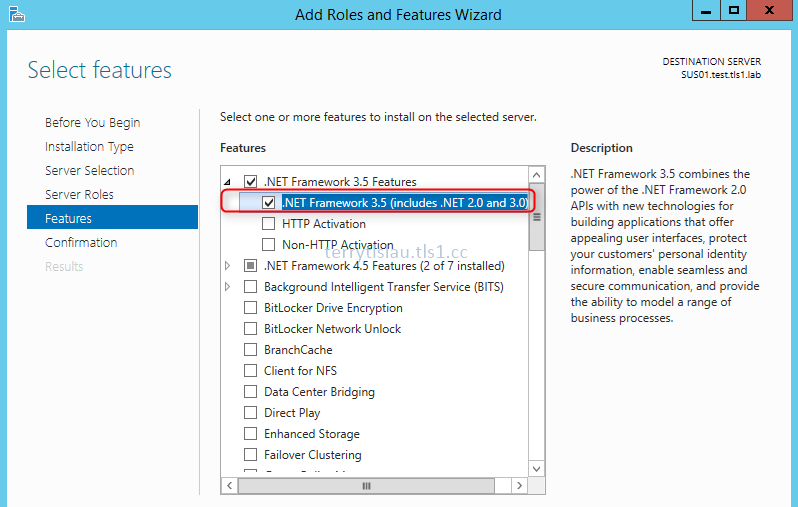
8. On "Features" window, check ".NET Framework 3.5 (Includes .NET 2.0 and 3.0)".


9. Click "Next".
10. On "Confirmation" window, click "Install".


Remark: Make sure SUS01 connected to the network and access the Internet. If not, administrators have to provide the source for installing ".NET Framework 3.5 (Includes .NET 2.0 and 3.0)". For more information, please read "Installing Microsoft .NET Framework 3.5 in Windows Server 2012 or R2 by Windows Server installation disk".

11. When installation finish, double-click "ReportViewer" in C:\ to install "Microsoft Report Viewer 2008 SP1 Redistriutable".


12. Back to "Server Manager", click "Add roles and features".
13. On "Before You Begin" window, click "Next" three times.
14. On "Server Roles" window, check "Windows Server Update Services".
15. On "Add roles and Features Wizard", click "Add Features".


16. Click "Next" twice.
17. On "Web Server Roles (IIS)" window, click "Next".


18. On "Role Services" window, click "Next".


By default, all required components have been checked. Administrators don't need to modify it.

19. On "Windows Server Update Services" window, click "Next".


20. On "Select role services" window, administrators can select to use Windows internal database or existing SQL server to store computers information of "Windows Server Update Services". In my lab environment, I select "Database" which is store computers information to existing SQL server.


21. Click "Next".
22. On "Content" window, next to "Store updates in the following location", enter "C:\SUSUpdate".


23. Click "Next".
24. On "DB Instance" window, next to "Specify an existing database server", enter "DB01".
25. Click "Check connection".


Make sure "Successfully connected to server" is displayed.

Remark: VMMAdmin is a dbcreator and securityadmin of SQL Server 2012 in DB01.


26. Click "Next".
27. On "Confirmation" window, click "Install".
28. When installation finished, click "Launch Post-Installation tasks" to perform "Post-Installation tasks".


"Post-Installation tasks" will create a database in a SQL server and configure the WSUS.

29. Click "Close".
30. Click the flag on "Server Manager", make sure "Post-deployment Configuration" completed.


Perform initial configuration of "Windows Server Update Service"
1. Launch "Windows Server Update Service" console.
2. On "Before You Begin" of "Windows Server Update Services Configuration Wizard" window, click "Next".


3. On "Microsoft Update Improvement Program" window, click "Next".
4. On "Choose Upstream Server" window, select "Synchronize from Microsoft Update", click "Next".


5. On "Specify Proxy Server" window, click "Next".


6. On "Connect to Upstream Server" window, click "Start Connecting".


7. Click "Next".
8. On "Choose Languages" window, select languages of Windows updates to download to your server. In my lab environment, I checked "English" only.


9. Click "Next".
10. On "Choose Products" window, select the products. Basically, we need to "System Center 2012 R2 - Virtual Machine Manager" and "Windows Server 2012 R2" product. We don't need to select the other products.


11. Click "Next".
12. On "Choose Classifications" window, I'd like to make it simple. Check "Critical Updates" and "Security Updates". These are the basic update for Windows Servers. Administrators also can consider downloading "Update Rollups" and "Updates" for Windows Servers and System Center Virtual Machine Manager.


13. Click "Next".
14. On "Configure Sync Schedule" window, select "Synchronize manually".


15. Click "Next".
16. On "Finished" window, check "Begin initial synchronization".


17. Click "Next".
18. On "What's Next" window, click "Finish".


The "Windows Server Update Service" is synchronizing the update.


Installing "Windows Server Update Service" administration console on VMM management server
1. On VMM01, log in as VMMAdmin.
2. Launch "PowerShell" as administrator.
3. Perform "Install-WindowsFeature UpdateServices-UI -IncludeManagementTools" to install "Windows Server Update Service" administration console.


4. Perform "Restart-Service SCVMMService -PassThru" to restart the "System Center Virtual Manager".


After installing "Windows Server Update Service" administration console, administrators have to restart the "SCVMMService". If you are using a highly available VMM management server with a remote WSUS server, you must install a WSUS administration console on each node of the cluster.

Quote from How to Install a WSUS Server for VMM

Adding an Update server to SCVMM
1. On VMM01, log in as VMMAdmin.
2. Launch "Virtual Machine Manager Console".
3. Select "Use current Microsoft Windows session identity", click "Connect".


4. On "Virtual Machine Manager Console", select "Fabric".
5. Select "Infrastructure > Update Server".


6. On "Home" tab, click "Add Resources > Update Server".


7. On "Add Windows Server Update Services Server" window, next to "Computer name", enter "SUS01".
8. Next to "TCP/IP port", enter "8530".
9. Select "Use an existing Run As account", click "Browse" to select "VMM Admin".


10. Click "Add".
11. Select "Jobs".


VMM management server is deploying a VMM agent to SUS01.

12. Select "Fabric".


The update server was added in VMM console. Administrators don't need to use WSUS administration console to manage update server. Administrators can directly manage this update server by VMM.

13. Right-click "SUS01", select "Properties".


14. We can update the "Windows Server Update Service" settings through this properties.


15. Click "Cancel".

As a result, the update server was added to VMM management server.

More information
How to Install a WSUS Server for VMM

How to Add an Update Server to VMM

This posting is provided “AS IS” with no warranties, and confers no rights!