Showing posts with label Exchange Server 2010. Show all posts

Wednesday, October 21, 2015

Failed to move mailboxes from Office 365 to on-premises Exchange Server

First of all, I have to say thank you to one of my colleagues, Soren, to share this Exchange troubleshooting skill for this case. The symptom is when you move a mailbox from Office 365 to an on-premises by Exchange Management Console (EMC) or Exchange Admin Center (EAC), you get the following error messages.

"MigrationPermanentException: Cannot find a recipient that has mailbox GUID <GUID>"


According to the KB from Microsoft,

We need to set the same GUID for this mailbox. However, the Exchange GUID of the mailbox is the same between Office 365 and on-premises Exchange.

We need to check the remote mailbox function of this user account is enabled or not on the on-premises Exchange server. How can we verify it?

Perform Get-RemoteMailbox <Alias> on the Exchange Management Shell of the on-premises Exchange server.


Then, what do we need to do?

Perform Enable-RemoteMailbox <Alias> -RemoteRoutingAddress <Alias>@<accountName>.mail.onmicrosoft.com to enable remote mailbox for this user account.


Then, we need to set the ExchangeGuid for the mailbox. If there is an archive for this mailbox on Office 365, we also need to set the ArchiveGuid.


Log in Exchange Management Shell of Office 365 and then perform Get-Mailbox <Alias> | fl *guid*


Then, copy the ExchangeGUID and the ArchiveGUID of the user mailbox.

Back to the Exchange Management Shell of the on-premises Exchange server. Perform Set-RemoteMailbox <Alias> -ExchangeGUID <Copy from Office365 Exchange GUID> -ArchiveGUID <Copy from Office365 Archive GUID> to assign the same Exchange GUID and Archive GUID to the user mailbox.


As this time, you can try to migrate the mailbox again.

This posting is provided “AS IS” with no warranties, and confers no rights!

Friday, January 25, 2013

Delete all mails in a mailbox by PowerShell in Exchange

One of my friends asked me. How to delete all emails in a user mailbox in Exchange 2007? 
Then I try to search the solution . I found the solution from an article "Delete emails from mailboxes - Exchange 2007" which was written by Ratish Nair.

After that, I tried to find a solution to delete all emails in a user mailbox in Exchange 2010 and 2013. I found the another solution from an article "Exchange 2010 SP1 or SP2 PowerShell cmdlet for deleting all email in a mailbox" which was written by Terence Luk. I tried to perform it in Exchange 2010 and Exchange 2013 environment.

Remark: To delete all emails in Exchange 2010 RTM , we need to add a user in "Discovery Management", "Exchange Support Diagnostics" and "Exchange Mailbox Import Export" groups and then use "Export-Mailbox -DeleteContent" to delete all emails in a user mailbox.
This posting is provided “AS IS” with no warranties, and confers no rights!

Sunday, November 27, 2011

Configuring the maximum message size for internal organization

In Exchange 2007 and Exchange 2010, the maximum message size is 10 MB for internal organization. Users allow sending and receiving 10 MB an email. However, some companies would like to send a large email in internal organization. Administrators need to modify the “Transport Settings” to achieve the goal.

I use Exchange Server 2010 to demo this lab.

1. At an Exchange Server, log in as Domain Administrator.
2. Launch "Exchange Management Console".
3. Expand "Microsoft Exchange On-Premises > Organization Configuration > Hub Transport".
4. Select "Global Settings" tab.
5. Right-click "Transport Settings", select "Properties".


By default, all users in the organization follow the "Transport Settings".

6. Next to "Maximum receive size (KB)", change the value to "20480".
7. Next to "Maximum send size (KB)", change the value to "20480".


8. Click "OK".

Remark: You can also perform the following cmdlet to modify the settings.

Set-TransportConfig -MaxReceiveSize 20MB -MaxSendSize 20MB


Remark: You can use ADSI Edit to update or verify the settings.

1) At a Domain Controller, log in as Domain Administrator.
2) Launch "ADSI Edit".
3) Right-click "ADSI Edit", select "Connect to".
4) Next to "Select a well known Naming Context", select "Configuration".
5) Expand "Configuration > CN=Configuration,DC=<Domain Name>,DC=com > CN=Services > CN=Microsoft Exchangte > CN=<Organization Name> >CN=Global Settings > CN=Message Delivery".
6) Right-click "CN=Message Delivery", select "Properties".


"delivContLength" is "Maximum receive size".
"submissionContLength" is "Maximum send size".

All values is in Kilobyte(KB).

Administrators can assign the Maximum send and received message size in users’ mailbox. If administrators assign the maximum message size in mailboxes, the settings override the maximum message size of “Transport Settings”.

9. Still in "Exchange Management Console", expand "Recipient Configuration > Mailbox".
10. Right-click the user mailbox, select "Properties".
11. Select "Mail Flow Settings" tab.


12. Select "Message Size Restrictions", click "Properties".


Administrators can assign the maximum send and receive message size for this user.

Remark: You can perform "Set-Mailbox" cmdlet to configure the Maximum send and receive message size for users.

Set-Mailbox <Alias> -MaxReceiveSize 10MB -MaxSendSize10MB


Remark: You can use ADSI Edit to update or verify the user mailbox.

1) At a Domain Controller, log in as Domain Administrator.
2) Launch "ADSI Edit".
3) Right-click "ADSI Edit", select "Connect to".
4) Next to "Select a well known Naming Context", select "Default Naming context".
5) Expand "Default naming context > DC=<Domain Name>,DC=com > CN=Uesrs".
6) Right-click a user name, select "Properties".
7) Next to "delivContLength" and "submissionContLength", configure the size for the user.


After the settings are updated, users can send and receive the large email in internal organization.

This posting is provided “AS IS” with no warranties, and confers no rights!

Saturday, November 26, 2011

Fail to configure the maximum message size on AdSiteLink of Exchange Servers

When I perform “Set-AdSiteLink” with “MaxMessageSize” parameter in Exchange 2010 Management Shell, it failed to update the setting.

It shows the following error:

Active Directory operation failed on <Server name>. This error is not retriable. Additional information: Insufficient access rights to perform the operation.
Active directory response: 00002098: SecErr: DSIS-03150BB9, problem 4003 (INSUF_ACCESS_RIGHTS), data 0 + CategoryInfo: NotSpecified: (0:Int32) [Set-AdSiteLink], ADOperationException + FullyQualifiedErrorId: A44E1A40,Microsoft.Exchange.Management.SystemConfigurationTasks.SetAdSiteLink

To solve this problem, you need to assign the permission of “Exchange Trusted Subsystem” on the “Site-Link-Object”.

1. At a domain controller, log in as Enterprise Administrator.
2. Launch "ADSI Edit".
3. Right-click "ADSI Edit", select "Connect to".
4. Next to "Select a well known Naming Context", select "Configuration".


5. Click "OK".
6. Expand "Configuration > CN=Configuration,DC=contoso,DC=com > CN=Sites > CN=Inter-Site Transports > CN=IP".
7. Right-click "CN=IP", select "Properties".
8. Select "Security" tab, click "Advanced".


9. Click "Add".
10. Enter "Exchange Trusted Subsystem".
11. Next to "Apply to", select "Descendant Site Link objects".
12. Check "Allow - Read all properties, Write all properties and Read permissions".


13. Click "OK" three times.
14. Close "ADSI Edit".

Now, you can update the "MaxMessageSize" on "AdSiteLink".


Reference:
::::: Workaround ::::: Exchange 2010 Set-ADSiteLink -MaxMessageSize insufficient access rights

Wednesday, November 16, 2011

Sending a large attachment in OWA 2010

When users attach an attachment bigger than 35MB in OWA 2010, the users get the following error:

404 - File or directory not found
The resource you are looking for might have been removed, had its name changed, or is temporarily unavailable.


Remark: Assuming that your organization allows users sending the large attachment bigger than 35 MB.

To solve this problem, I need to modify the "web.config" file.

1. At the Client Access Server, log in as Domain Administrator.
2. Launch "Windows Explorer".
3. Navigate to "C:\Program Files\Microsoft\Exchange Server\V14\ClientAccess\Owa".
4. Open "web.config" by "Notepad".
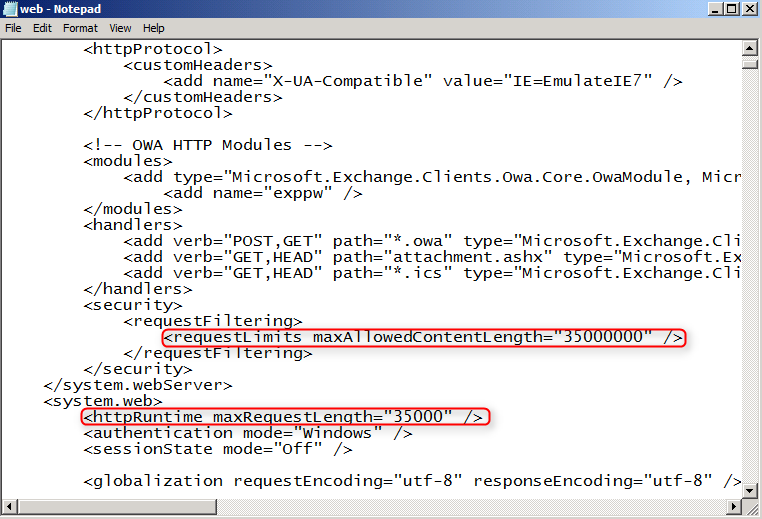
5. Search "requestLimits maxAllowedContentLength" and "httpRuntime maxRequestLength".


By default, the maximum attachement is about 35MB. I need to modify the value which is suitable for my environment.

6. Next to "requestLimits maxAllowedContentLength", change the value from "35000000" to "52428800".

Remark: The value is in byte(B).

7. Next to "httpRuntime maxRequestLength", change the value from "35000" to "51200".

Remark: The value is in Kilobyte(KB).


8. Save and exit the file.

Reference:
http://technet.microsoft.com/en-us/library/aa996835(EXCHG.80).aspx

This posting is provided “AS IS” with no warranties, and confers no rights!

Monday, November 7, 2011

Autodiscover failed (0x800C8203)

When you run "Test E-mail AutoConfiguration", you get the following result.

Autodiscover to https://<FQDN>/Autodiscover/Autodiscover.xml Failed (0x800C8203)


One of the reasons is the Outlook client cannot find the DNS record of Autodiscover service.

To solve this case, you need to create a DNS record for the Autodiscover service in the DNS server.


Another reason is the Client Certificates setting of Autodiscover in IIS doesn't select "Ignore".


After updating the above settings, the Autodiscover of the Outlook client resumes normal.


Reference:
0x800C8203 Autodiscover 
http://clintboessen.blogspot.com/2010/04/0x800c8203-autodiscover.html

This posting is provided “AS IS” with no warranties, and confers no rights!

Wednesday, October 26, 2011

How to suppress the AutoDiscover redirect warning in Outlook 2007/2010/2013

After setting up the SRV record for Autodiscover service, launching Outlook 2010 or Outlook 2013, users may get the following warning.

Allow this website to configure user@domain server settings?

http://<autodiscover url>

Your account was redirected to this website for settings.
You should only allow settings from sources you know and trust.


To solve this problem, an administrator needs to add a registry setting for users.

I will use Group Policy Preferences to deploy the registry setting for users.

1. At DC01, log in as Domain Administrator.
2. Launch "Group Policy Management Console".
3. Right-click the GPO which is assigned to the users using Outlook 2010,  select "Edit".


4. Expand "User Configuration > Preferences > Windows Settings > Registry".
5. Right-click "Registry", select "New > Registry Item".
6. Next to "Action", select "Update".
7. Next to "Hive", select "HKEY_CURRENT_USER".
8. Next to "Key Path", type "Software\Microsoft\Office\14.0\Outlook\Autodiscover\RedirectServers".
9. Next to "Value name", type "<HTTPS server to which Autodiscover can be redirected>".

Remark: The Key path is 14.0 for Outlook 2010 and 15.0 for Outlook 2013.

Example:
imail.contoso.com

10. Next to "Value type", select "Reg_SZ".


11. Click "OK".
12. Close "Group Policy Management Editor" and "Group Policy Management Console".

After assigned the GPO, launching Outlook 2010, users don't get the warning.

Remark: If your environment is more than 1 Autodiscover record, you have to add each one.

Reference:
How to suppress the AutoDiscover redirect warning in Outlook 2010 and Outlook 2013

You cannot suppress the Autodiscover redirect warning in Outlook 2007
http://support.microsoft.com/kb/956528

This posting is provided "AS IS" with no warranties, and confers no rights!

Sunday, September 4, 2011

Speed up Exchange Management Shell and Exchange Management Console in lab environment

If there is no internet connection in your lab environment, the "Exchange Management Shell" and "Exchange Management Console" of Exchange 2010 start-up are very slow.

To solve this scenario, we can change the following settings.

For Exchange 2010 (No-Internet access)
1. At the Exchange Server, launch "Internet Explorer".
2. On the menu, click "Tools > Internet Options".
3. Select "Advanced" tab.
4. Un-check "Check for publisher's certificate revocation".


5. Click "OK".
6. Close "Internet Explorer".
7. Right-click "Exchange Management Shell" in the "Start" menu, select "Properties".
8. Next to "Target".


9. Replace "-auto" by the CAS FQDN name.


10. Click "OK".
11. Launch "Exchange Management Console".
12. Right-click "Microsoft Exchange On-Premises (<Server Name>)", select "Properties".
13. Select "Specify a server to connect to ", click "Browse" to select a CAS Server.


14. Click "OK".


For Exchange 2007 (No-Internet access)
1. You just un-check "Check for publisher's certificate revocation" in Internet Explorer.


At Internet connection environment, you can change the following settings to speed up "Exchange Management Shell" and "Exchange Management Console".

For Exchange 2010 (Internet access)
1. Launch "Registry Editor".
2. Navigate to "HKLM\SOFTEWARE\Microsoft\Cryptography\OID\EncodingType 0\CertDllCreateCertificateChainEngine\Config".
3. At right pane, create the following "Reg_DWORD".

ChainUrlRetrievalTimeoutMilliseconds
This registry setting defines the default timeout for a single CRL retrieval. If this value is set to 0 or if this value is undefined, the default value that is used is 15,000 milliseconds.

Decreasing the amount of time to allow CRL retrieval can significantly improve performance when internet access is poor or non-existent. Setting the value to 200 (milliseconds) may be a reasonable timeout.

ChainRevAccumulativeUrlRetrievalTimeoutMilliseconds
This registry setting defines the cumulative timeout for all CRL retrievals. If this value is set to 0 or if this value is undefined, the default value that is used is 20,000 milliseconds.

Decreasing the amount of time to allow all CRL retrievals can significantly improve performance when internet access is poor or non-existent. Setting the value to 500 (milliseconds) may be a reasonable timeout.

4. Modify the value of "ChainUrlRetrievalTimeoutMilliseconds" to 200 decimal.
5. Modify the value of "ChainRevAccumulativeUrlRetrievalTimeoutMilliseconds" to 500 decimal.


6. Close "Registry Editor".
7. Right-click "Exchange Management Shell" in the "Start" menu, select "Properties".
8. Next to "Target".


9. Replace "-auto" by the CAS FQDN name.


10. Click "OK".
11. Launch "Exchange Management Console".
12. Right-click "Microsoft Exchange On-Premises (<Server Name>)", select "Properties".
13. Select "Specify a server to connect to ", click "Browse" to select a CAS Server.


14. Click "OK".


For Exchange 2007 (Internet access)

1. Repeat steps 1 - 6 in Exchange 2007 environment.


Reference:
Speed up EMC and Powershell when working on a LAB

Configuring Exchange Servers without Internet Access
http://blogs.technet.com/b/exchange/archive/2010/05/14/3409948.aspx

This posting is provided “AS IS” with no warranties, and confers no rights!

Thursday, July 7, 2011

Exchange 2010 Remote Management Shell

Remote Shell in Microsoft Exchange Server 2010 enables you to manage your server running Exchange 2010 from a remote computer, either on your network or from the Internet. A User must be enabled for remote shell before the user can user it.

Prerequisites
Install Windows Management Framework: Windows Management Framework contains Windows PowerShell and WinRM.

Join your computer to a Windows domain: If you want to user your current network credentials, the domain you're joined to must be trusted by the domain where the Exchange server resides. Your domain doesn't need to be trusted if you manually specify credentials that are valid in the remote domain.

Open TCP port 80: TCP port 80 must be open between your computer and the remote Exchange 2010 server, and the port must be allowed through Windows Firewall on the Exchange 2010 server.

Use the Shell to enable remote shell for a user
To enable remote shell for a user, you need to enable the feature by Exchange PowerShell.

1. At Exchange Server, log in as Domain Administrator.
2. Launch "Exchange Management Shell".
3. Enter the following cmdlet to enable remote shell for a user:

Set-User <User Name> -RemotePowerShellEnabled $True


Remark: By default, all users are enabled remote shell.

Modify the Execution Policy
1. At a domain workstation, log in as Domain Administrator.
2. Launch "Windows PowerShell".
3. Enter the following cmdlet to check the Execution Policy of Windows PowerShell:

Get-ExecutionPolicy


By default, the Execution Policy of Windows PowerShell is "Restricted".

4. Enter the following cmdlet to modify Execution Policy to "RemoteSigned".

Set-ExecutionPolicy RemoteSigned


Using current credential connents to a remote Exchange 2010 server
1. At PowerShell, enter the following cmdlet to open the connection:

$Session = New-PSSession -ConfigurationName Microsoft.Exchange -ConnectionUri http://<fqdn of Exchange 2010 server>/PowerShell. -Authentication Kerberos


Remark: The "ConnectionUri" also supports https address, but the server must be installed the certificate which is assigned by trusted certification authority.

2. Enter the following cmdlet to import the server-side PowerShell session:

Import-PSSession $Session


Now, you can perform Exchange cmdlets in this PowerShell session.


Remark: If the Execution Policy doesn't change to "RemoteSigned", when you perform "Import-PSSession $Session", you will get the following error.


3. To disconnect the remote session, enter the following cmdlet:

Remove-PSSession $Session


Using the other user credential connents to a remote Exchange 2010 server
1. At PowerShell, enter the following cmdlet to insert user credential:

$UserCredential = Get-Credential


2. Enter the domain user name and password.


3. Click "OK".
4. Enter the following cmdlet to open the connection:
$Session = New-PSSession -ConfigurationName Microsoft.Exchange -ConnectionUri http://<fqdn of Exchange 2010 server>/PowerShell. -Authentication Kerberos -Credential $UserCredential


5. Enter the following cmdlet to import the server-side PowerShell session:

Import-PSSession $Session

References
Connect Remote Exchange Management Shell to an Exchange Server

Troubleshooting the Exchange Management Shell

Enable Remote Exchange Management Shell for a User

Disconnect Remote Exchange Management Shell from an Exchange Server
http://technet.microsoft.com/en-us/library/dd335206.aspx

This posting is provided “AS IS” with no warranties, and confers no rights!